Regenerate Chatbot Prompts Using AI
Update your store information and refresh AI prompts anytime
ReComAI allows you to regenerate chatbot prompts using your latest store information. This ensures your chatbot always responds accurately based on updated categories, keywords, and store summary.
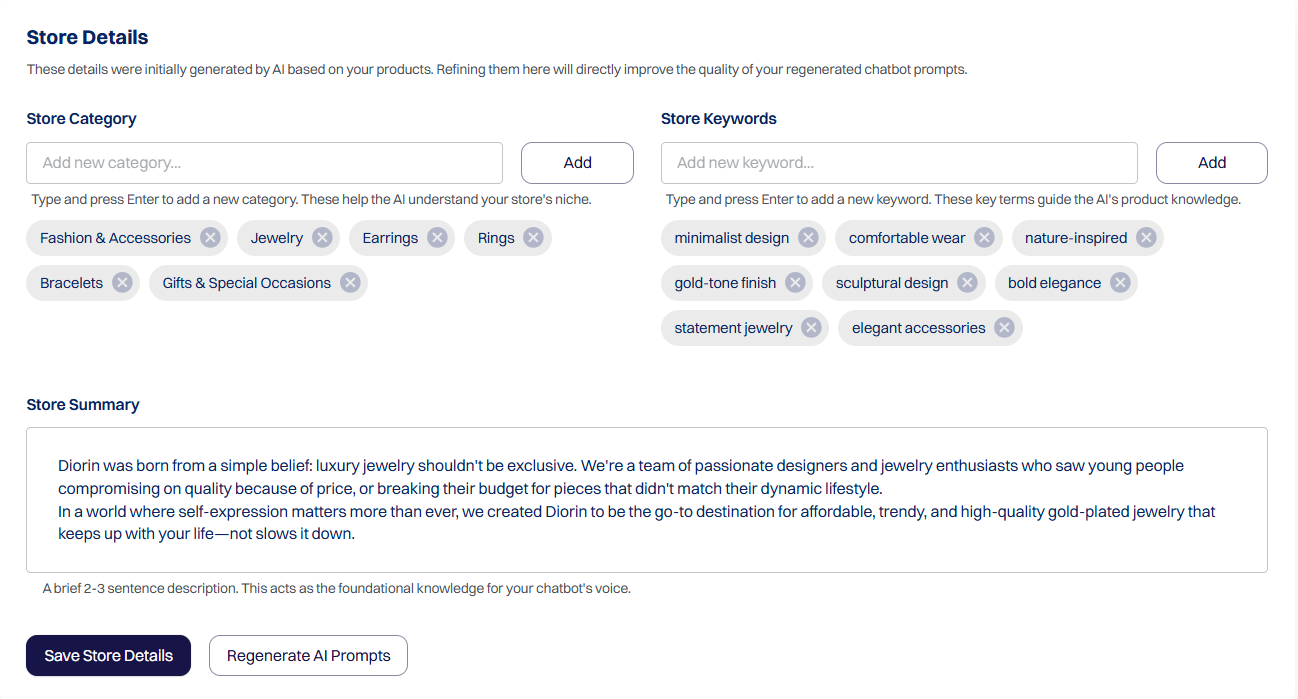
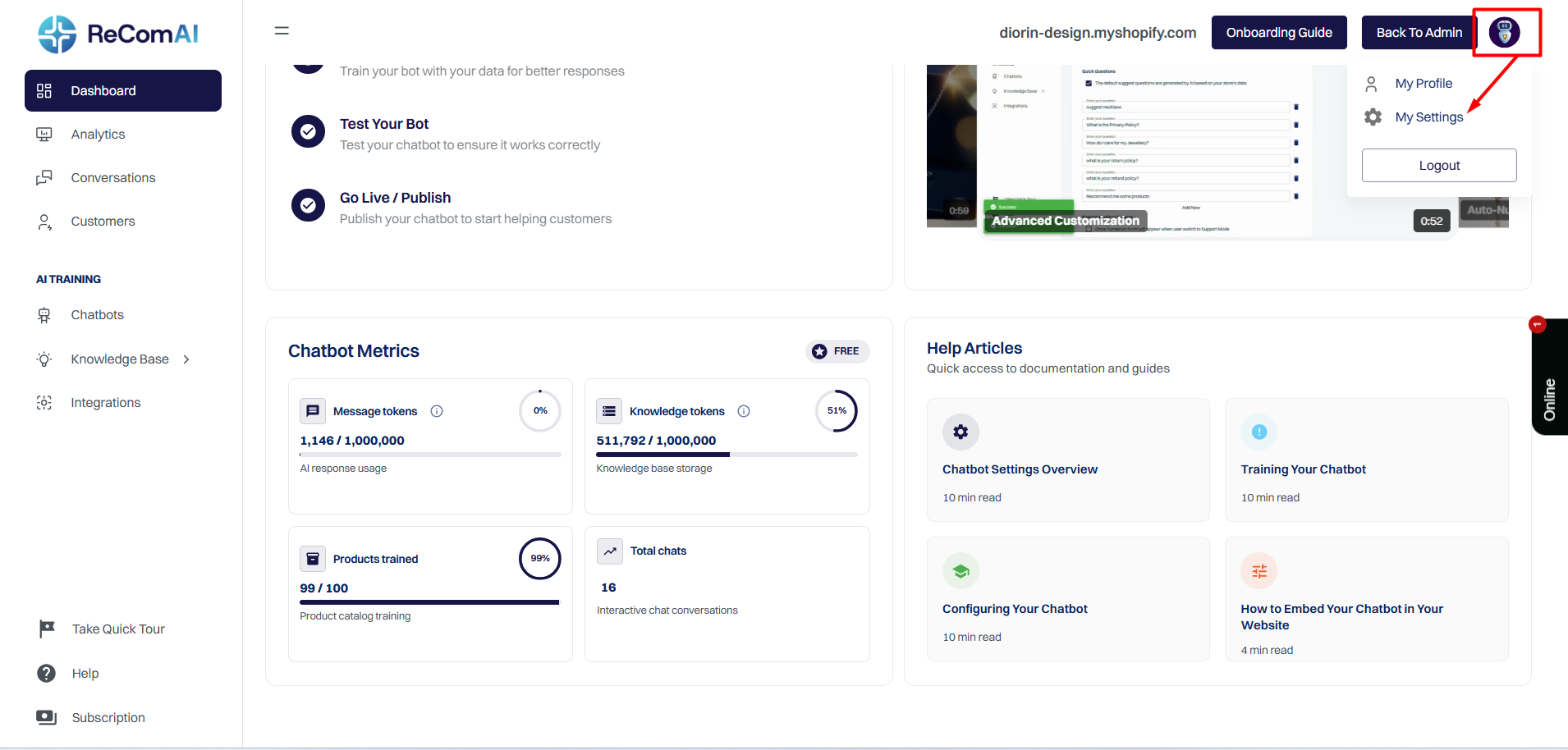
Where to Find Store Details#
Follow these steps to access and update your store information:
This section is created during onboarding and can be updated anytime.
Store Category#
Store Category defines the main type of products your store sells.
It helps the AI understand your store's niche and product focus.
Examples:
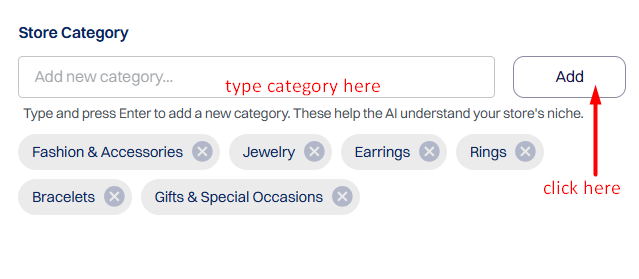
How to Add or Update Store Category#
Store Category is managed directly from the input box, similar to Store Keywords.
Steps
Expected Behavior#
Validation Rules#
Store Summary#
What is Store Summary?
Store Summary is a short description (2 - 3 sentences) of your store.

It acts as the foundation for your chatbot's tone and understanding.
How Store Summary Works#
Example Store Summary#
"This store specializes in educational toys and creative play products for children. It offers safe, non-toxic, and age-appropriate items that support imagination and learning."
Best Practices#
Store Keywords#
What Are Store Keywords?#
Store Keywords are important product-related terms.
They guide the AI's product knowledge and chatbot responses.
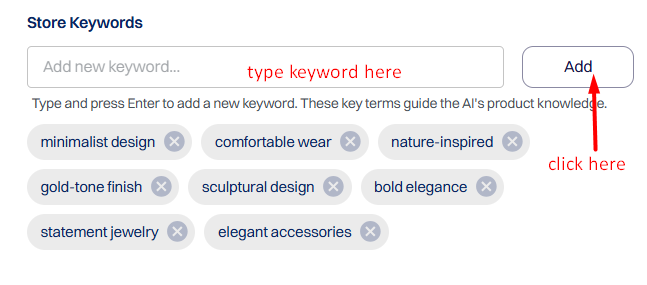
How Keywords Are Displayed#
Keywords are shown as tags/chips
Each keyword can be removed individually
How to Add Store Keywords#
Examples#
Keyword Validation Rules#
Regenerate Prompt#
What Does Regenerate Prompt Do?#
The Regenerate Prompt button recreates all AI prompts using the latest:
This ensures your chatbot always uses the most updated store information.
When Should You Regenerate Prompts?#
How to Regenerate Prompts#

What Happens After Regeneration?#
No partial or old prompt data remains.
Regeneration Status & Feedback#
Successful Regeneration#
"Prompts regenerated successfully."

Regeneration Failure#
If the AI service fails or times out:
Data Persistence#
Important Notes#
Need Help?#
If you face any issues while updating store details or regenerating prompts, please contact ReComAI Support from your dashboard.