Proactive Chat - Complete Setup Guide
Step-by-step guide to configure Welcome Messages, AI Nudges, and Custom Recommendations
What is Proactive Chat?
Proactive Chat allows you to automatically show messages and product suggestions to visitors on your store. These messages help you engage users and guide them during their browsing journey.
This article explains all AI Popup-related features and how they help your chatbot interact better with users.
You can use Proactive Chat to:
Welcome visitors when they land on your website
Suggest relevant products automatically
Promote selected products with direct actions
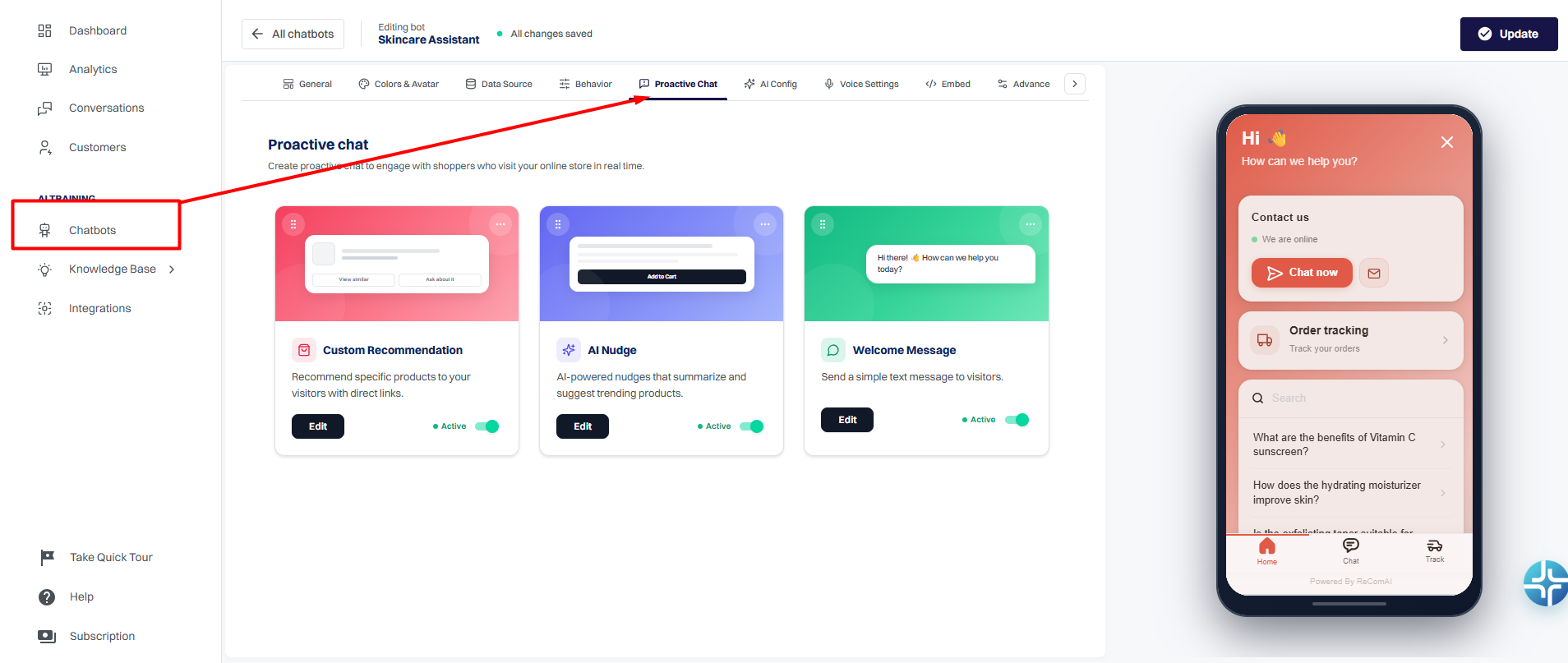
There are three types of proactive messages:
Welcome Message
AI Nudge
Custom Recommendation
Where to find it
Navigate to Chatbots → Select your chatbot → Proactive Chat

How it works
Proactive Chat works based on trigger conditions. A popup appears when the defined condition is met.
Available trigger options:
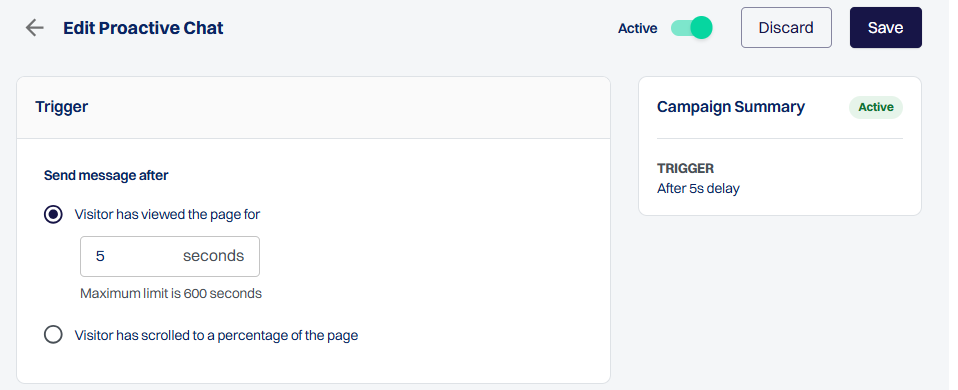
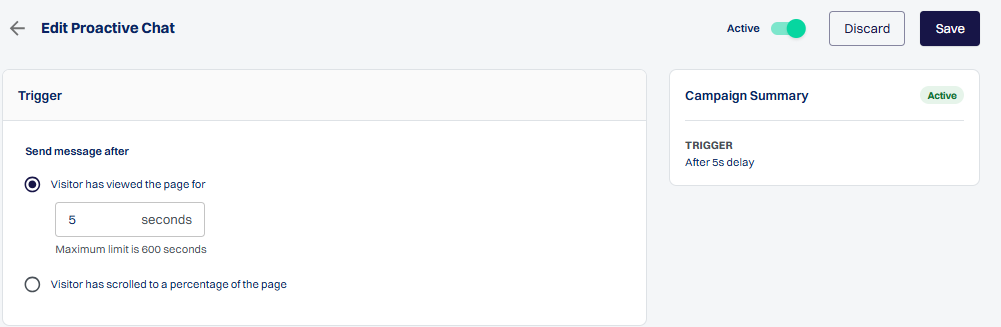
Time delay - shows the popup after a set number of seconds
Scroll percentage - shows the popup when the user scrolls to a specific percentage of the page
Additional behavior:
Only one popup is shown at a time
Popups follow the priority order set by the user
AI Nudge and Custom Recommendation work only on product pages
Welcome Message
Description
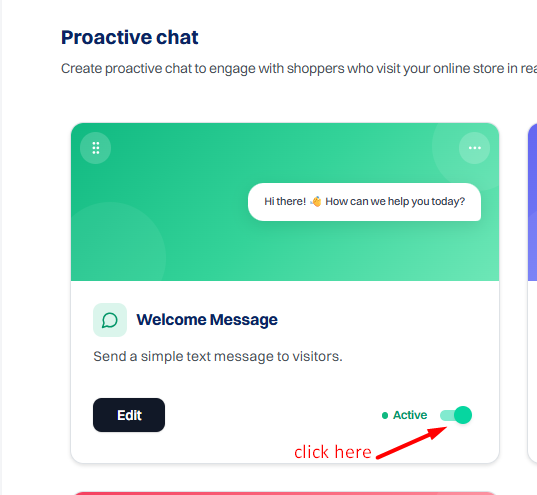
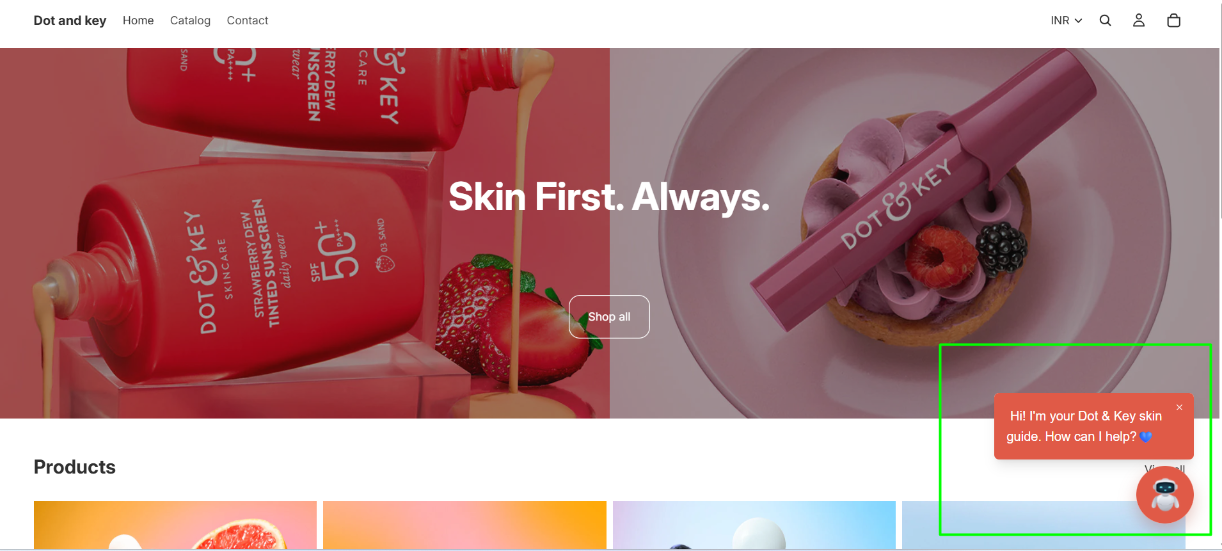
Displays a simple greeting message near the chatbot icon.
How to use
Enable the toggle on the Welcome Message card
Click Edit to customize

Configuration options
Set time delay or scroll trigger

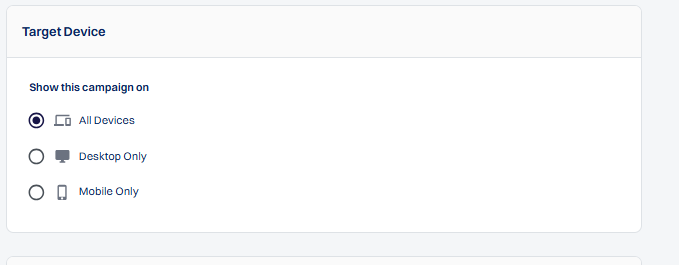
Target Device
Choose where the popup should appear.
Available options:
All Devices - Displays the popup on both desktop and mobile devices.
Desktop Only - Displays the popup only for desktop visitors.
Mobile Only - Displays the popup only for mobile visitors.
This allows you to control which users see each proactive campaign based on their device.

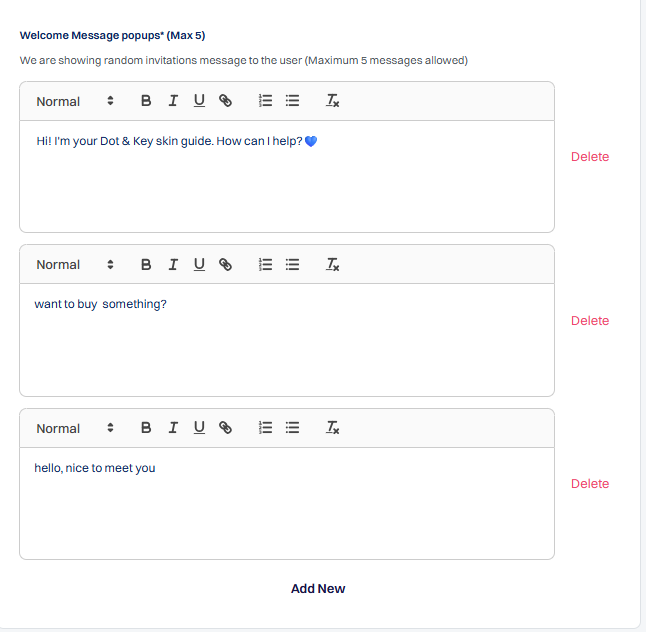
Add message text
Add multiple messages (maximum 5)
Click Save

Behavior
Messages appear one by one
Used to start a conversation with visitors

AI Nudge
Description
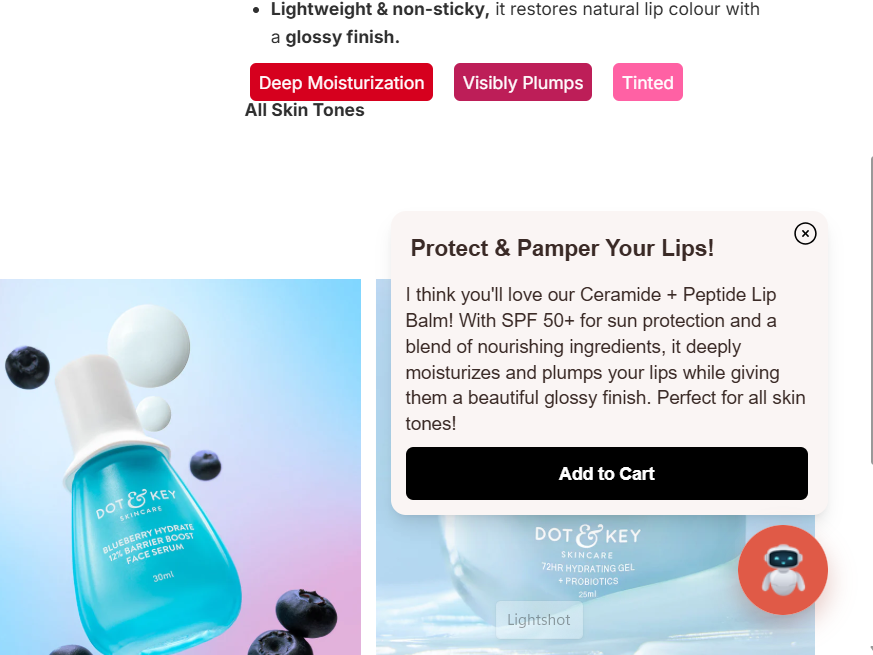
Shows product suggestions based on the product the user is viewing.
How to use
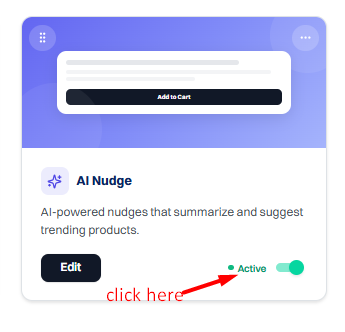
Enable the toggle on the AI Nudge card
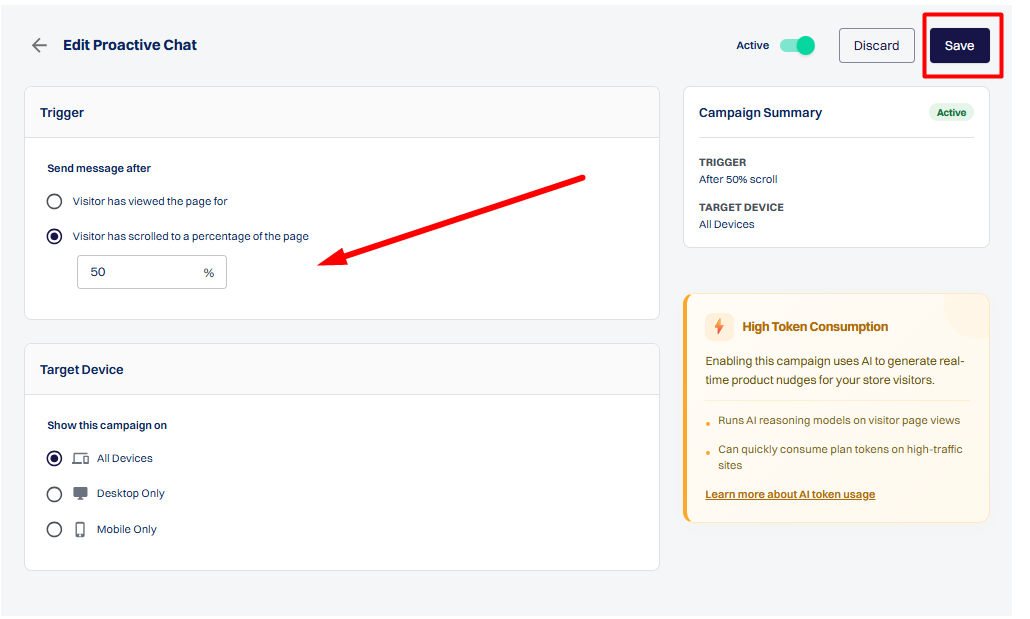
Click Edit to configure triggers

Configuration options
Time delay (0 to 600 seconds)
Scroll percentage
Click Save

Target Device
Choose where the popup should appear.
Available options:
All Devices - Displays the popup on both desktop and mobile devices.
Desktop Only - Displays the popup only for desktop visitors.
Mobile Only - Displays the popup only for mobile visitors.
This allows you to control which users see each proactive campaign based on their device.

Behavior
Popup appears automatically when conditions are met
Suggestions are generated based on the current product

Note: AI Nudge generates product recommendations in real time. When you enable this feature, make sure it may consume a high number of AI tokens, especially on stores with high traffic.

Custom Recommendation
Description
Allows you to show selected products to visitors with direct action options.
How to use
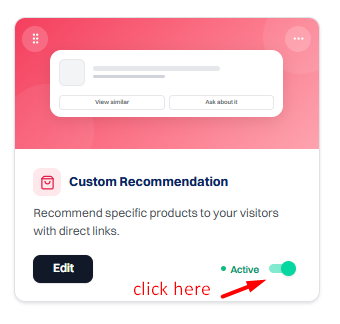
Enable the toggle on the Custom Recommendation card
Click Edit to configure

Configuration options
Set time delay or scroll trigger

Target Device
Choose where the popup should appear.
Available options:
All Devices - Displays the popup on both desktop and mobile devices.
Desktop Only - Displays the popup only for desktop visitors.
Mobile Only - Displays the popup only for mobile visitors.
This allows you to control which users see each proactive campaign based on their device.

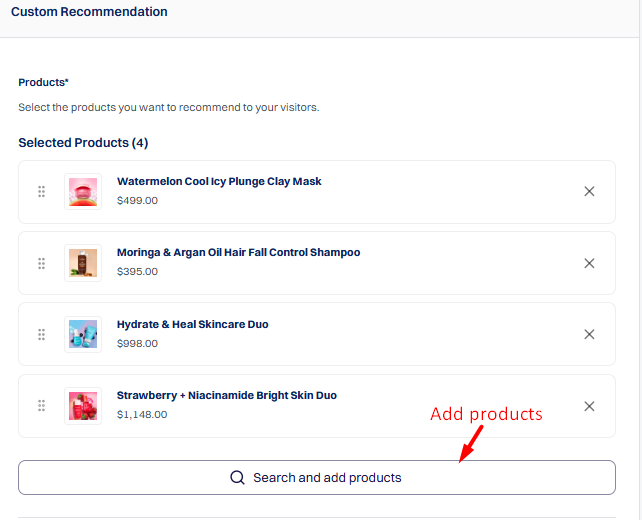
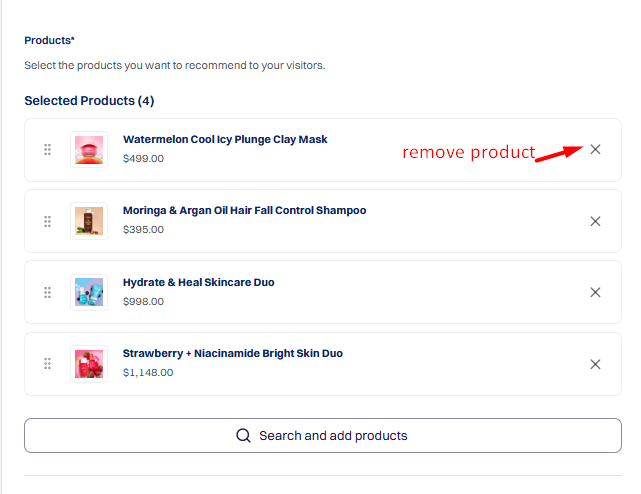
Select products using "Search and add products"

Add or remove products anytime

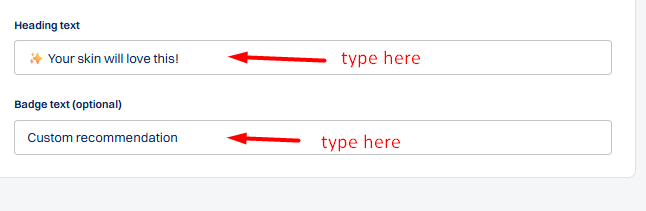
Customize heading text
Customize badge text (optional)
Click Save

Behavior
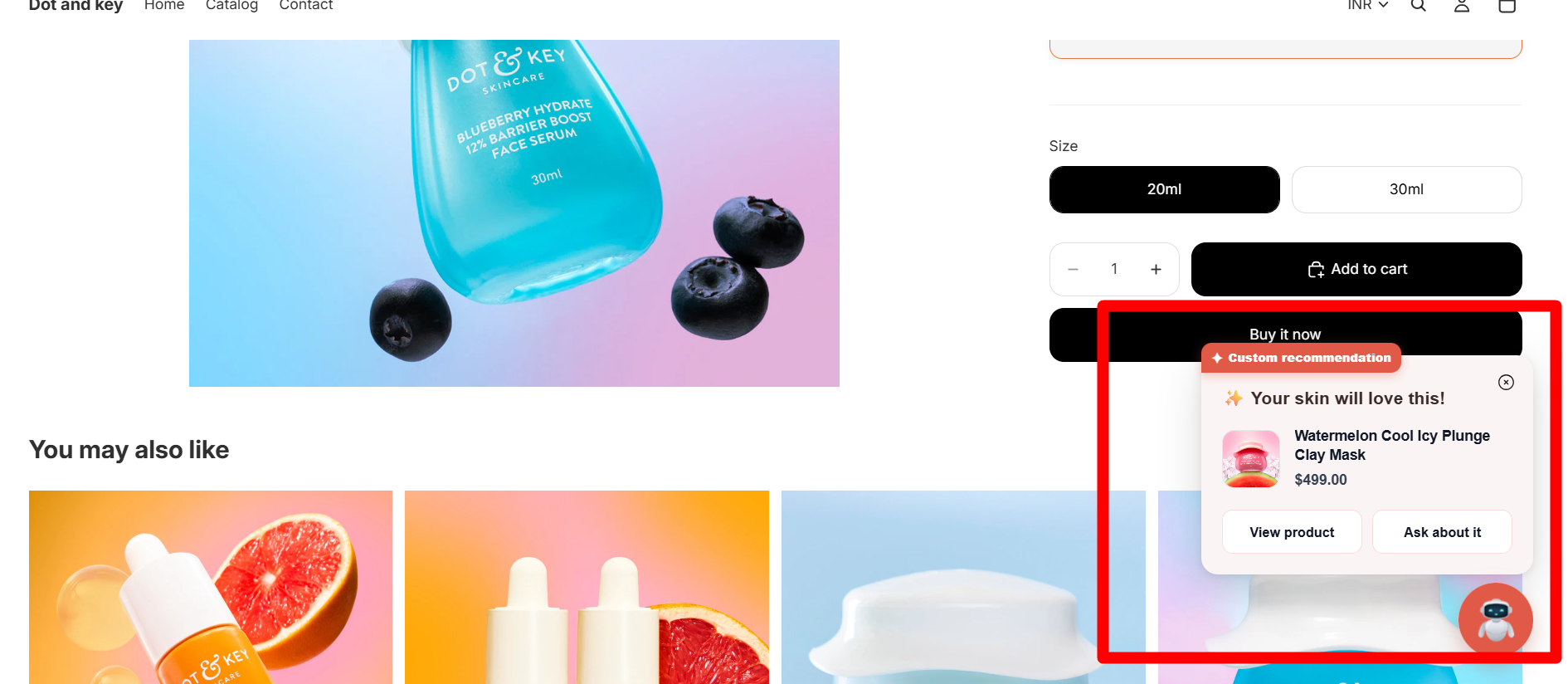
One product is shown at a time
If multiple products are added, different products may appear on different page visits
When the user clicks "View Product", they are redirected to that product's page
When the user clicks "Ask about it", a message is automatically sent in the chatbot, and the bot provides information about that product

Note: This feature works only on product pages.
Priority settings
You can control which popup appears first.
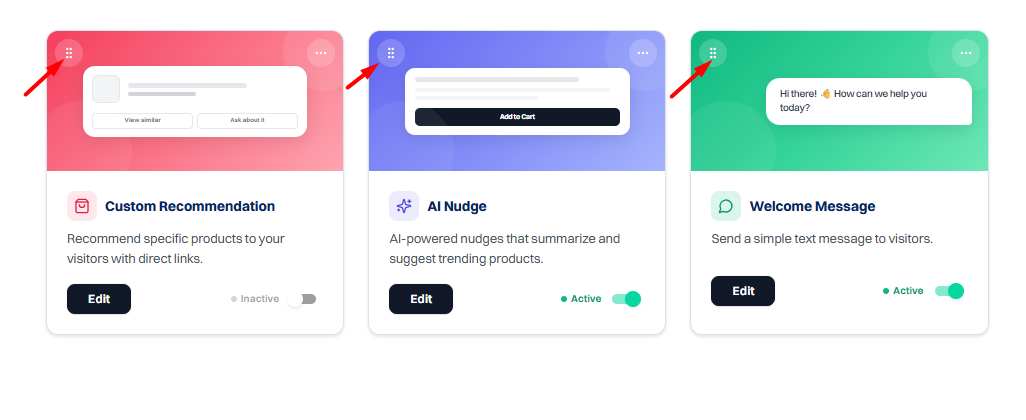
Drag and drop cards using the icon on the left side
The top card has the highest priority

Important notes
Only one popup is displayed at a time
Changes apply only after clicking Save
AI Nudge and Custom Recommendation are limited to product pages
Limits
Maximum 5 messages in Welcome Message
Time delay range: 0 to 600 seconds