Install ReComAI on Shopify
The complete guide to setting up ReComAI on your Shopify store via Plugin or JavaScript.
ReComAI is an AI-powered chatbot and product recommendation app that helps Shopify stores increase sales by understanding customer conversations and suggesting the right products in real time.
Install ReComAI via Shopify Plugin#
The easiest and most recommended way to install ReComAI on your Shopify store is by using our official app available on the Shopify App Store.
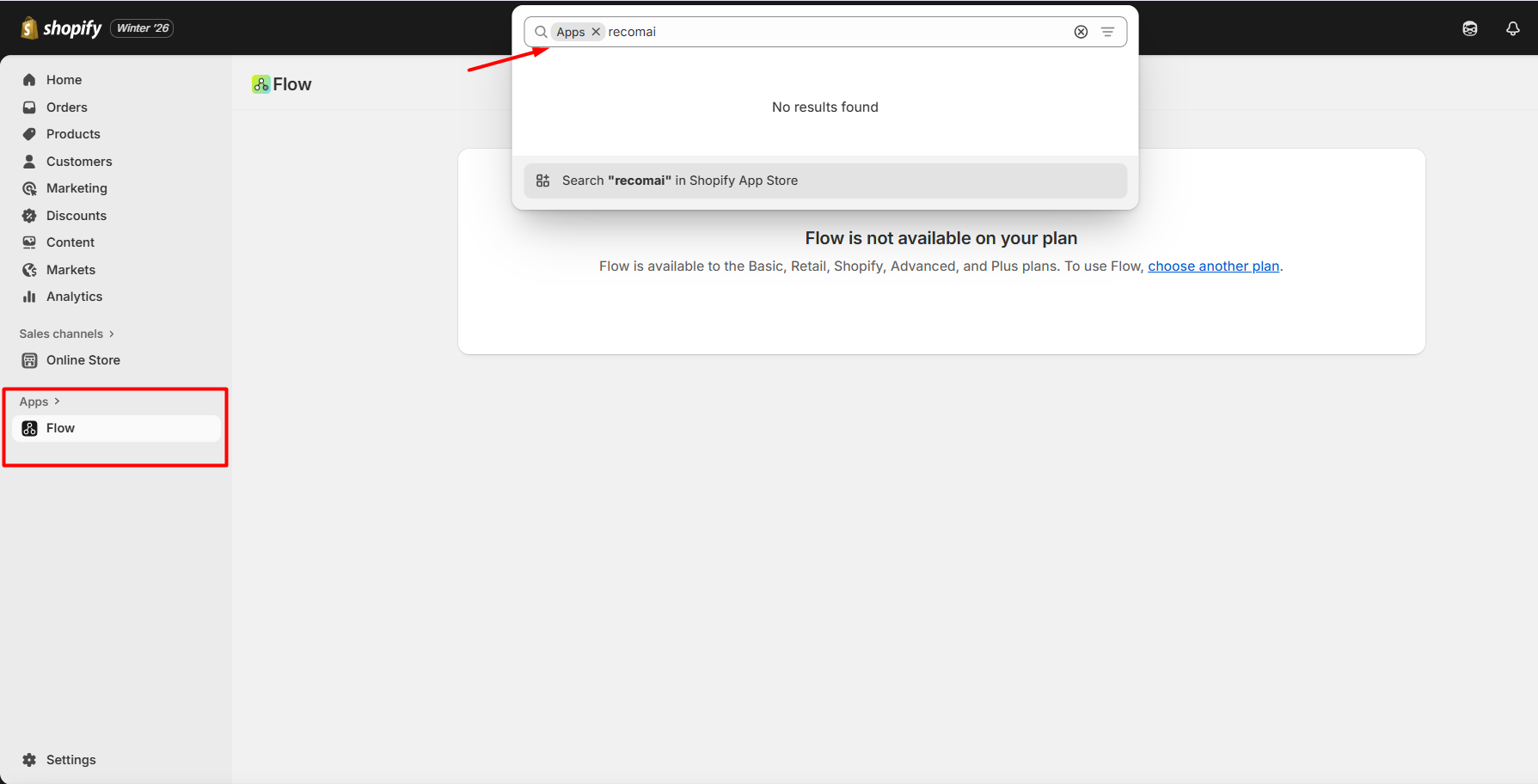
To install ReComAI on Shopify, log in to your Shopify admin account and choose the store where you want to add ReComAI.
Then, open the Apps section and search for ReComAI in the Shopify App Store. Once you find the app, click Install and follow the on-screen instructions to complete the setup.
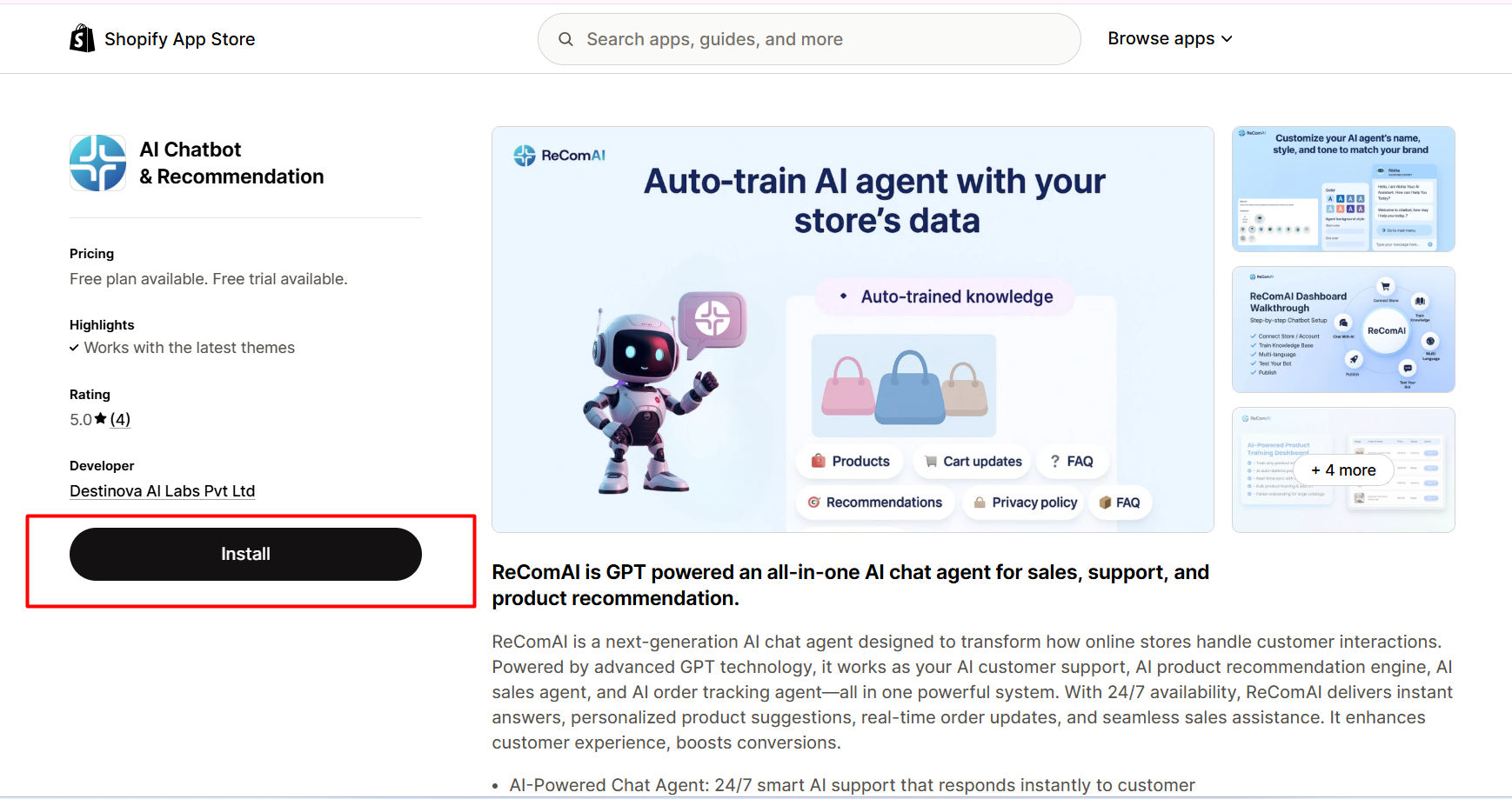
Select ReComAI - AI Chatbot & Recommendation and click on the Install button to download ReComAI and add it to your Shopify store.
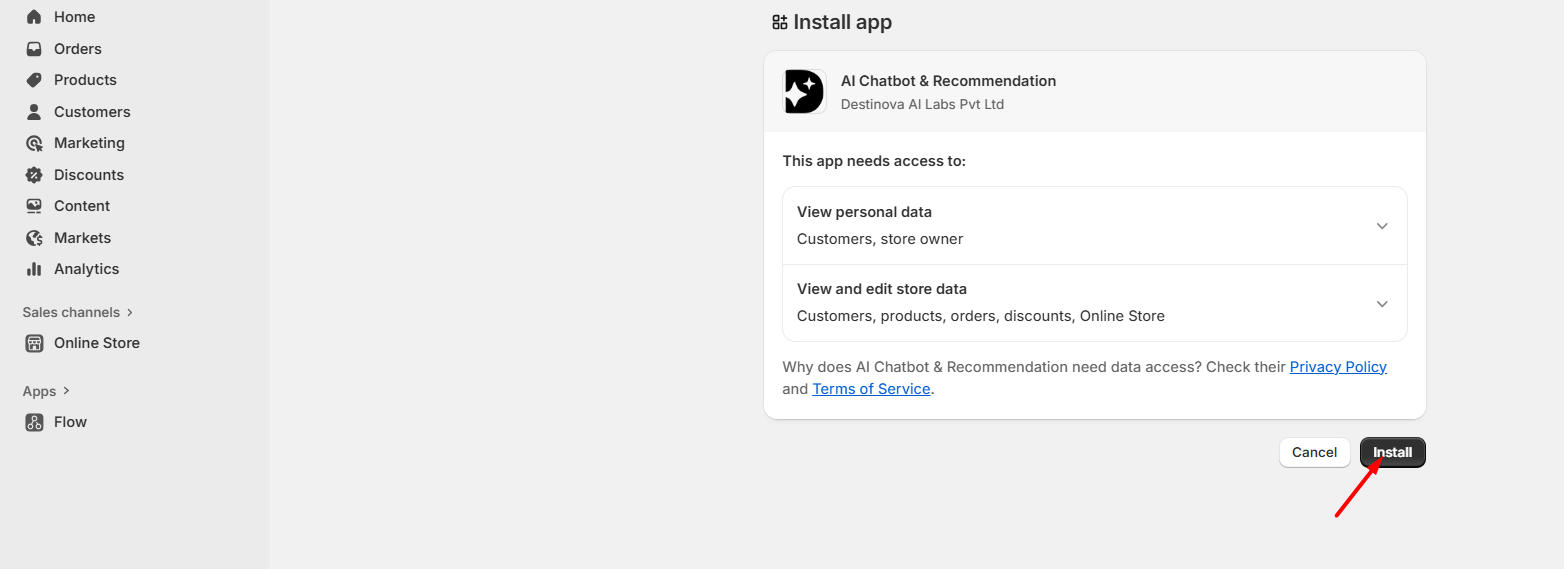
Click the Install button on the next screen. You will be redirected to the ReComAI dashboard, where you can complete onboarding and customize your AI chatbot according to your store's needs.
All set. ReComAI is installed on your Shopify store 🎉
Once the app installation is complete, you will be automatically redirected to the ReComAI dashboard, where you can finish setting up your AI chatbot and product recommendation engine.
The next steps will help you customize ReComAI according to your store and business needs.
Customize Your Chatbot Automatically#
During onboarding, ReComAI now makes chatbot setup even easier and faster.
Instead of manually selecting your store category and entering product keywords, ReComAI automatically analyzes your store's products and collections to generate the most relevant categories and keywords for you.
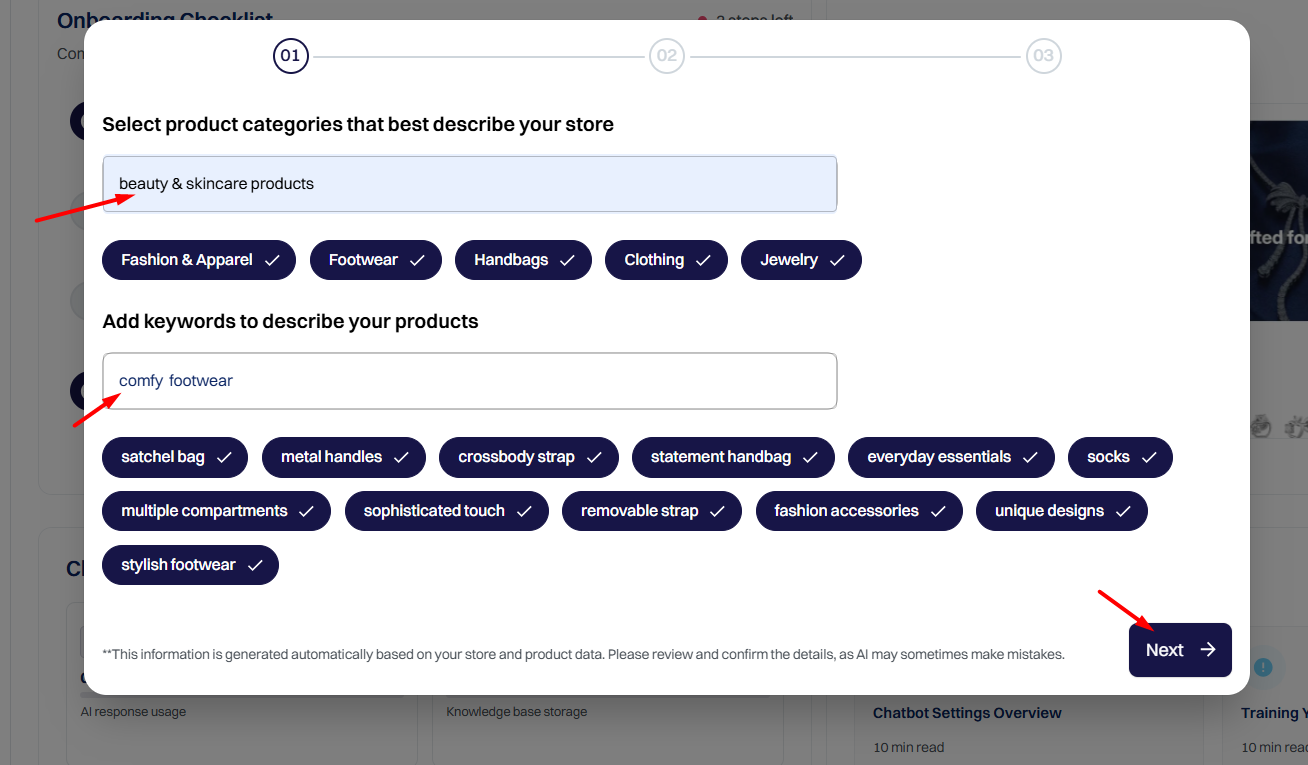
ReComAI fetches your store data and suggests product categories and keywords automatically.
You simply need to review and select the ones that best match your business.
If you want to add something custom, you can type directly into the input box and press Enter to add new keywords.
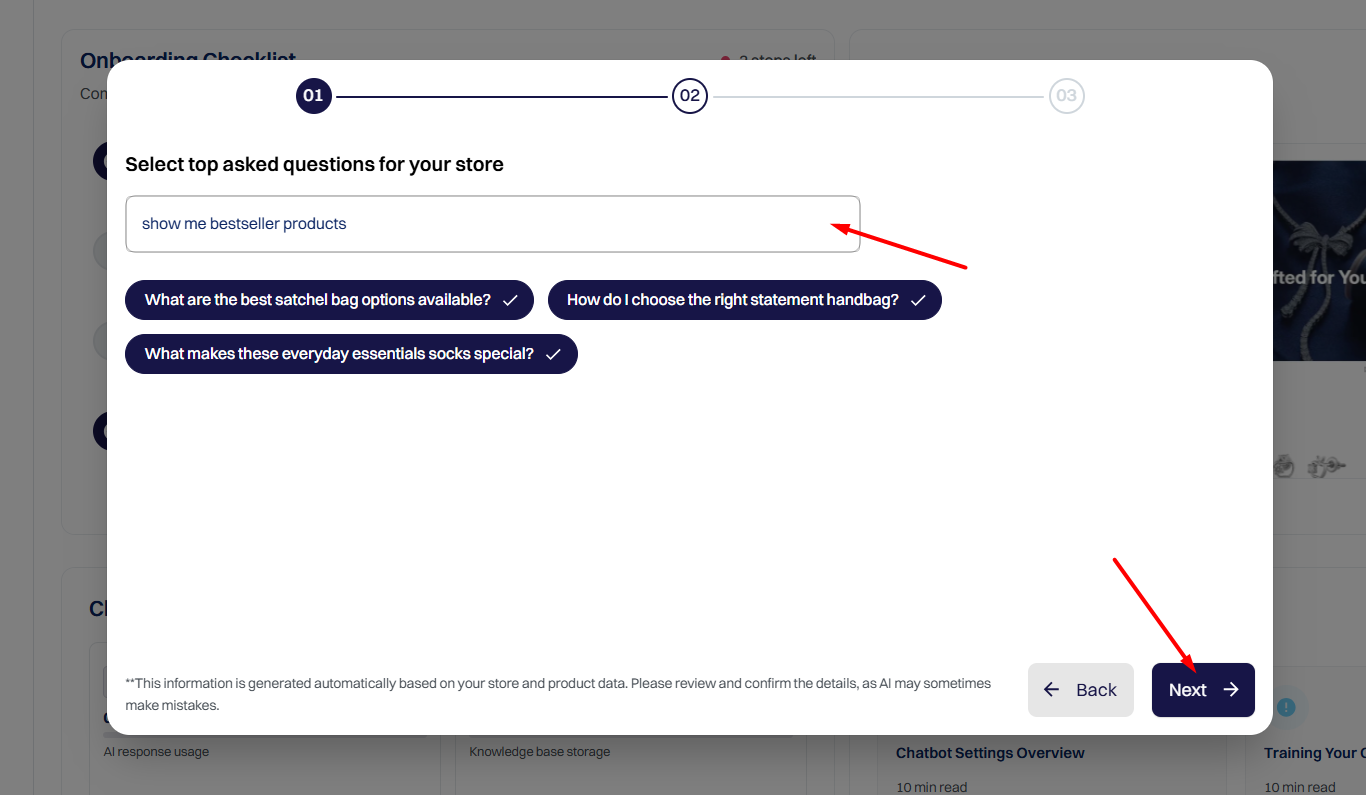
Once you click Next, ReComAI automatically generates a set of common customer questions based on your store and selected keywords.
You can also add your own important customer questions if needed.
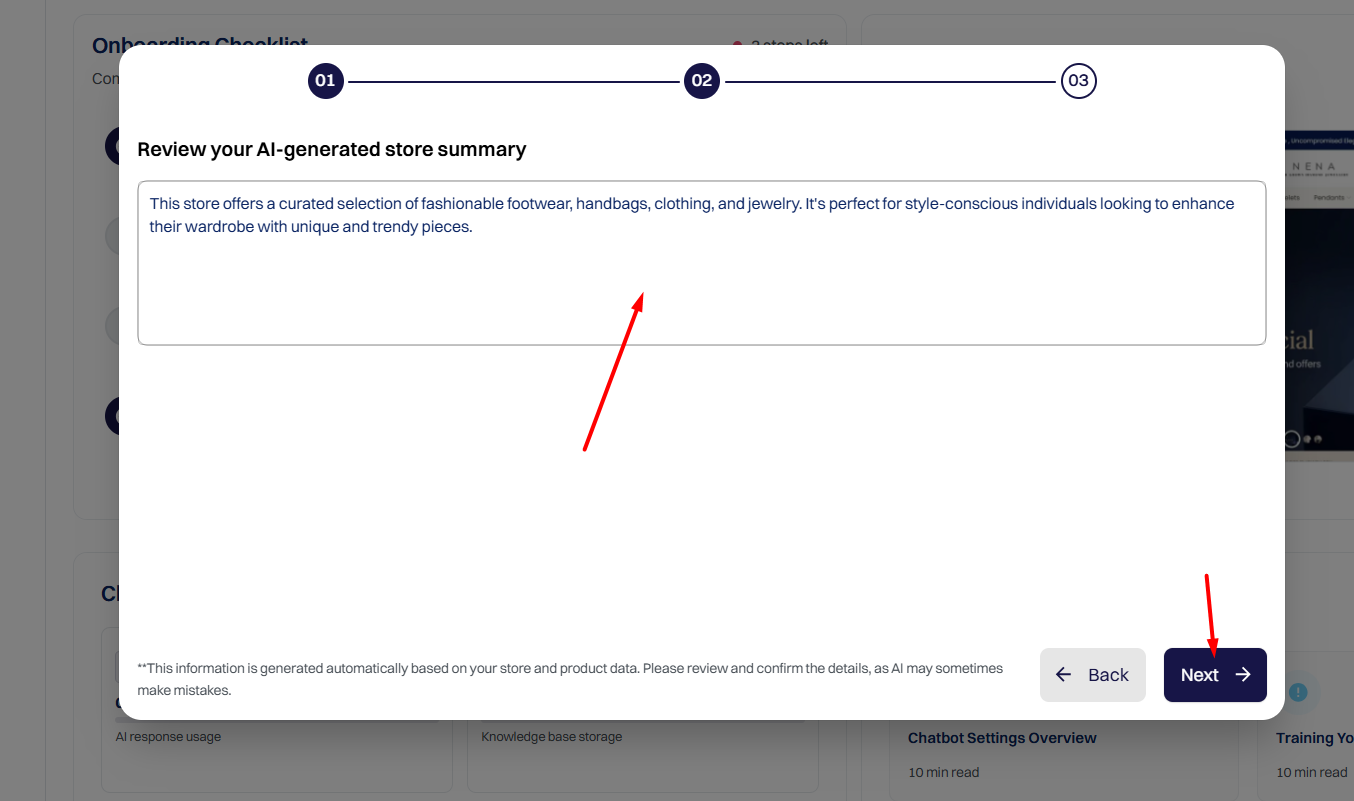
In the next step, ReComAI creates a complete chatbot prompt tailored to your store's products, tone, and customer needs.
You can edit or modify this prompt anytime, and your chatbot's responses will be generated based on this setup.
Make ReComAI Visible on Your Store#
Once your chatbot setup is complete, you'll see an Embed Now pop-up.
Click Embed Now and you will be automatically redirected to your Shopify Theme Editor.
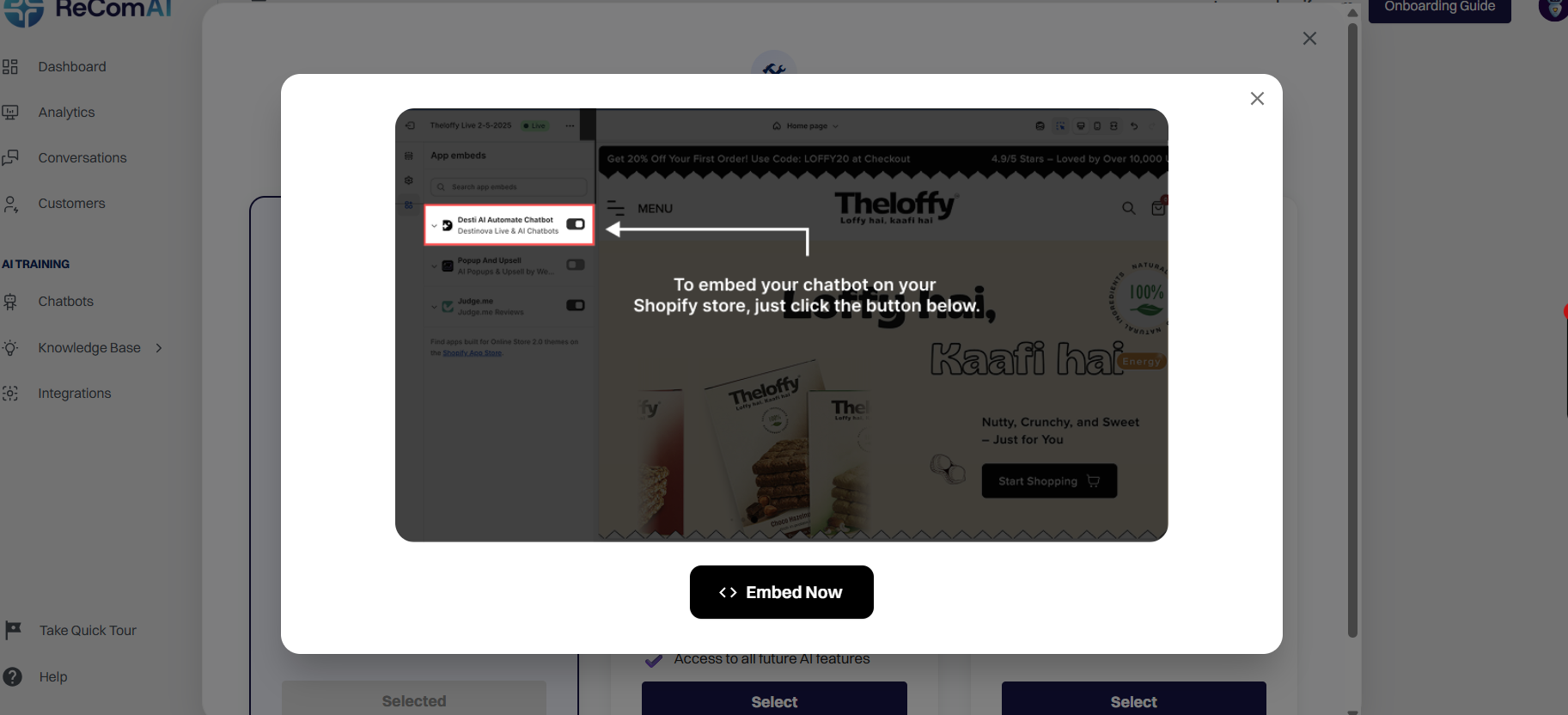
Locate AI Chatbot & Recommendation (ReComAI) in App embeds

To activate ReComAI on your store, turn ON the toggle for AI Chatbot & Recommendation (ReComAI) and save your changes.
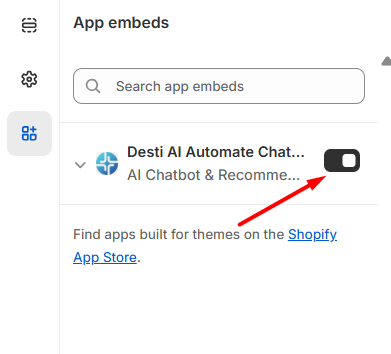
Your ReComAI chatbot will instantly appear on your live store and start assisting customers.

Choose a Pricing Plan#
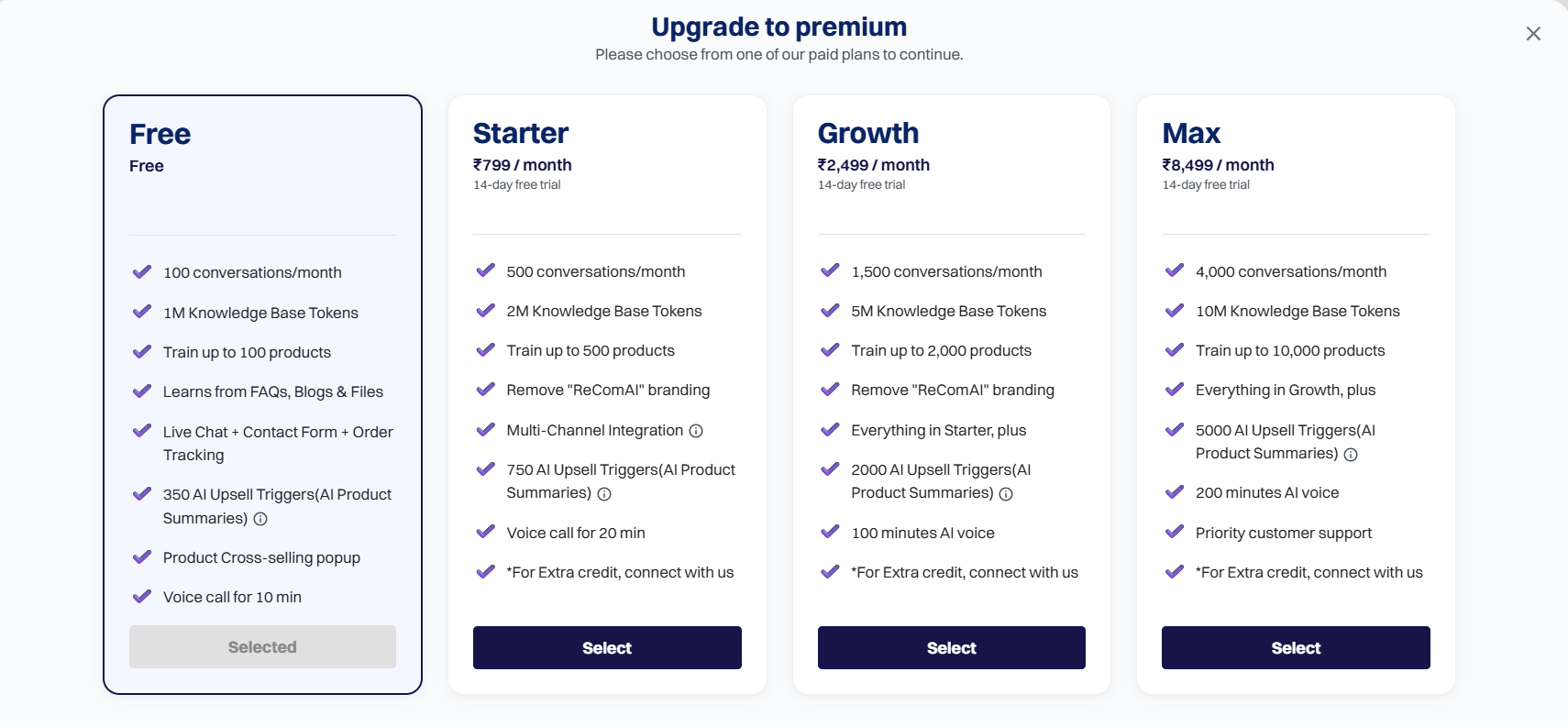
After redirection to the ReComAI dashboard, you'll be asked to select a pricing plan.
ReComAI offers multiple plans, including a Forever Free option and paid plans with advanced features such as higher product limits, more AI tokens, and additional integrations.
Select the plan that best fits your store's requirements to continue with onboarding.
Your setup is complete. You can now test your bot.

Alternative - Install ReComAI via JavaScript Code#
If you prefer to use ReComAI with an existing account, this option is perfect for you! All Shopify-specific recommendations, chat flows, and automations will continue to work seamlessly, while your billing will remain directly through ReComAI.
You can manually add your existing ReComAI project to your Shopify store by inserting the JavaScript code snippet. To do this, go to your ReComAI Dashboard → Chatbots → Embed
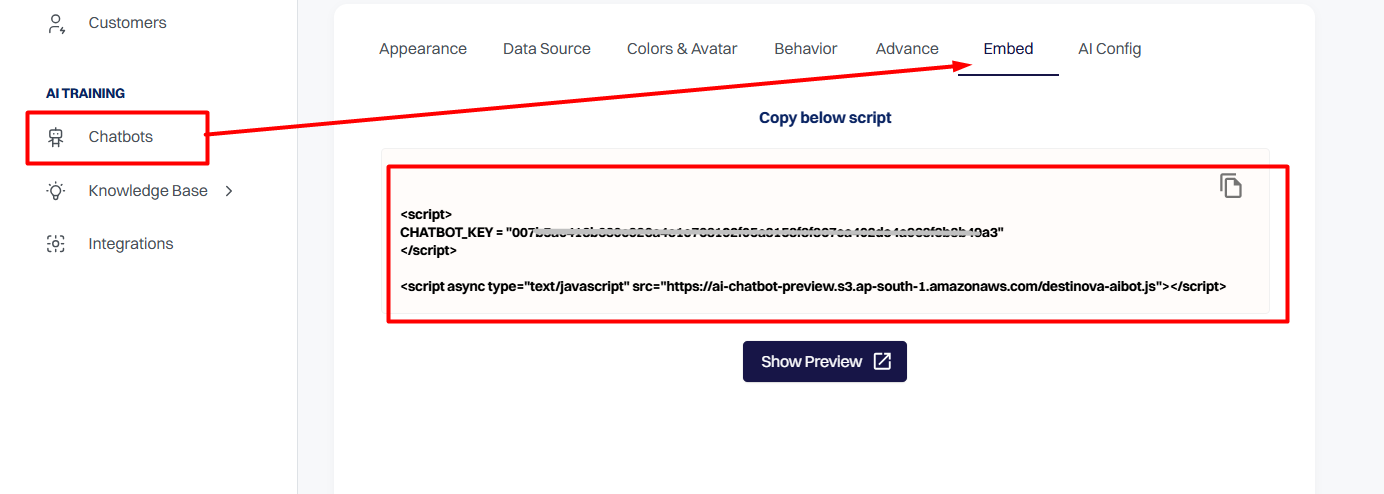
Copy the JavaScript code to your clipboard.
Then, return to your Shopify admin panel. Go to Online Store → Themes, and click on the Customize button for your active theme.
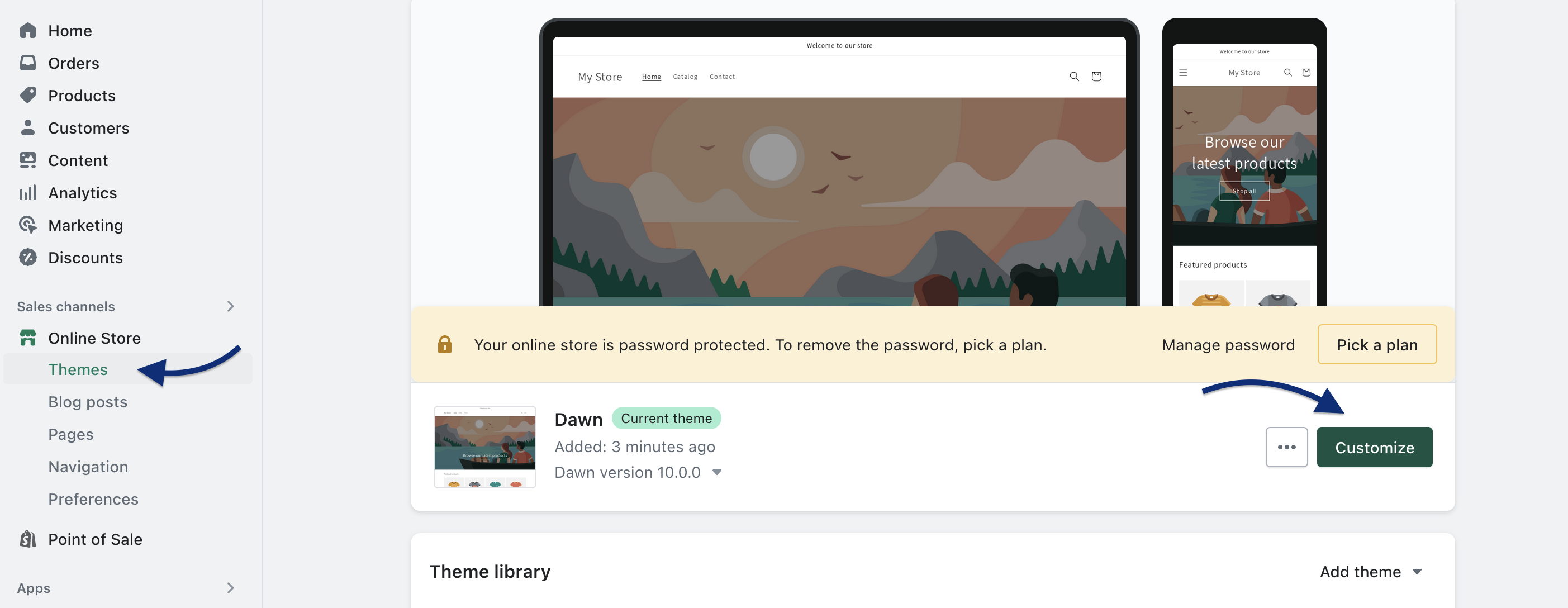
Click the three-dot menu beside your active theme's name. This will open the theme code editor in a new tab.
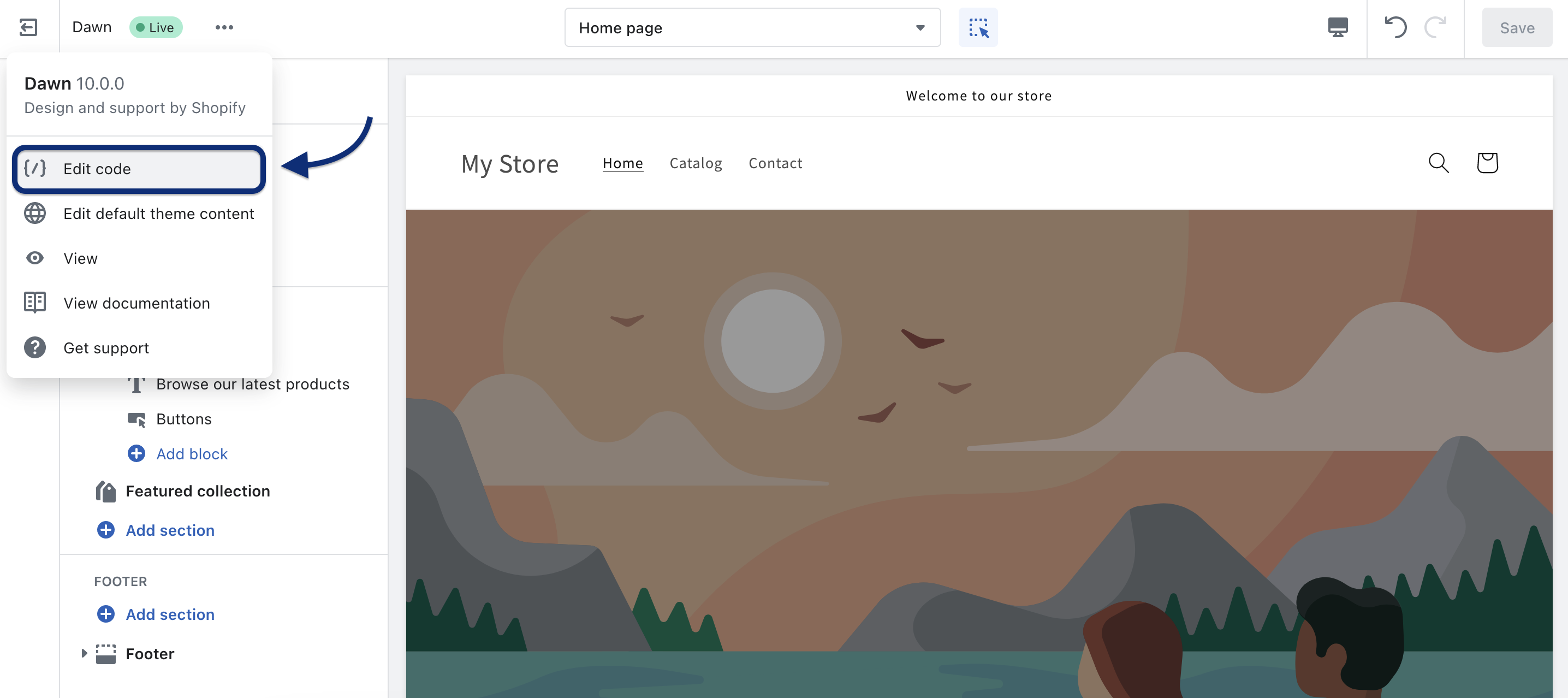
Open the theme.liquid file located in the Layout folder, and paste your ReComAI JavaScript code just before the closing </body> tag. The screenshot below can help you locate it.
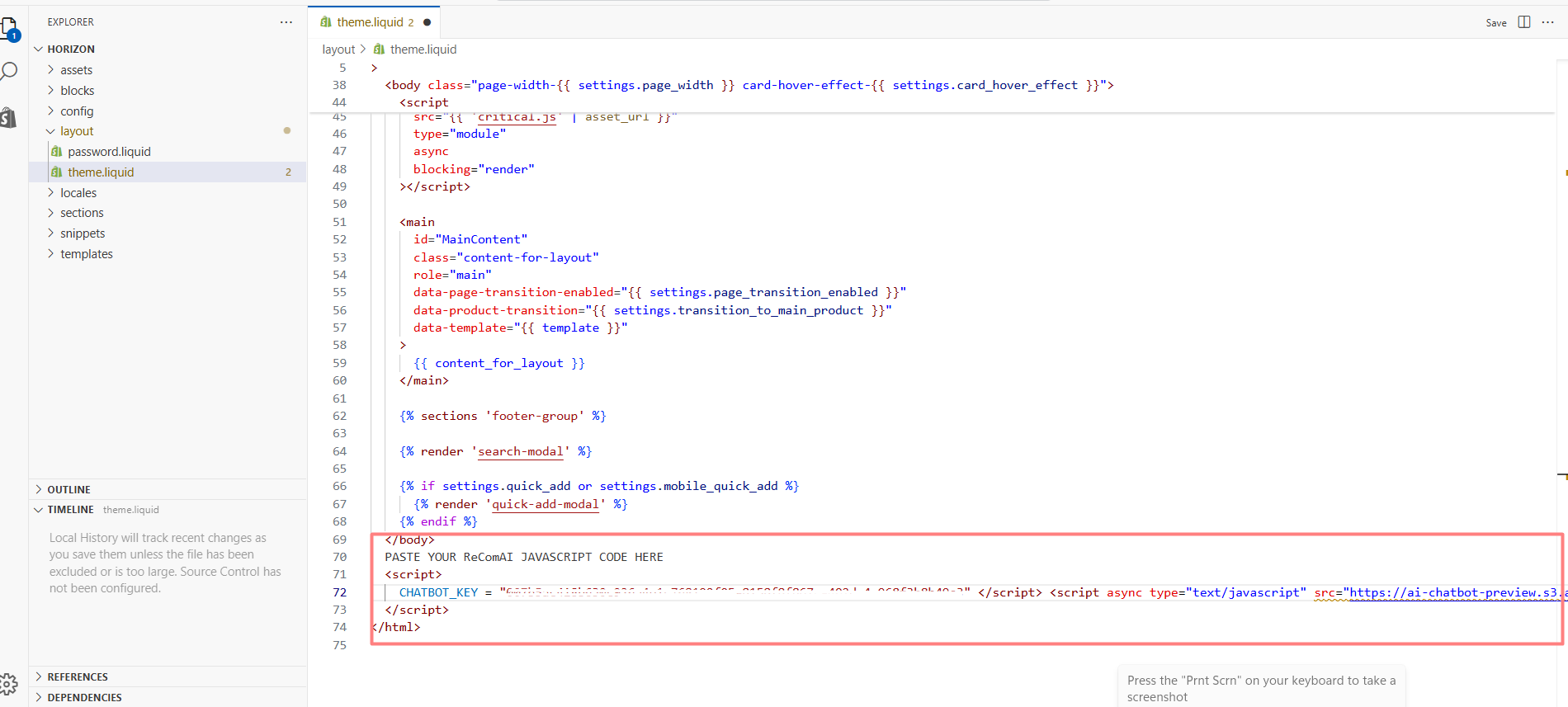
Please remember to Save the changes and refresh your website when you finish.
Your setup is complete. You can now test your bot.