How to Use Quick Menu in Chatbot (Advanced Settings Guide)
Create shortcut buttons using Custom Response or Redirect to Link options
The Quick Menu feature in ReComAI helps you improve the chatbot user experience by showing shortcut buttons inside the chat window. These buttons allow users to quickly access important actions, messages, or links without typing.
This guide explains how to enable Quick Menu and use its two available options: Custom Response and Redirect to Link.
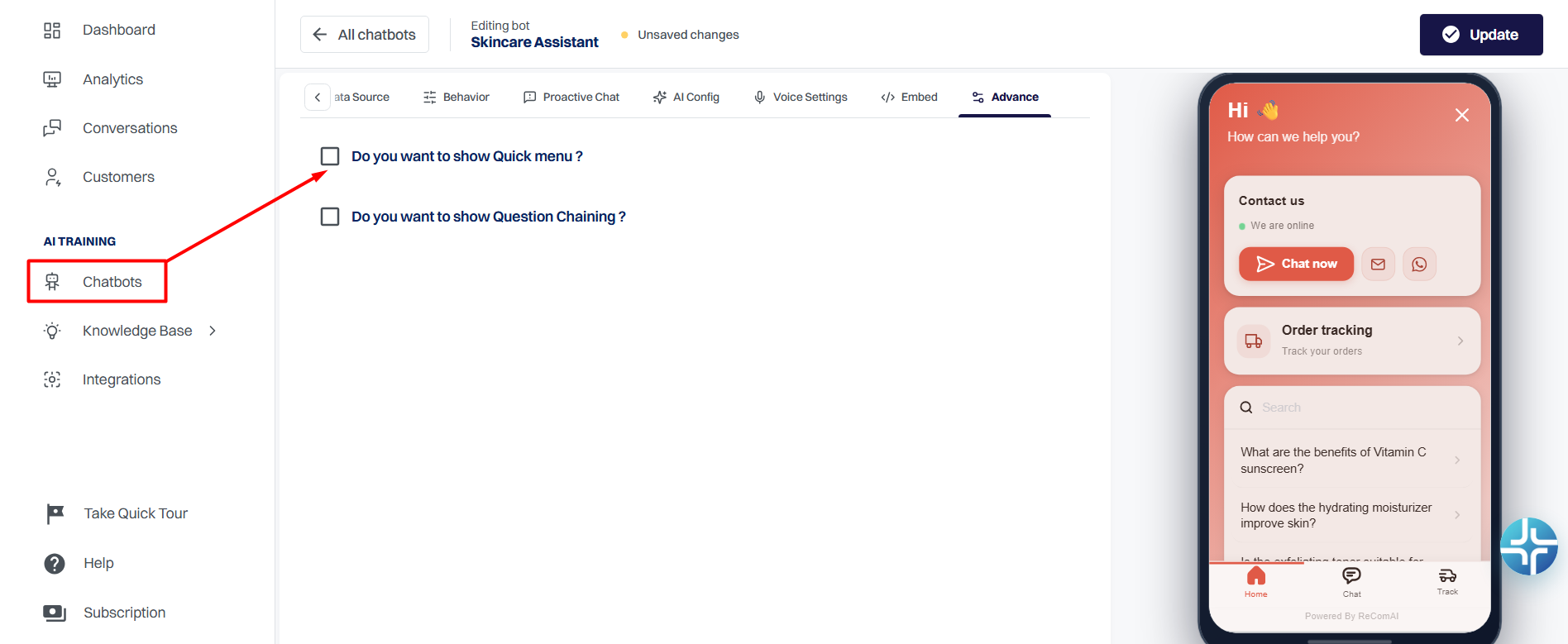
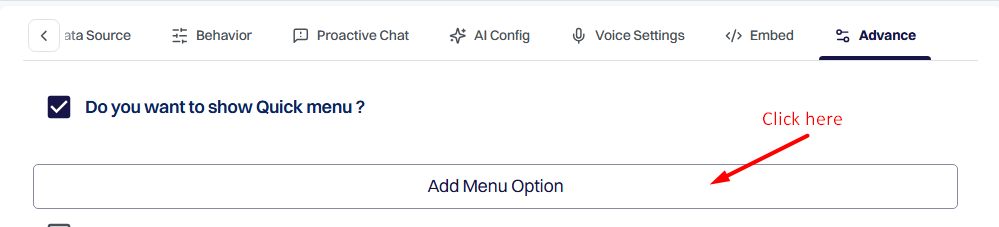
Click on Add Menu Option. You will see two types of menu options you can add.
Option 1: Custom Response#
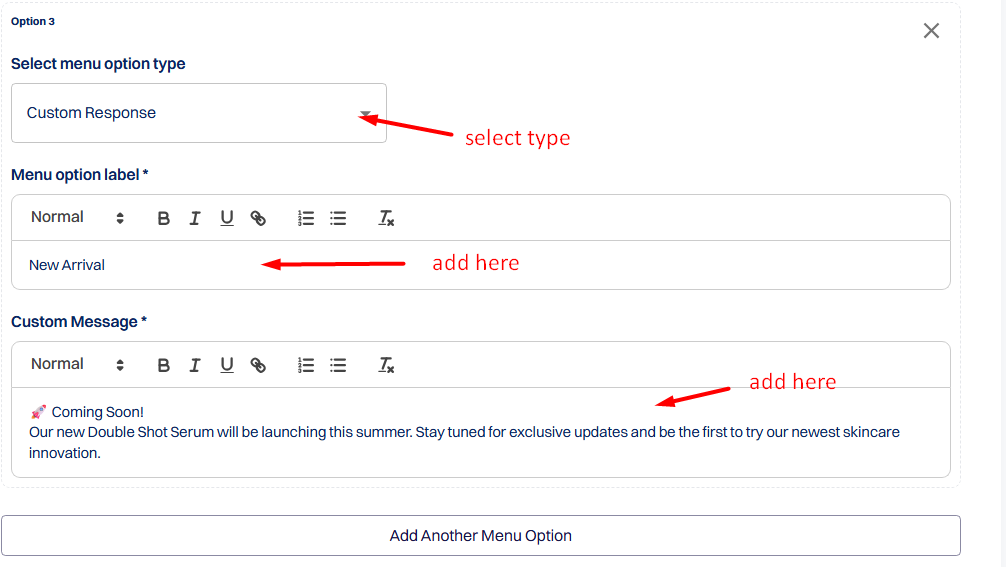
Use this option when you want the chatbot to reply with a predefined text message when the user clicks a button.
When to use:
Product suggestions, category introductions, or quick replies.
Fields to fill:
Example: 9kt gold necklace
Example: Great choice! Browse our elegant 9kt gold necklaces here
Result:
When the user clicks the button, the chatbot sends the custom message instantly.
Option 2: Redirect to Link#
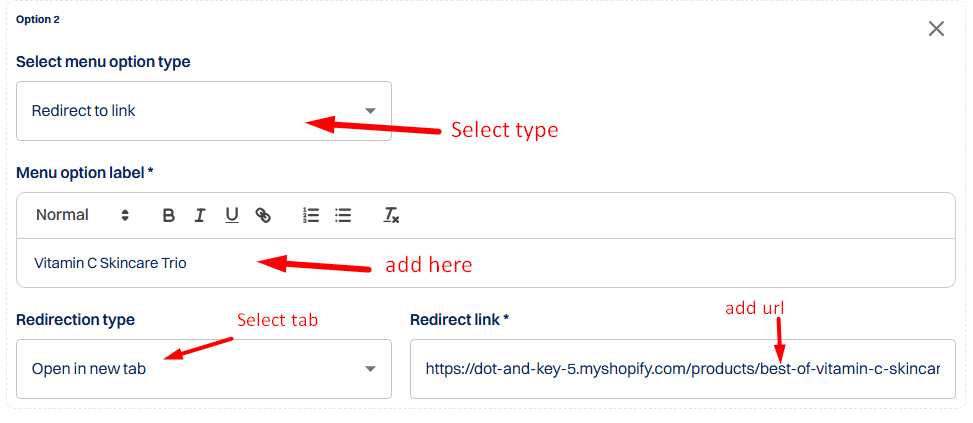
Use this option when you want to send users directly to a page, product, or collection.
When to use:
Best sellers, offers page, or product listings.
Fields to fill:
Example: show me bestseller
Result:
When the user clicks the button, they are redirected to the selected link.
Important: Save Your Changes#
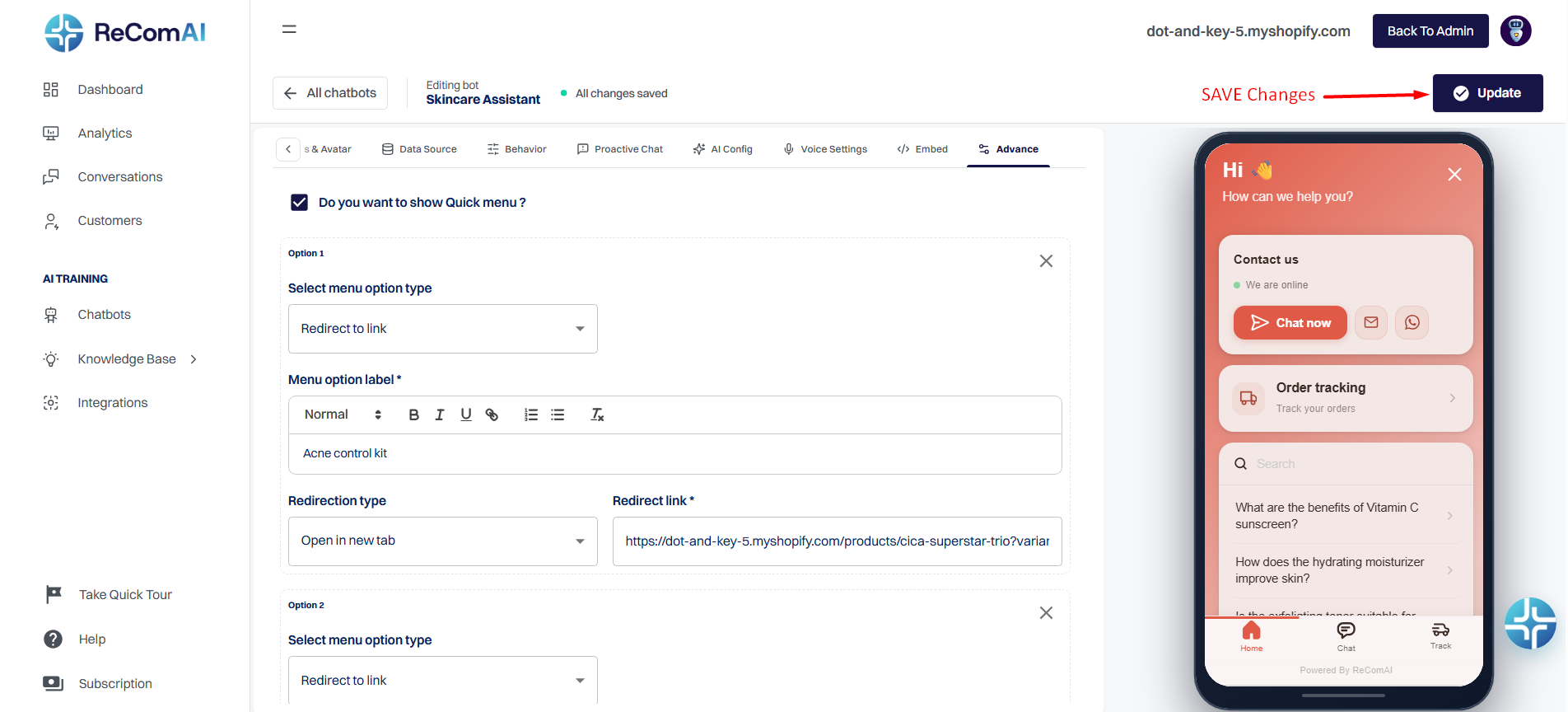
After adding or editing Quick Menu options, always click the "Update" button in the top-right corner.
Without clicking Update, your changes will not be applied to the chatbot.