How to Train Your AI Assistant with Custom Knowledge
Upload and manage custom data to make your ReComAI chatbot smarter and more relevant
In ReComAI, you can easily train your AI assistant using different knowledge sources like FAQs, website links, or custom documents.
This helps your chatbot respond more accurately and contextually to user queries based on your brand and data.
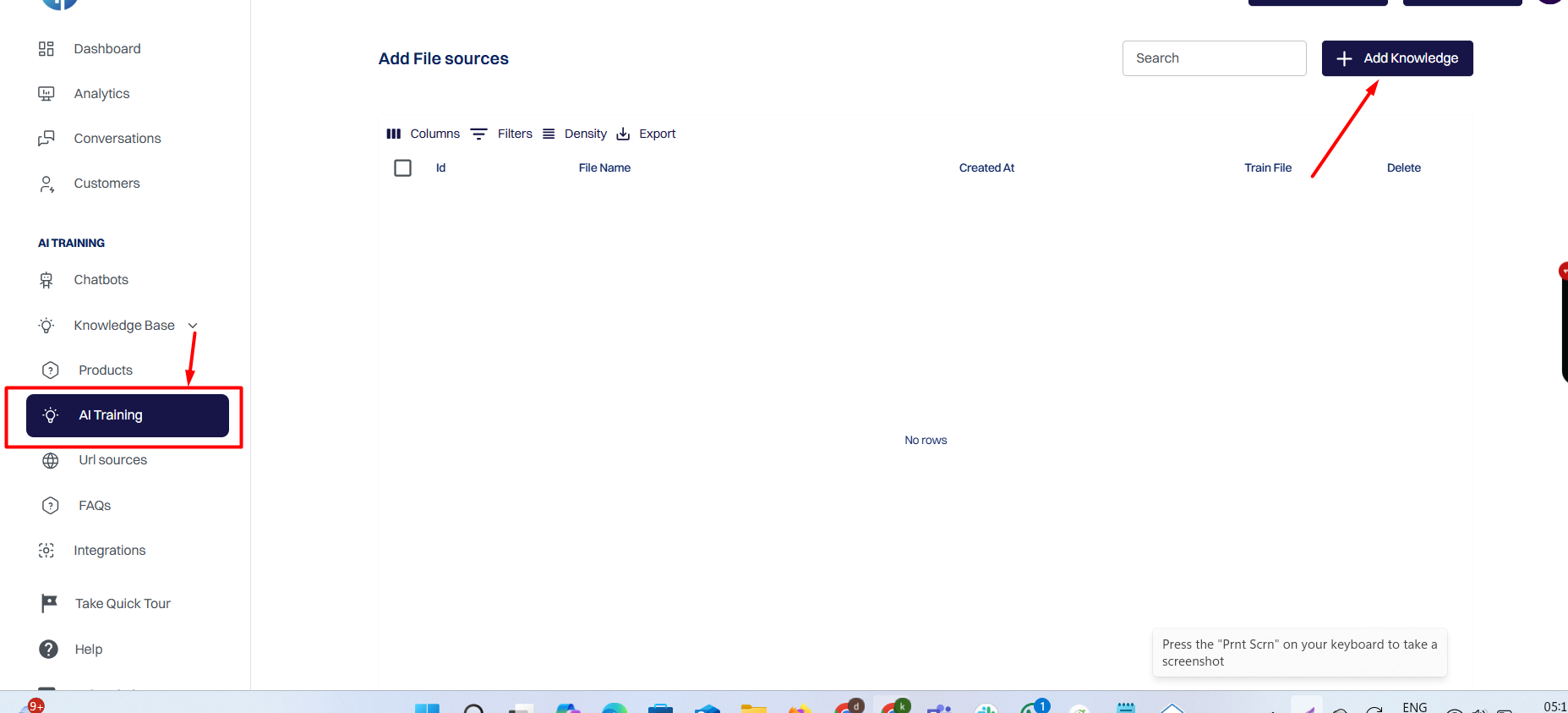
From the left sidebar, go to Knowledge Base → AI Training.
This will open the Knowledge Sources panel, where you can upload or manage your training files.
Click on the + Add Knowledge button at the top right corner.
A popup (modal) will appear where you can add your training data.
This opens a modal to add your training data.
Use the Category dropdown to choose the type of data you want to upload:
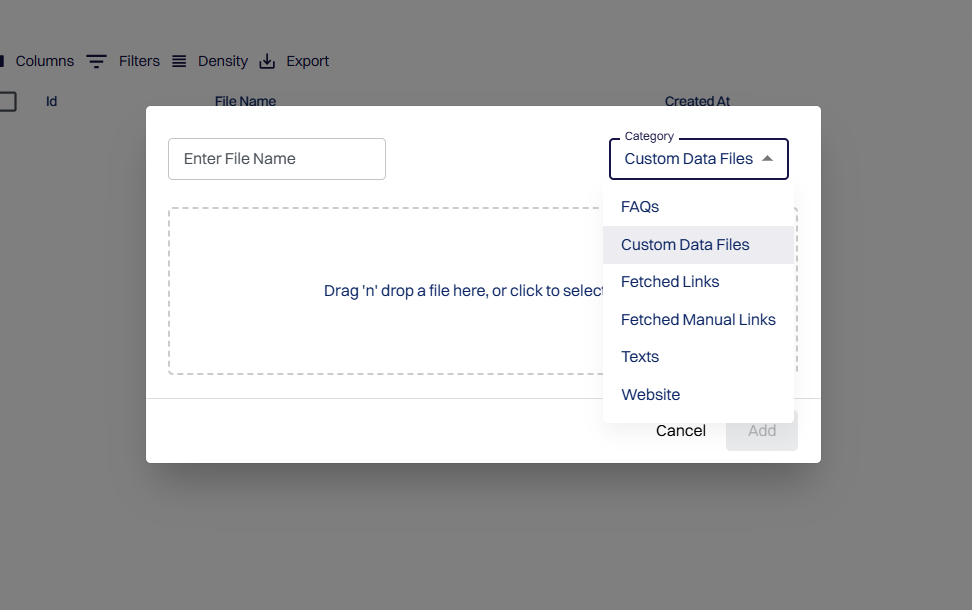
Enter a File Name , and drag & drop your file, or click to select from your device.
Supported formats: .pdf, .docx, .txt, etc.
Once uploaded, click Add to save the knowledge.
After adding the file, it will appear in the knowledge list.
The system will now process and train the content.
Once training is completed, the knowledge will be ready to use with your chatbot.
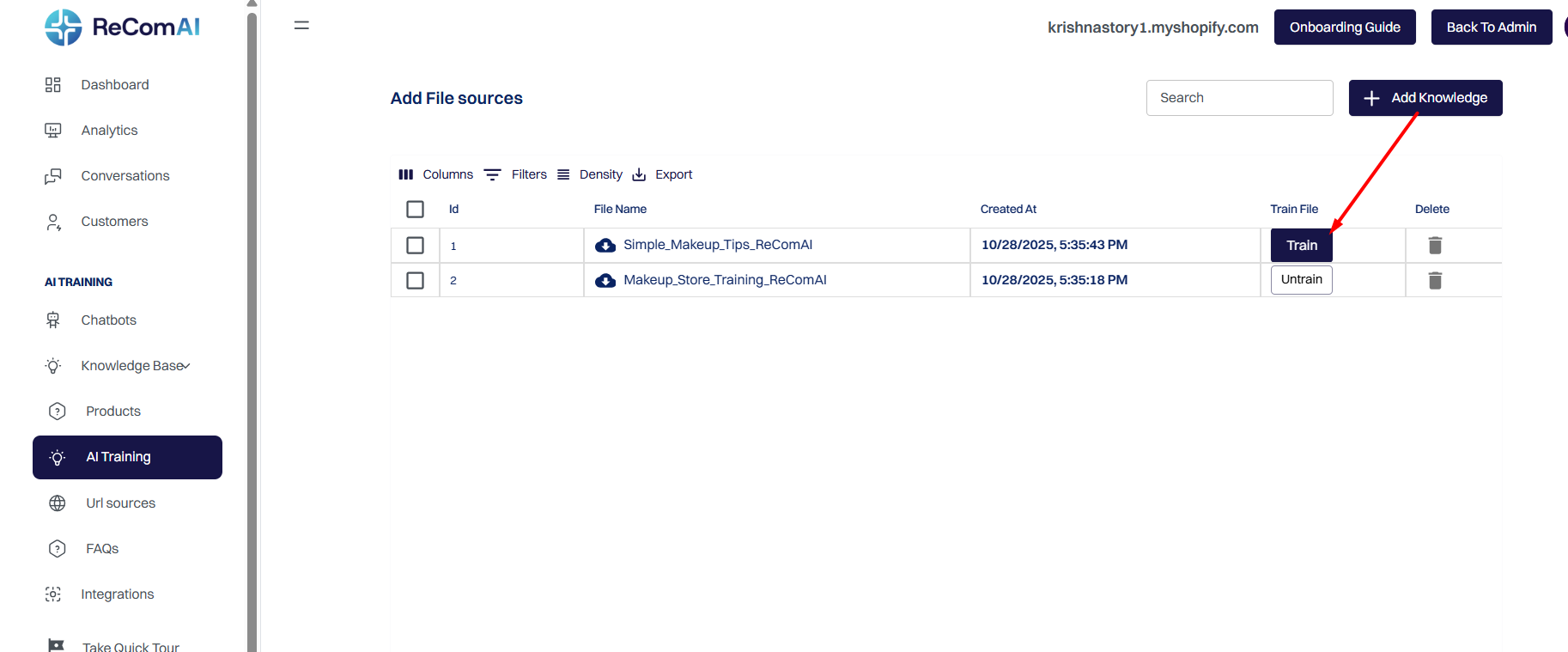
Now you need to attach the trained knowledge to your chatbot.
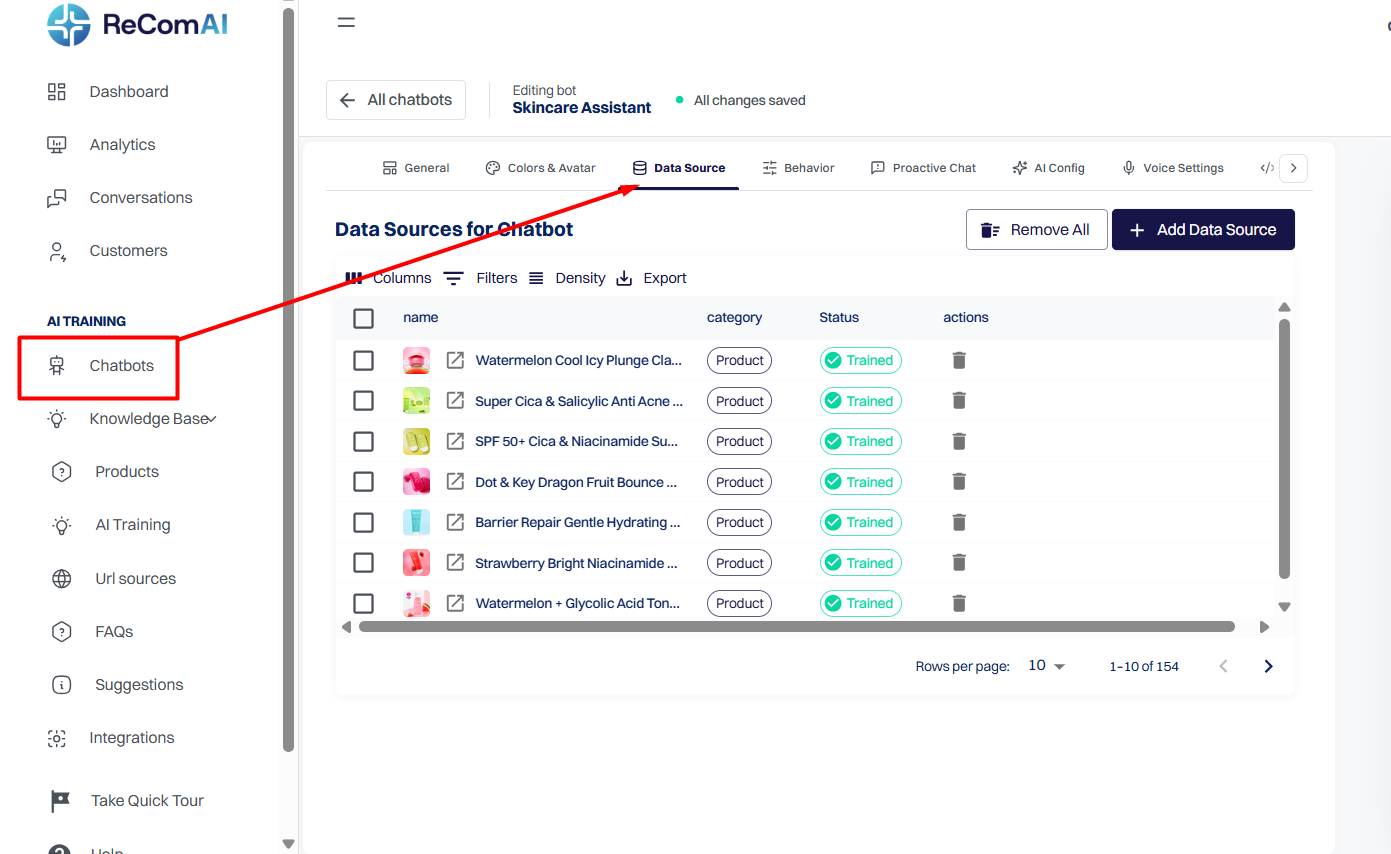
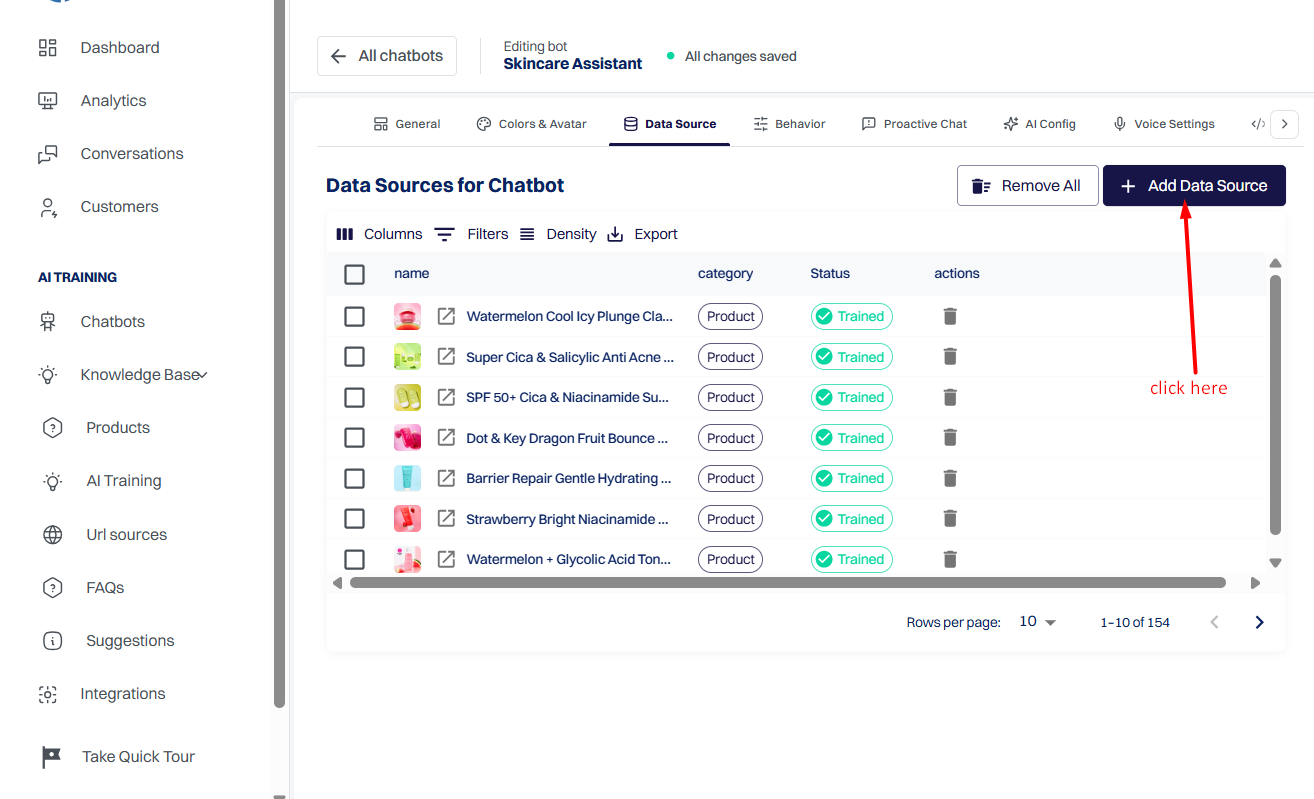
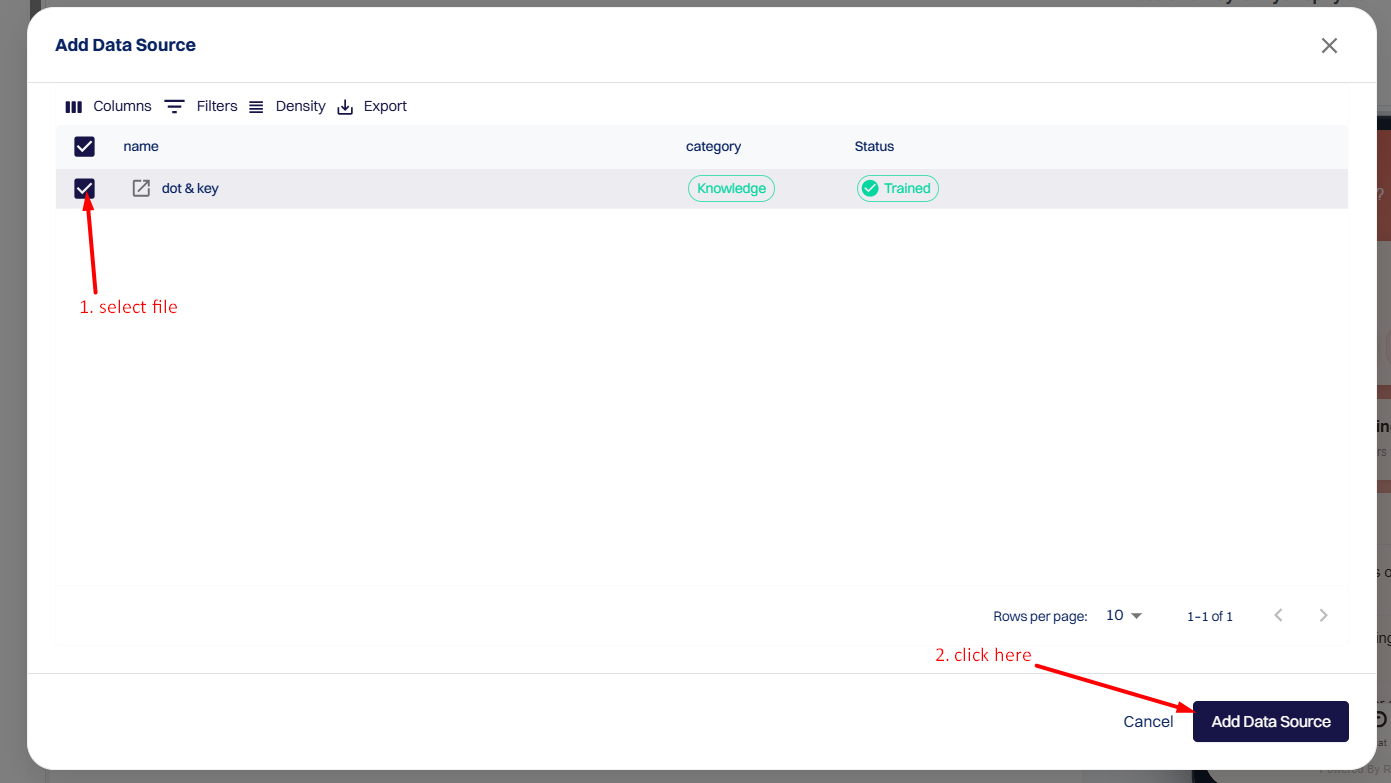
The selected knowledge source will now be connected to your chatbot.
After adding the knowledge:
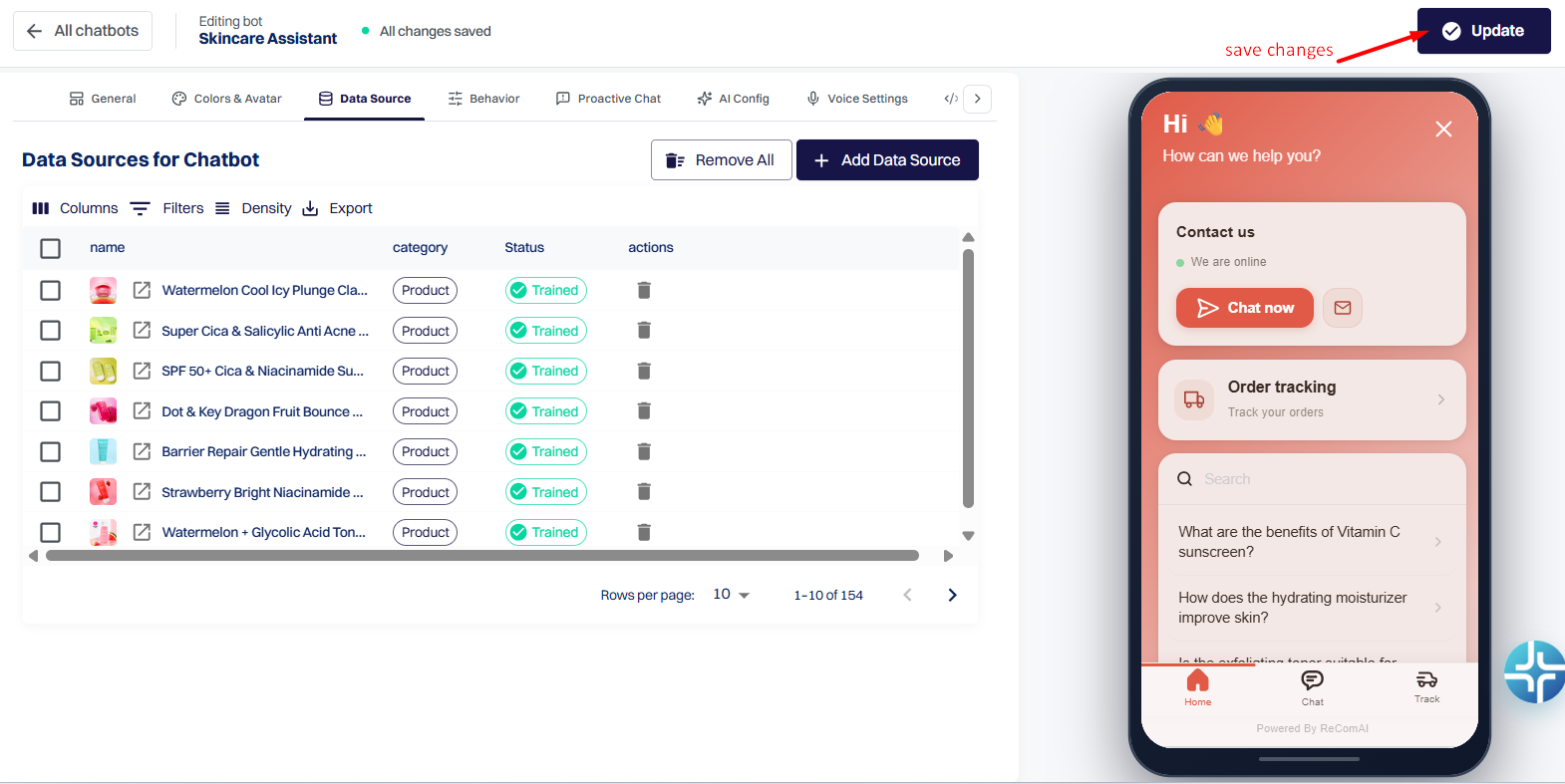
Your chatbot will now start answering questions using the uploaded documents and training data.
Result#
Once setup is completed: