How to Manage and Train Products in ReComAI
Train your chatbot with product data for better customer interactions
The Products page in ReComAI allows you to manage your store products and train your chatbot to understand them for better customer interaction.
From the left sidebar, go to AI Training → Knowledge Base → Products.
In the Knowledge Base section, click on Products to open the product management panel.
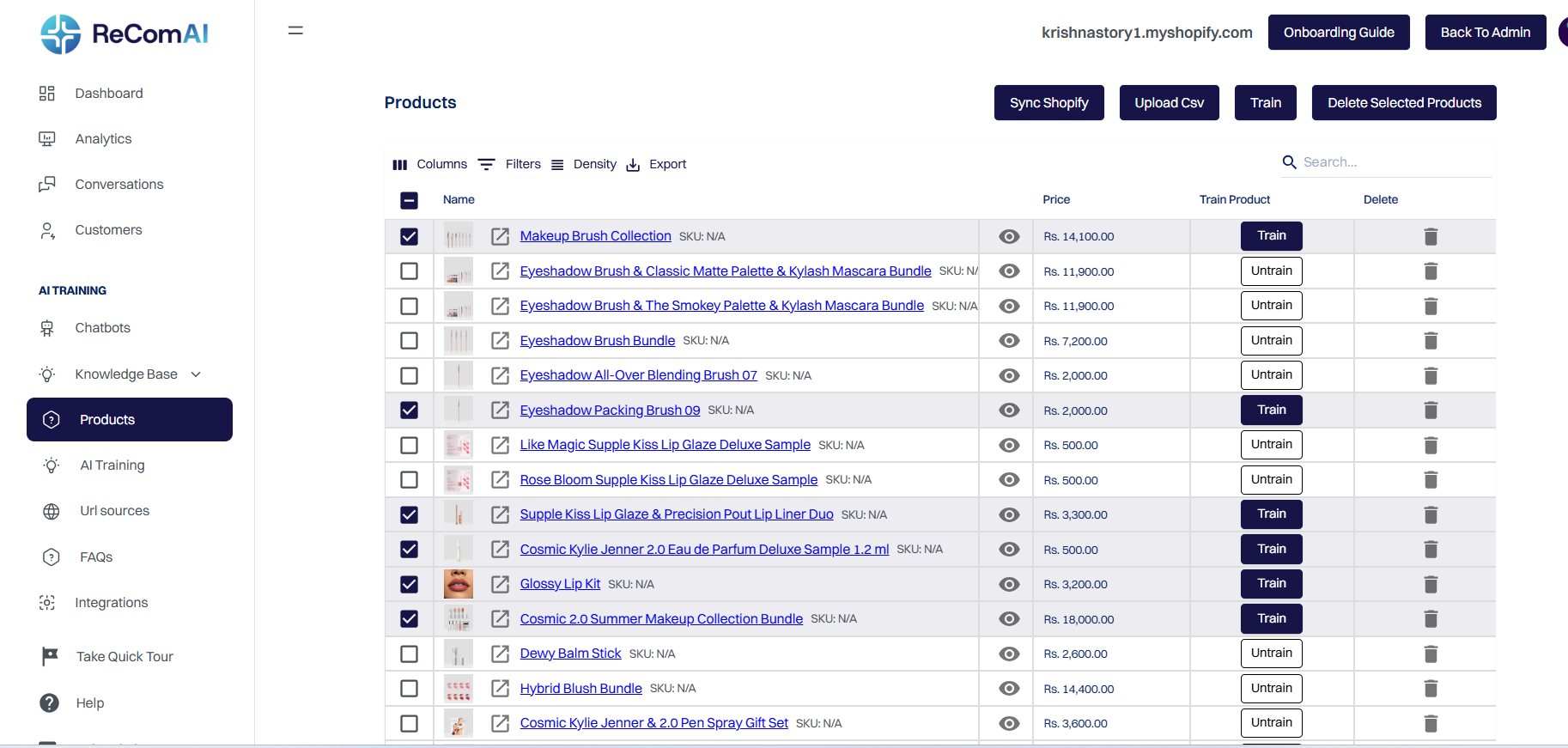
Here you'll see a complete list of your Shopify or uploaded products with the following details:
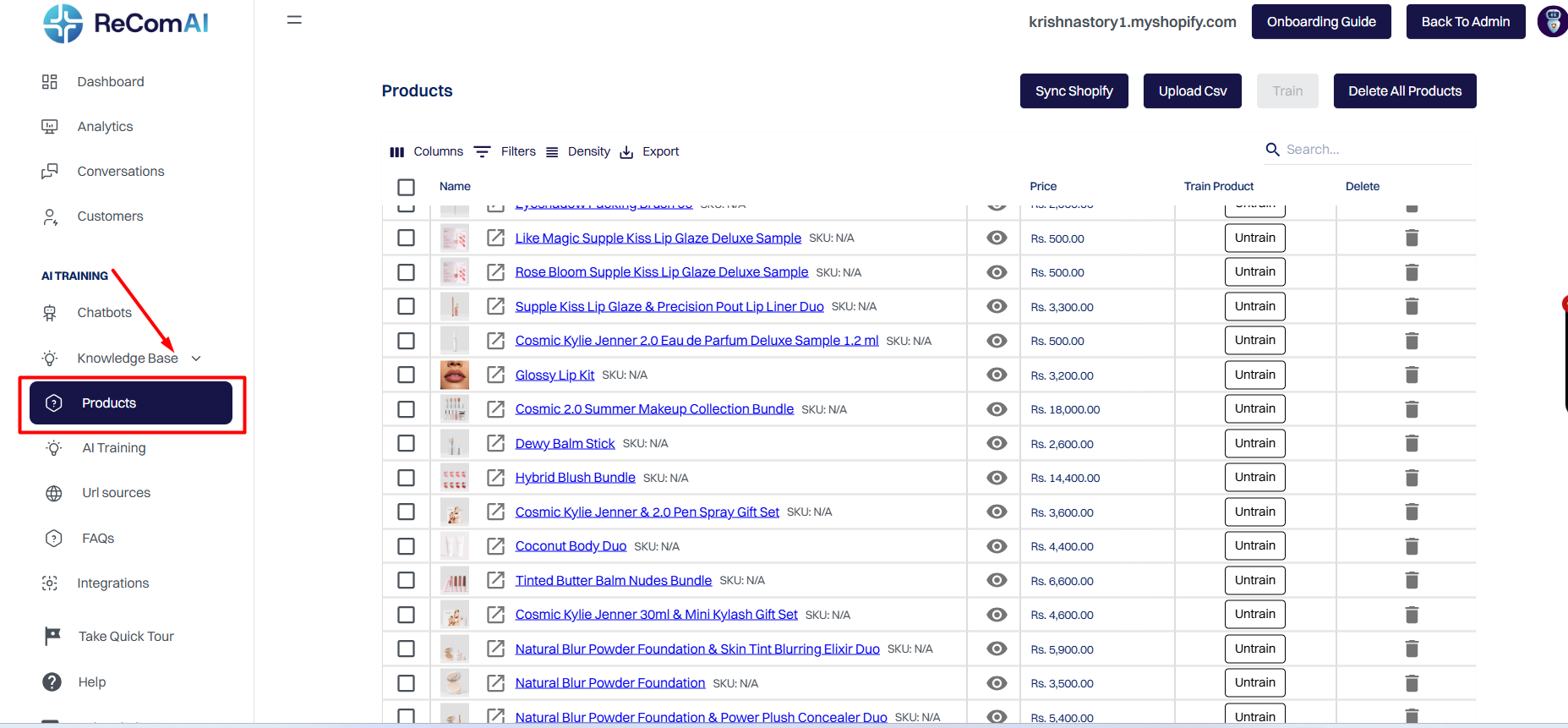
You can add or update your product data using two options at the top-right corner:
Automatically imports all live products from your connected Shopify store into ReComAI.
Manually upload your product data using a ".csv" file.
If your Shopify account is already synced, your products will automatically appear here. You can click "Sync Shopify" anytime to refresh your product list.
Each product includes a Train Product button that controls whether it's part of the chatbot's knowledge.
Training helps your chatbot recognize your product catalog so it can answer customer questions accurately - like "What's the price of this item?" or "Do you have this product in stock?"
Use the 🗑️ trash icon next to any product to remove it from AI training.
This action only removes the product from chatbot learning - it does not affect your Shopify store.
If needed, you can also delete all products at once using the Delete All Products button at the top-right corner.
ReComAI allows you to manage multiple products quickly using bulk actions: