How to Embed Your Chatbot in Your Website (ReComAI)
A step-by-step guide to embedding your ReComAI chatbot into your website so customers can start interacting with it.
Once you've configured your chatbot in ReComAI, the next step is to embed it into your website so customers can start interacting with it.
The Embed tab provides a script that you can easily copy and paste into your website code.
Step-by-Step Guide to Embed Your Chatbot#
From your chatbot setup page, click on the Embed tab located in the top navigation section.
Inside the Embed tab, you will see a block of JavaScript code.
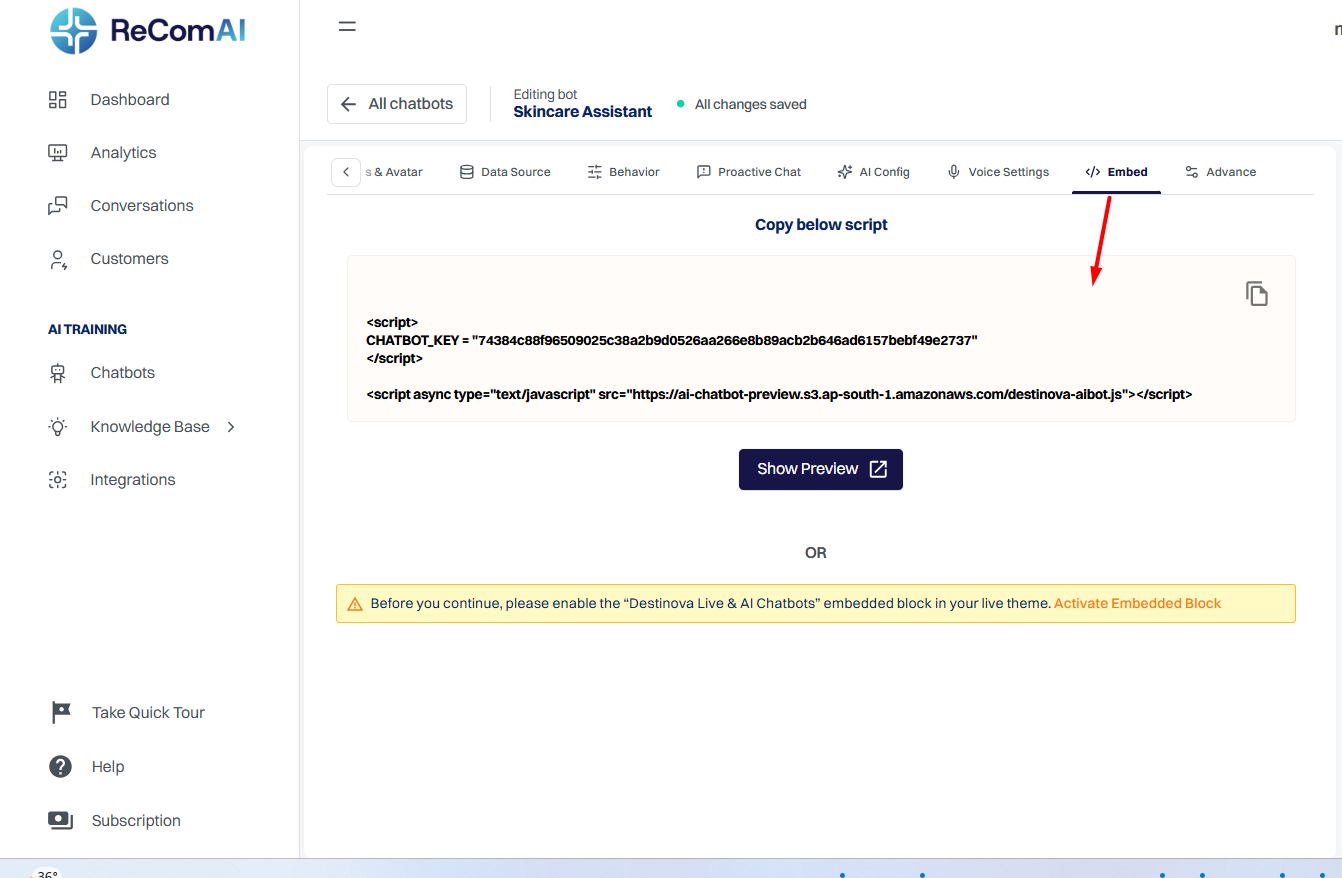
Step 3: Copy the complete script provided.
</body>\ tagOR
<head>\ section of the page where you want the chatbot to appearFor platforms like Shopify, WordPress, or Webflow, you can paste this script into:
Click on Show Preview to test how your chatbot will appear on your website before embedding.
This opens a live preview of your chatbot based on:
Once verified, save your changes and publish your website.
You're All Set 🎉#
Your ReComAI chatbot is now embedded and ready to assist customers on your website.