Connect Your MCP Server to ReComAI
A step-by-step guide to connecting your Model Context Protocol (MCP) server with ReComAI so the platform can securely access your server tools.
This article will guide you through the process of connecting your Model Context Protocol (MCP) server to the ReComAI platform.
By following these steps, you can securely enable ReComAI to access and use the tools exposed on your MCP server.
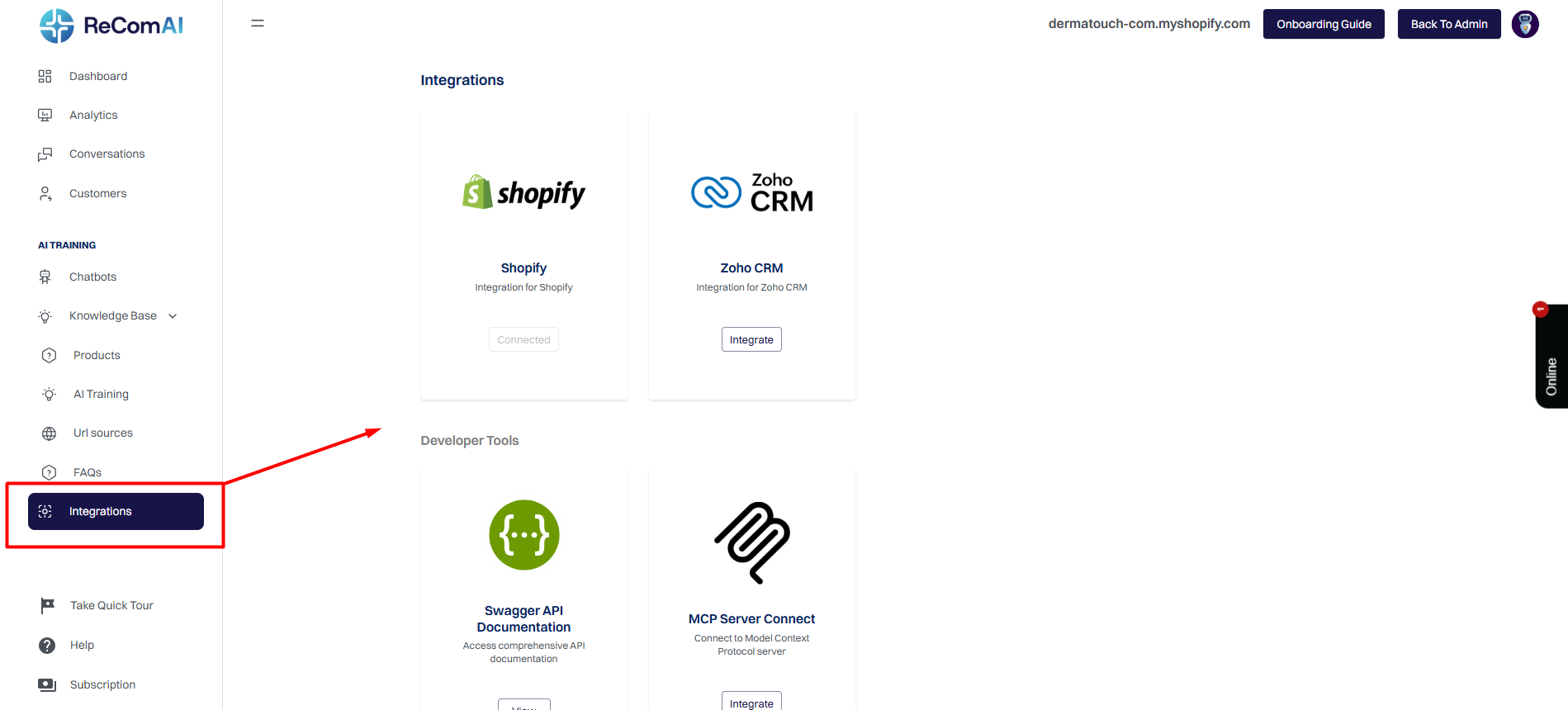
Step 1: Navigate to the Integrations Tab

Log in to your ReComAI account.
On the left-hand navigation menu, click on Integrations.
Step 2: Set Up MCP Server Configuration

Find the "MCP Server Connect" integration option.
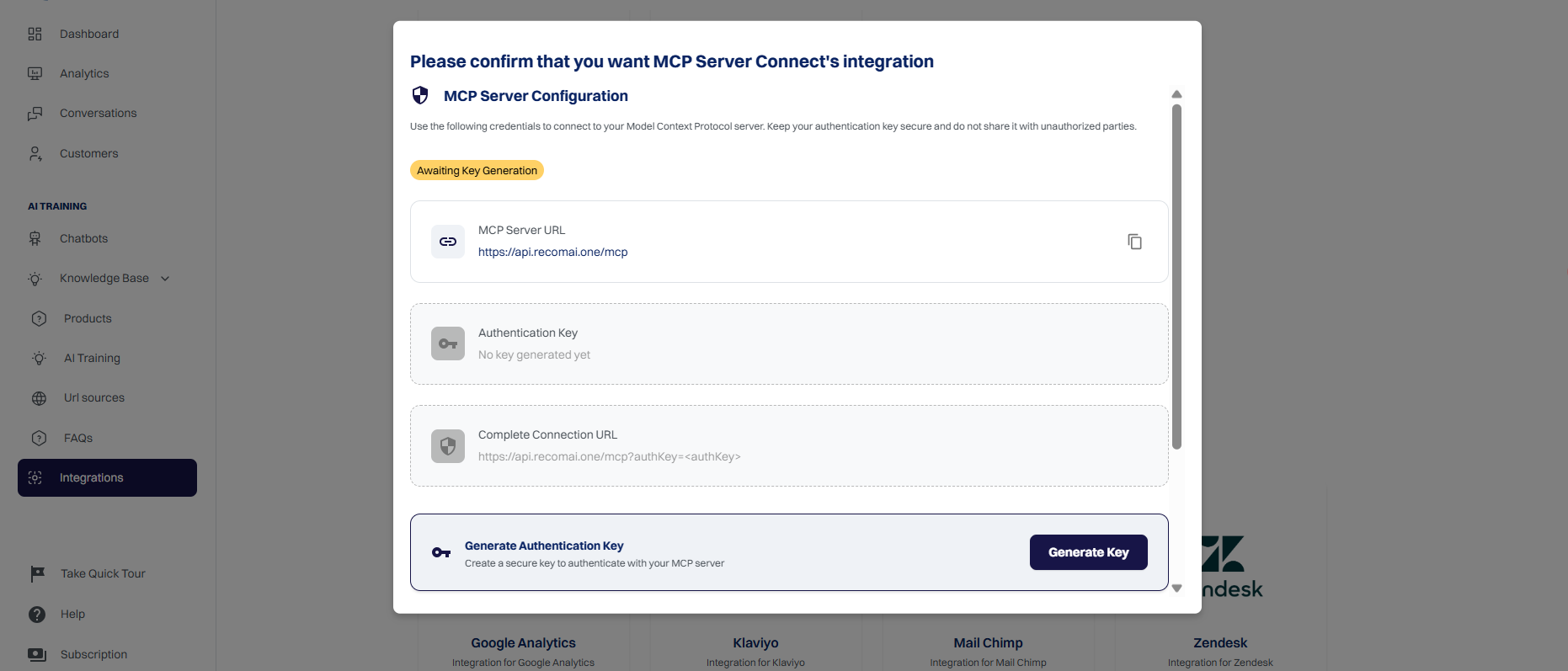
Click the Connect or Request Integration button. A pop-up window will appear.
Step 3: Your MCP Server URL
In the "MCP Server Configuration" pop-up, locate the MCP Server URL field.
complete URL for your MCP server. This is the public endpoint that ReComAI will use to communicate with your server.
Example: https://api.recomai.one/mcp
Step 4: Generate and Secure Your Authentication Key
Below the URL field, you will see an Authentication Key section. Initially, it will show "No key generated yet."
Click the Generate Key button. This will create a unique, secure key that authenticates all requests from ReComAI to your server.
Important: This key acts as a password. Do not share it with unauthorized parties. If the key is compromised, you can generate a new one to invalidate the old one
Step 5: Complete the Connection
After generating the key, the Complete Connection URL field will populate automatically with your server URL and the newly generated authentication key. This URL is for your reference and confirms the connection details.
Your MCP server is now successfully connected to ReComAI. The platform can now access and execute the tools you have exposed on your server.
Where to get the chatbot key:
In your ReComAI admin panel, navigate to Chatbots → Create your chatbot → Embed tab.
You’ll see a <script> snippet like this:
<script> CHATBOT_KEY = "chatbot-key"; </script>
The value in quotes is your chatbot key.
Where to add it in the MCP API request:
In your MCP request JSON you need to pass it under the arguments.chatbotKey field for all tools.
Example:
{ "method": "tools/call", "params": { "name": "tool_name", "arguments": { "chatbotKey": "chatbot-key", "data": [] } } }