AI Configuration Settings for Chatbot
Customize how your chatbot behaves, responds, and understands customers
The AI Config section allows store owners to customize how the chatbot behaves, responds, and understands customer queries. This is a powerful tool to make your chatbot more accurate, helpful, and aligned with your brand's communication style.
This setting lets you choose the AI model that powers your chatbot's responses.
Example models available:
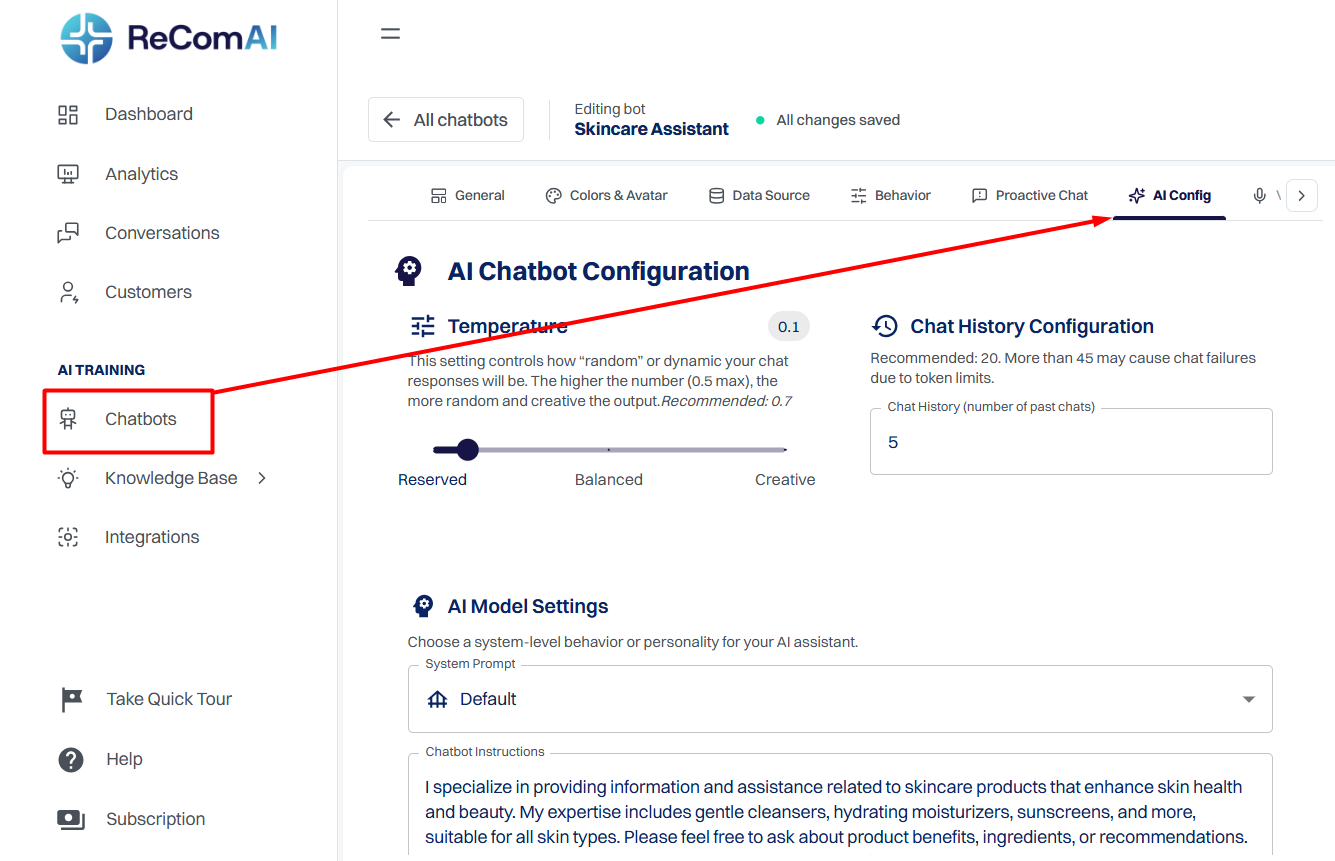
This setting controls how creative or strict the chatbot's responses are:
- Lower temperature (e.g., 0.1) - More focused and accurate answers.
- Higher temperature (e.g., 0.7) - More creative and varied responses.
Recommended setting: 0.7 for balanced and friendly replies.
You can decide how much past conversation the chatbot should remember while responding.
System Configuration#
The System Configuration section allows you to control your chatbot's behavior, tone, and style. This helps ensure the chatbot communicates in a way that fits your brand personality and business type.
What is System Configuration?#
System Configuration lets you set:
Steps to Set Up:#
Step 1: Go to AI Config
From your chatbot setup page, open the AI Config tab at the top.
Step 2: Scroll to AI Model Settings
You will see the System Prompt dropdown and a Custom Instructions box.
Step 3: Choose a Prompt Type
You can leave it as Default or set custom behavior for your chatbot.
Step 4: Add Your Custom Instructions
In the text box, write clear guidance on how the bot should behave.
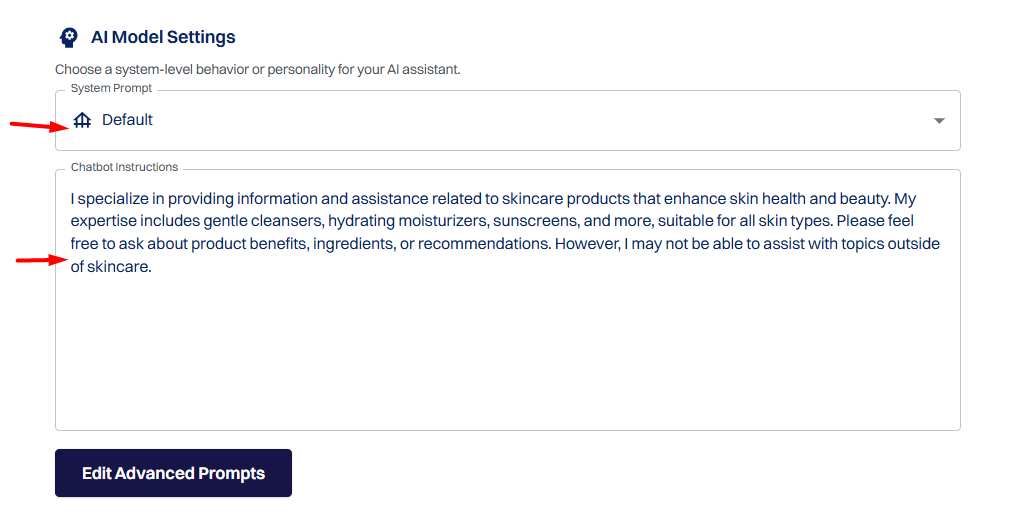
You can modify this prompt based on your store type (e.g., apparel, electronics, cosmetics).
Step 5: Save Changes
After setting your prompt, click the Update button at the top right.
Direct AI & Vector Database Settings in ReComAI#
To make your chatbot smarter and more relevant to user queries, ReComAI Lab provides advanced AI Config settings. Two of the most powerful tools here are:
These control how the chatbot pulls and responds with information - either from stored knowledge or directly using the AI model.
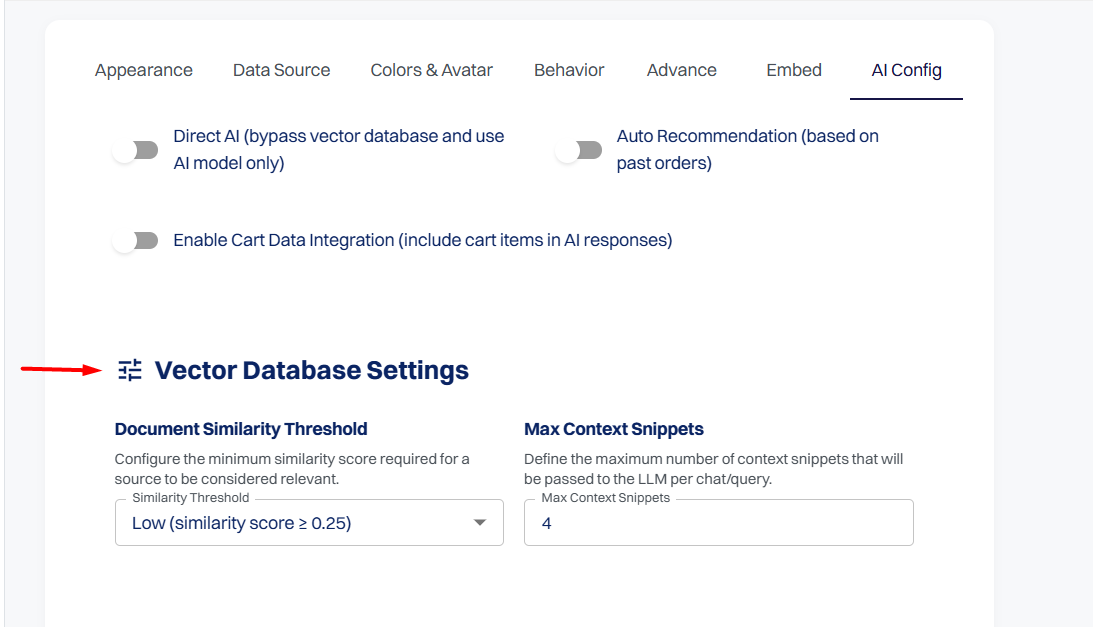
When turned on, this option bypasses the vector database and uses only the AI model to respond to questions.
When turned off, the chatbot will refer to stored documents and URLs (trained via vector embeddings) before answering.
This section controls how the AI searches and filters relevant data from the knowledge base before forming a reply.
Document Similarity Threshold#
* What it does: *
It defines how similar a piece of content must be to a user's question for it to be considered relevant.
Max Context Snippets#
What it does:
Limits the maximum number of content chunks/snippets the AI can use to answer a question.
Example:
If set to 4, only the 4 most relevant pieces of information will be passed to the AI per query.
Why it matters:#