AI Auto Capture & Reply
Automatically capture unanswered customer questions and turn them into smart replies that train your chatbot.
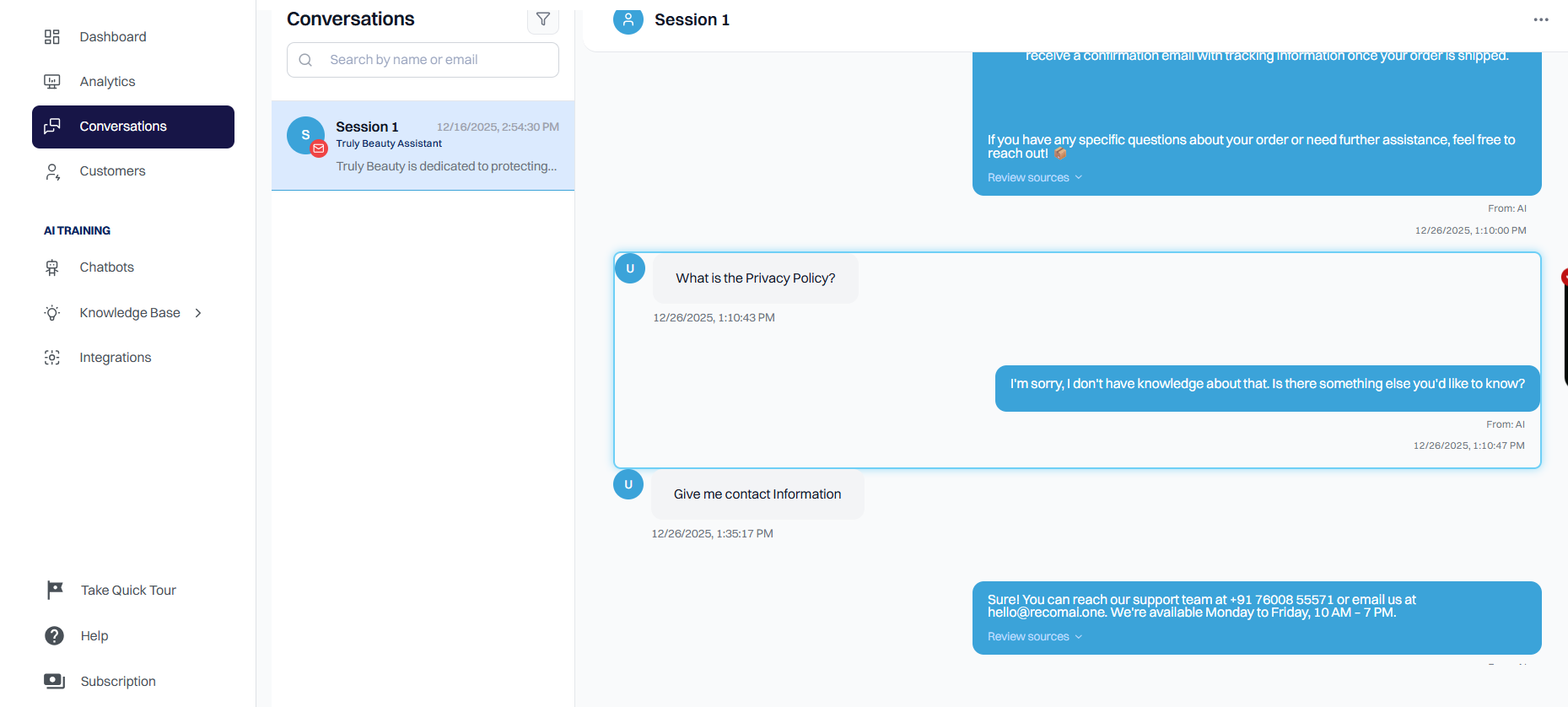
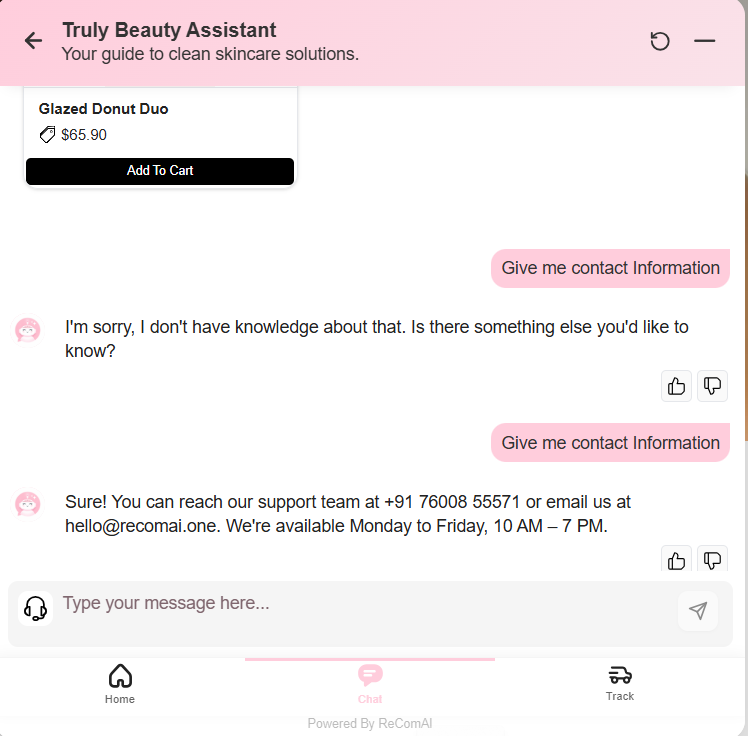
Whenever the chatbot sends a fallback response, the unanswered question is saved and displayed in Suggestions. From here, you can add answers, upload files, and instantly improve your Knowledge Base - helping your bot grow smarter every single day with minimal effort.
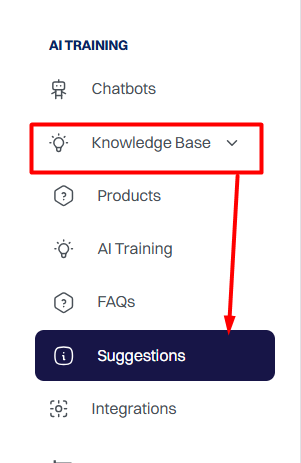
The Suggestions section displays all the questions that bot was unable to answer during live customer chats. This list lets you review each unanswered query individually and add the correct response, allowing your bot to learn the answer and respond accurately the next time a visitor asks the same question.
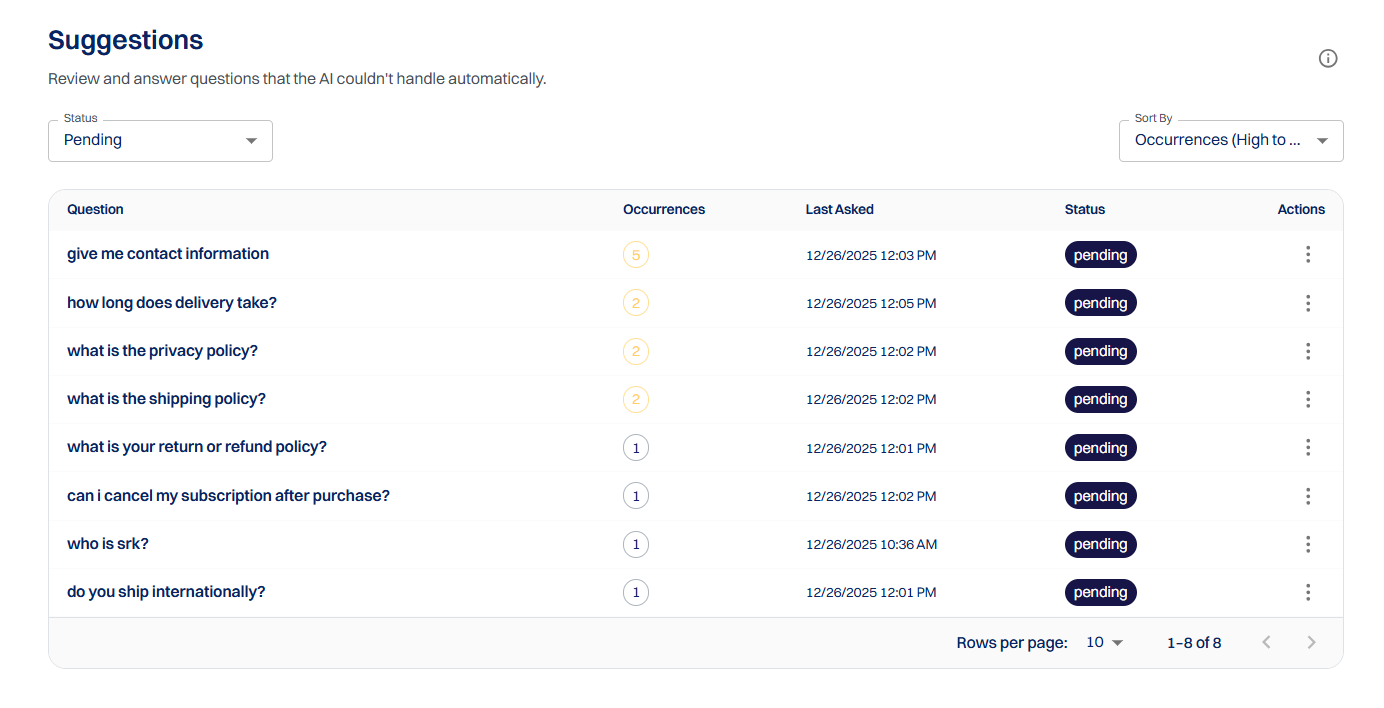
Filter suggestions by status from the top-left to quickly view Pending, Ignored, Resolved, or All items.
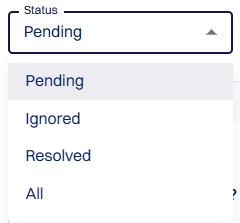
Use the Sort By menu at the top-right to sort suggestions by Occurrences, Last Asked, or Created Date.
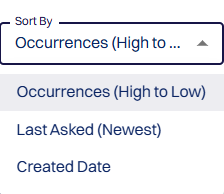
Each suggestion shows the question, how many times it was asked, the last asked date, and its current status.

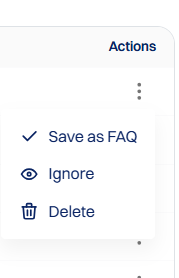
To manage any suggestion, click on the three-dots menu on the right.
From there, you can Save as FAQ if the question is useful.
You can also ignore or Delete the suggestion if it is irrelevant, which lets you remove it entirely.
When you click Save as FAQ, a form opens where you can add your own answer to the suggested question.
Fill in the Answer field with the correct response and save it.
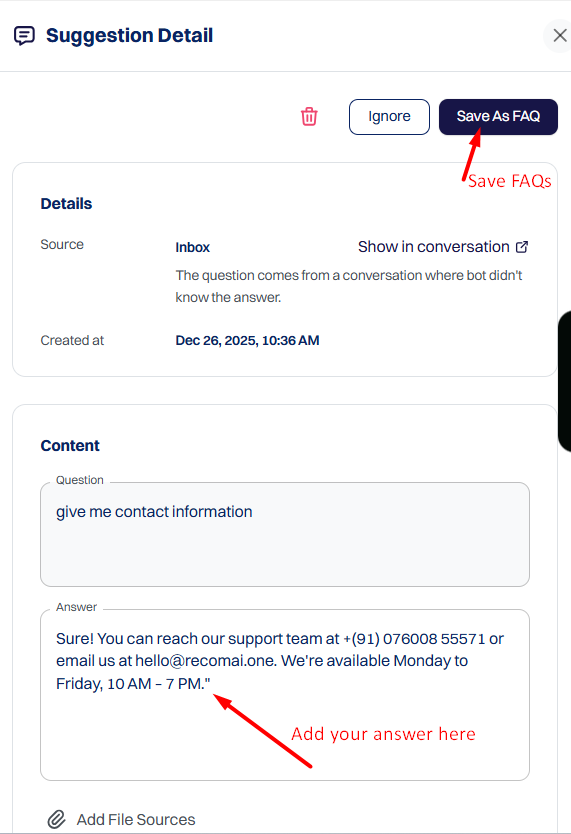
To use a suggestion, enter the correct response in the Answer field (if it has not already been filled automatically by Bot), then click Save as FAQ.
Once saved, the new Q&A is added to the Data Sources section and marked as Manually added. Bot will use this answer automatically if the same question is asked again in the future.
If you want to add a PDF or document along with the answer, you can attach it directly from the Suggestion.
Click the three dots next to the specific question, then select Save as FAQ.
Fill in the Answer field. Below the answer, you will see an option to add a file source.
Click this option, select your file, and save it.
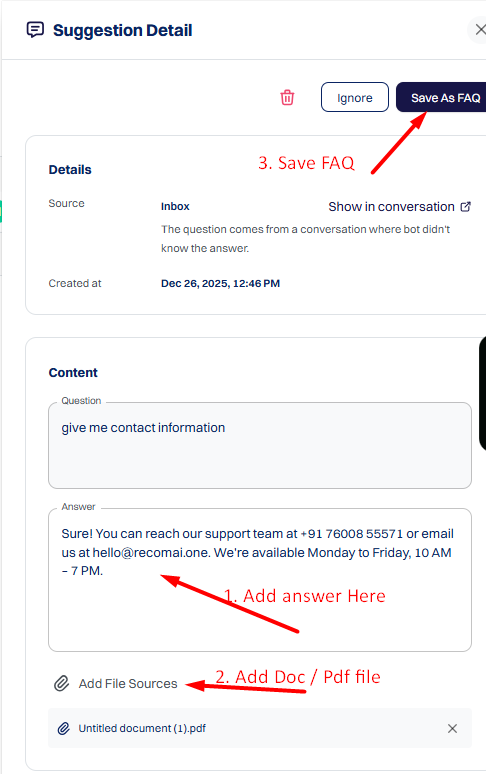
Once saved, the bot is trained using both your answer and the attached file. In the future, if Bot needs information from the file to respond to related questions, it will be able to use it.
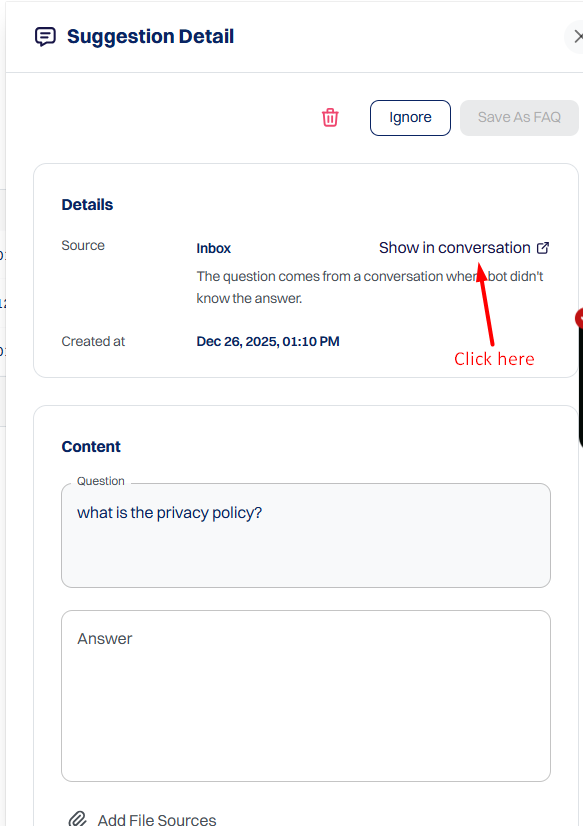
When a new suggestion appears, you can open it and click "Show in conversation" (top-right).
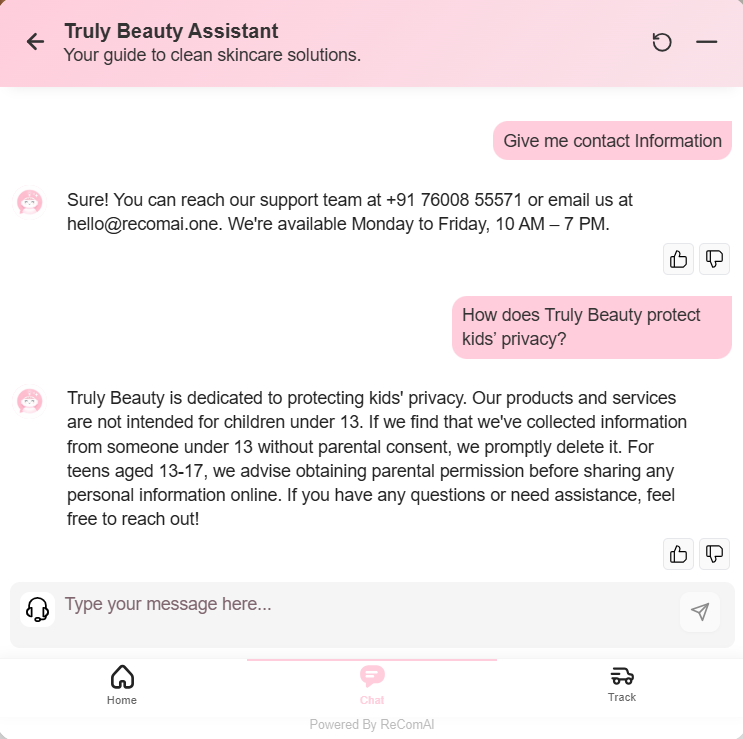
This will take you directly to the customer's chat session, where you can review the full message history and decide what answer you want to save as FAQ.