/AI Configuration/How to Set Up and Integrate OpenAI API Key & Pinecone in ReComAI
AI Configuration
6 min read
Dec 22, 2025
Verified Guide
How to Set Up and Integrate Your OpenAI API Key & Pinecone in ReComAI
Enable AI-powered chatbots by connecting OpenAI and Pinecone correctly
If you want to power your chatbot with AI capabilities like content understanding or generation, you need to integrate your OpenAI API key.
This guide walks you through how to get a free key, integrate it into ReComAI, and validate it.
Step 1: Get Your Free
2
Create a free OpenAI account.
3
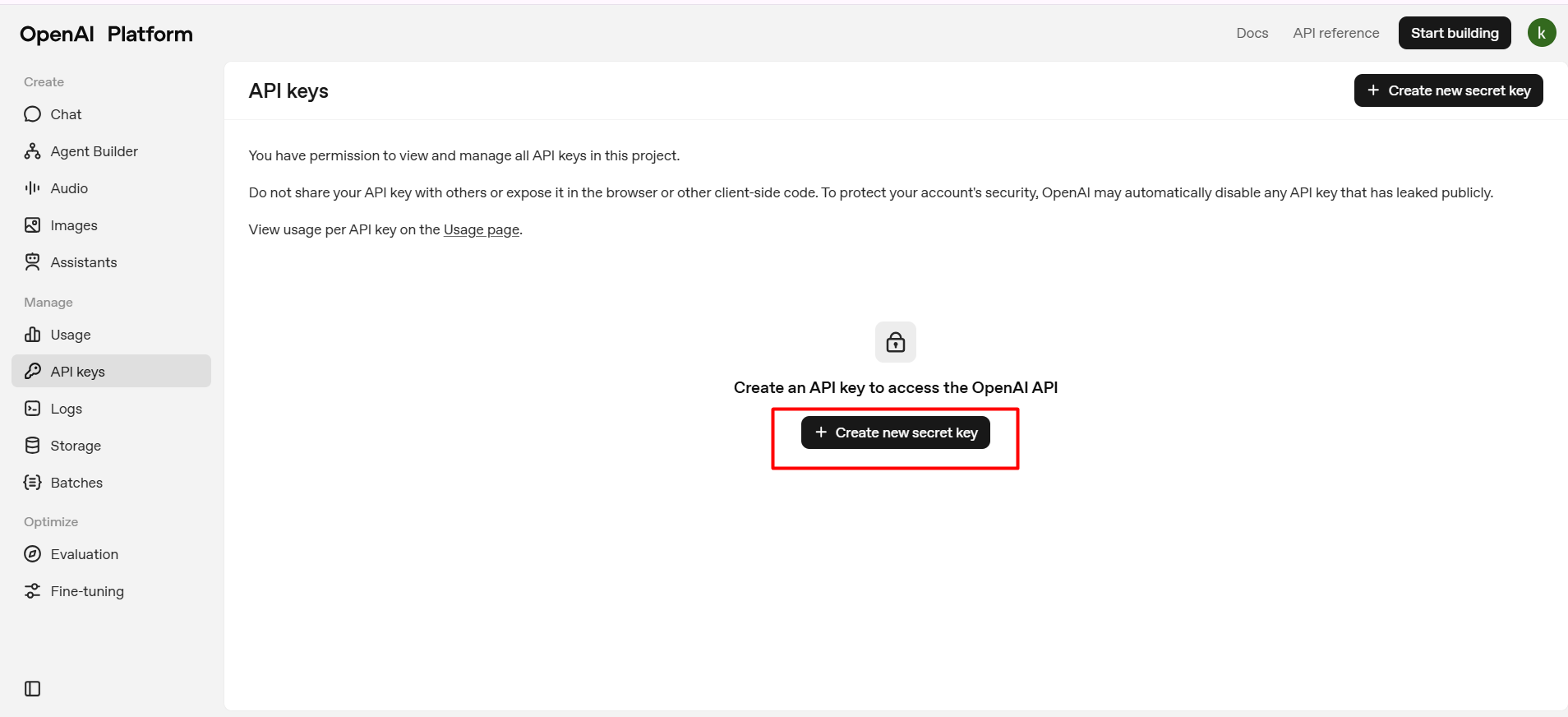
Once logged in, go to https://platform.openai.com/account/api-keys
4
Click "Create new secret key".
5
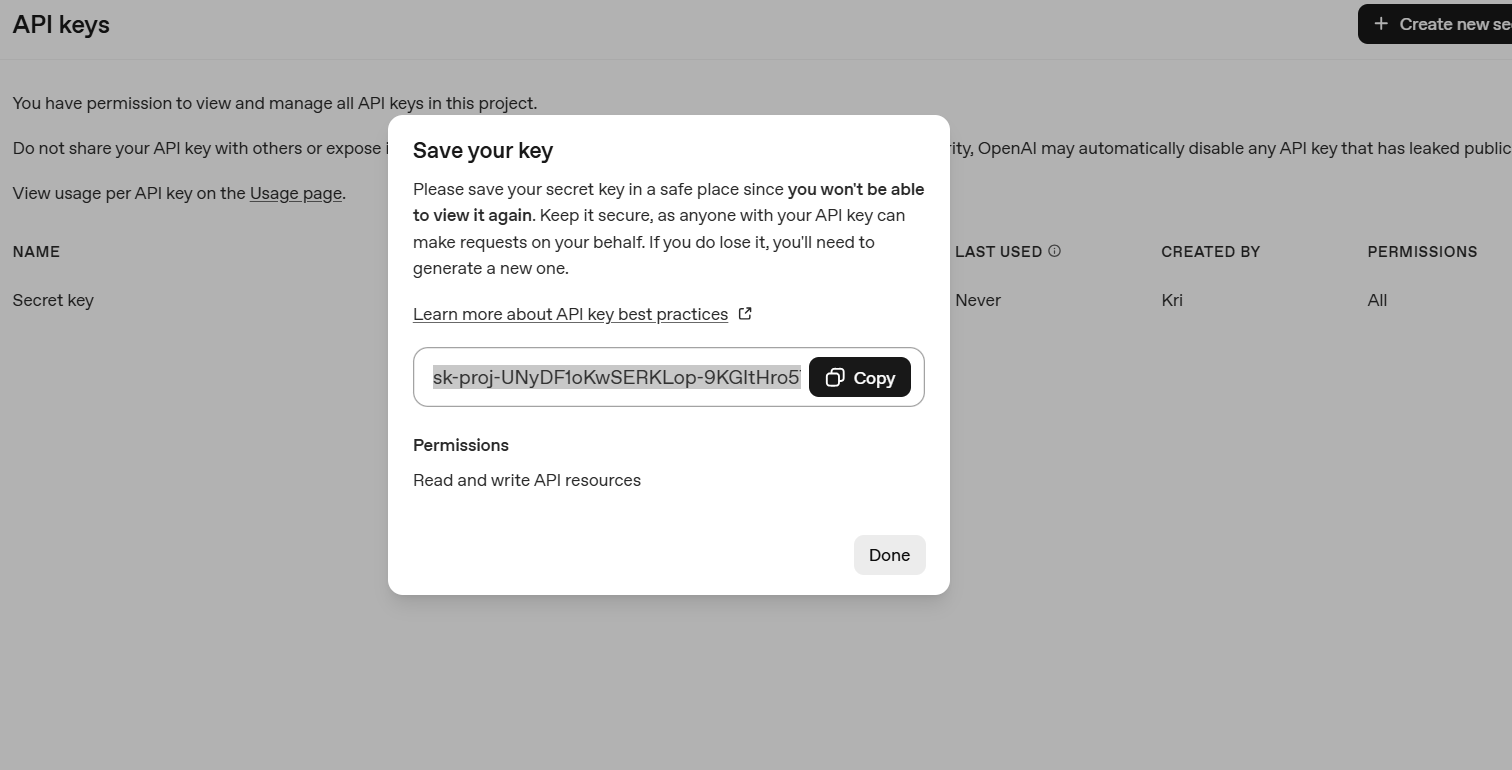
Copy the generated key (it starts with sk-...).
Note: Free-tier keys have limited quota, suitable for testing and small-scale usage.
Note: Free-tier keys have limited quota
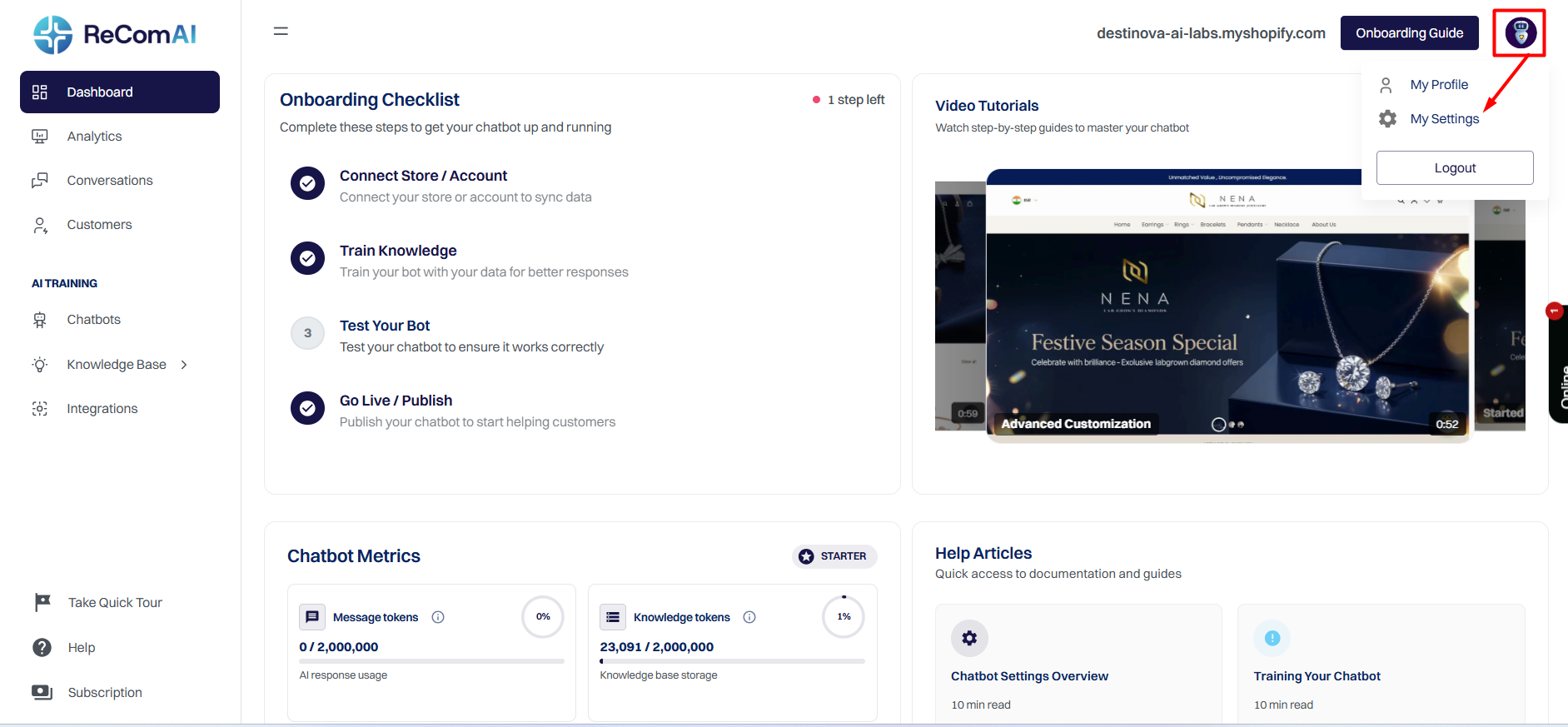
Log in to your ReComAI dashboard
Click on the profile or settings icon in the top-right corner
You will land on the My Settings page
You will land on the My Settings page
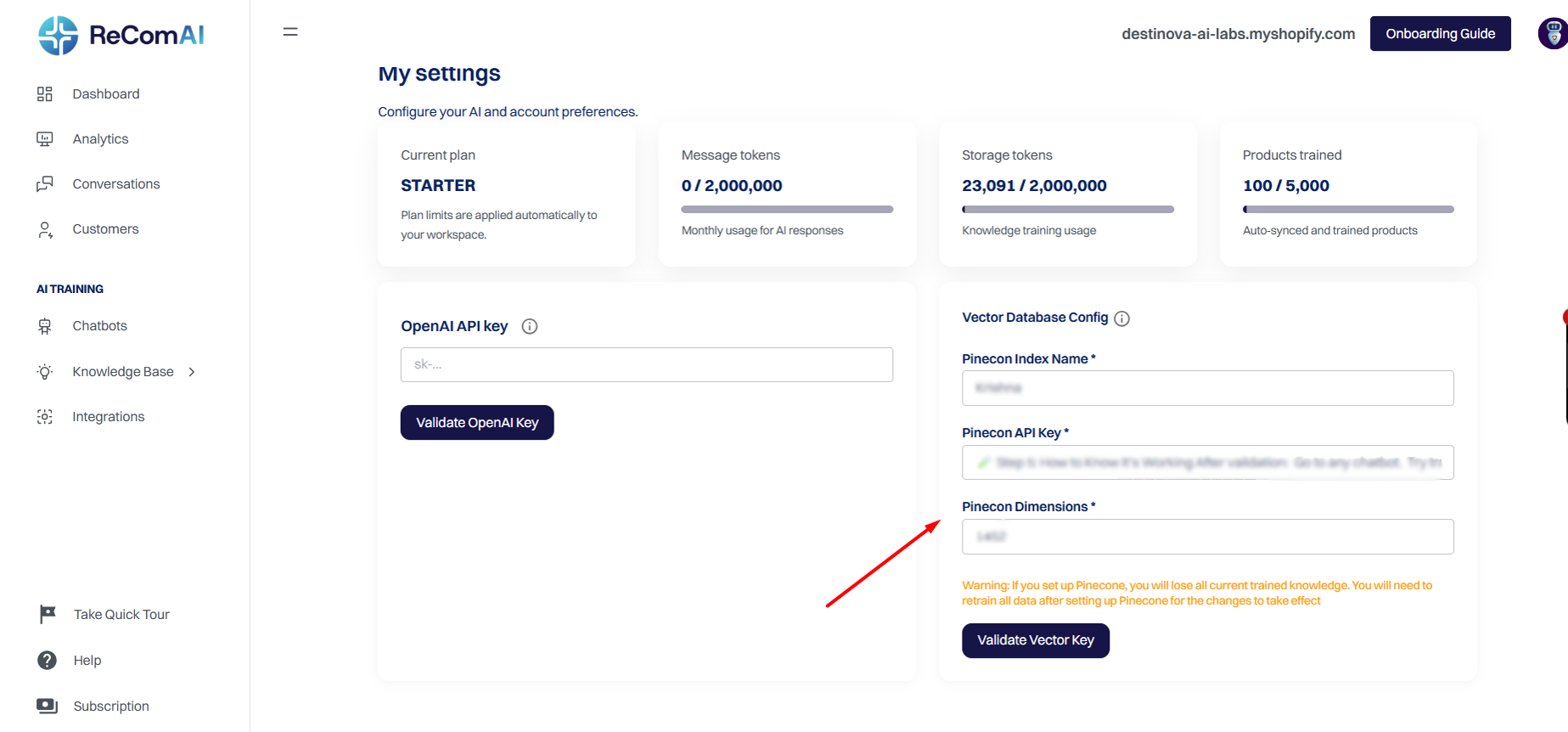
As shown in the screenshot:
1
Paste your OpenAI key in the field labeled "Open AI key".
2
Click the "Validate Open AI Key" button.
After validation, the system will:
Verify if the API key is active
Enable AI training and chatbot responses if valid
You'll see success or error messages indicating the status of your key
You'll see success or error messages
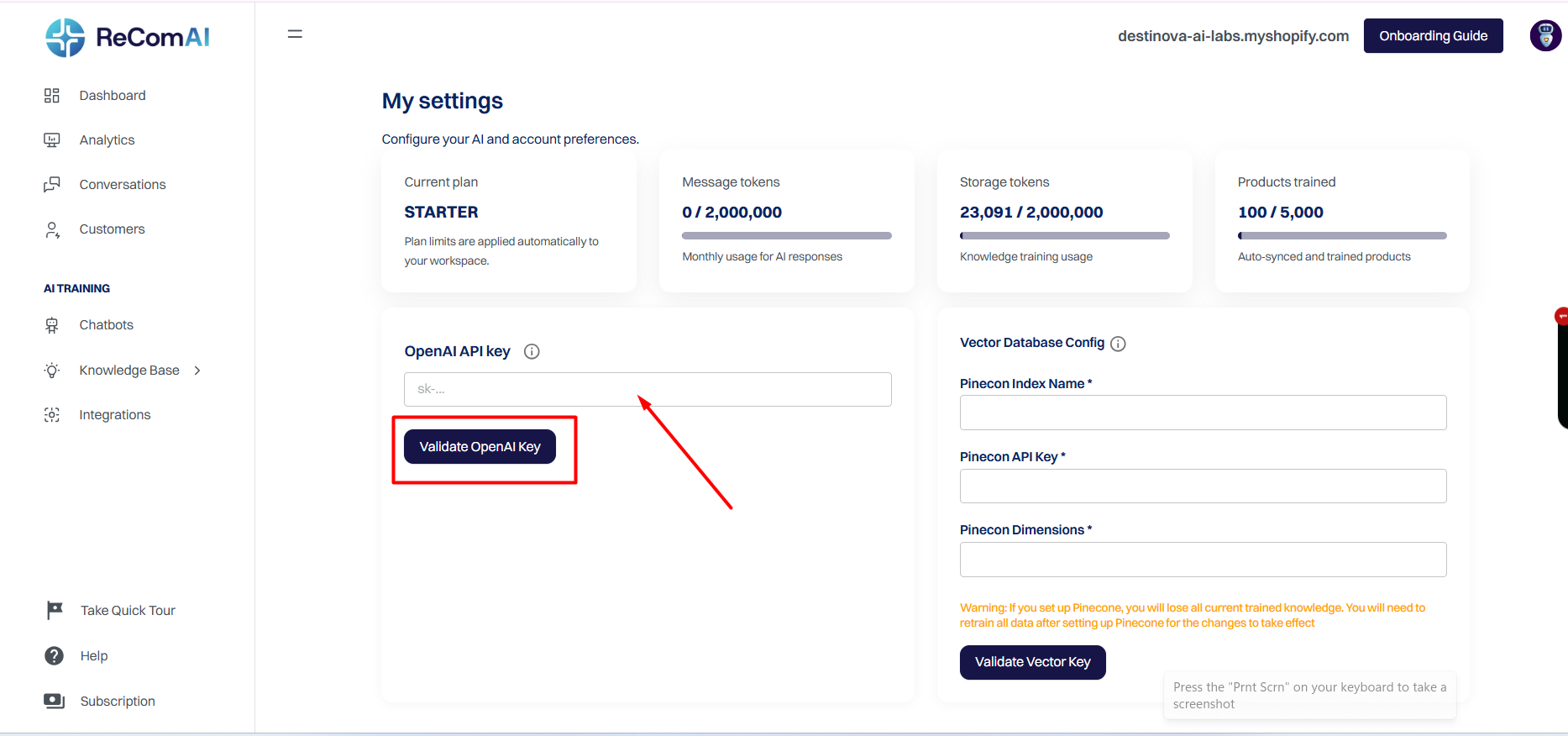
After validation:
1
Go to any chatbot.
2
Try training a product, asking a chatbot question, or generating AI responses.
3
If working correctly, the responses will be generated using OpenAI.
Security Tip
Keep your API key secure. Do not share it publicly.
Rotate or delete the key from your OpenAI account if exposed
Pinecone Free Setup Guide#
Step 1: Sign Up for Pinecone
Visit https://www.pinecone.io/ and click "Get Started" or "Sign Up".
Create an account with your email or sign in with Google.
Verify your email address.
Step 2: Access the Dashboard
Log in to your Pinecone account.
Navigate to the dashboard to manage projects and indexes.
Step 3: Create a New Project
Click "Create Project" in the dashboard.
Enter a project name and optional description.
Click "Create".
Step 4: Set Up a Free Index
Go to the "Indexes" section.
Go to the
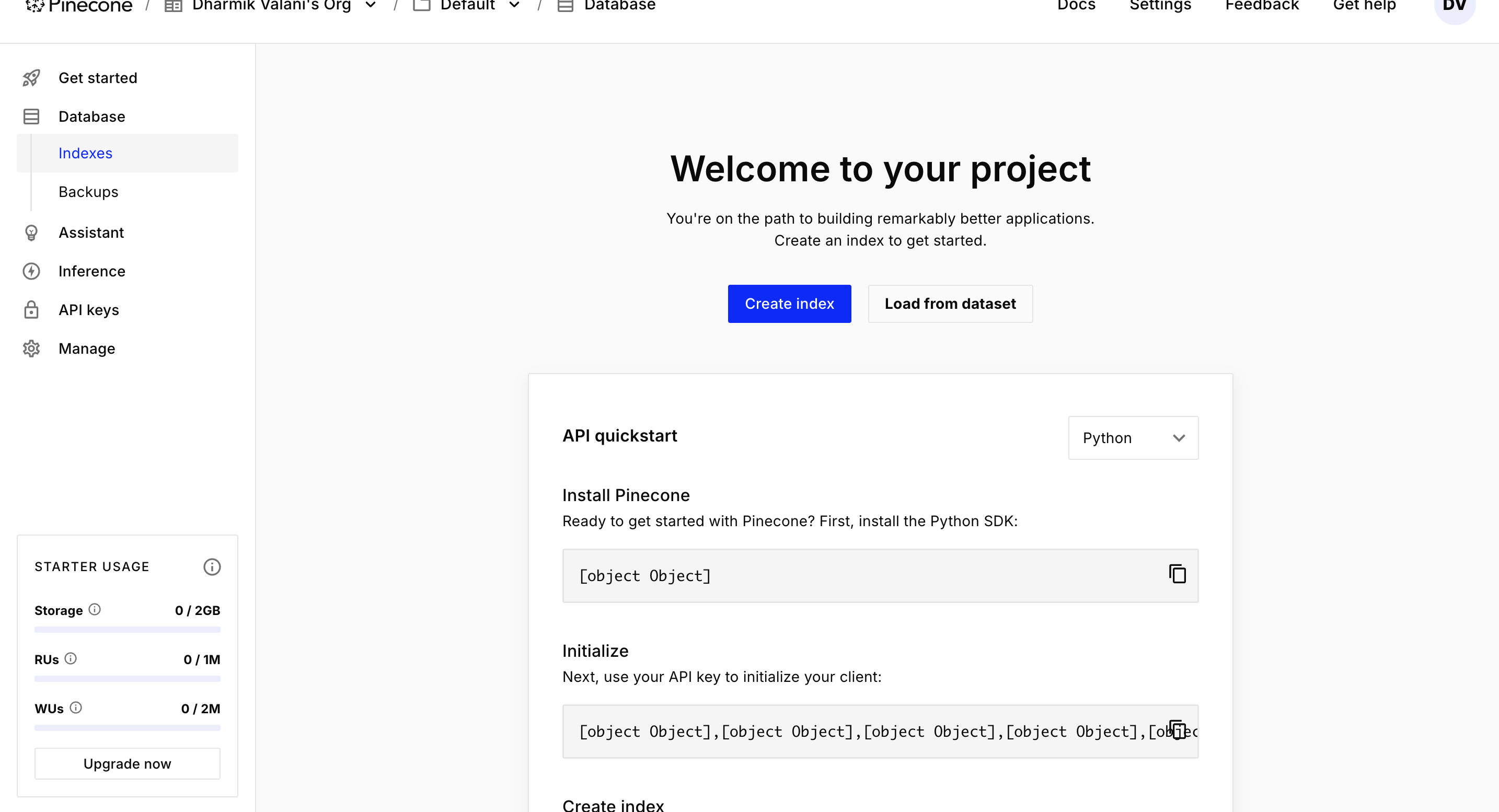
Click "Create Index".
Click "Create Index"
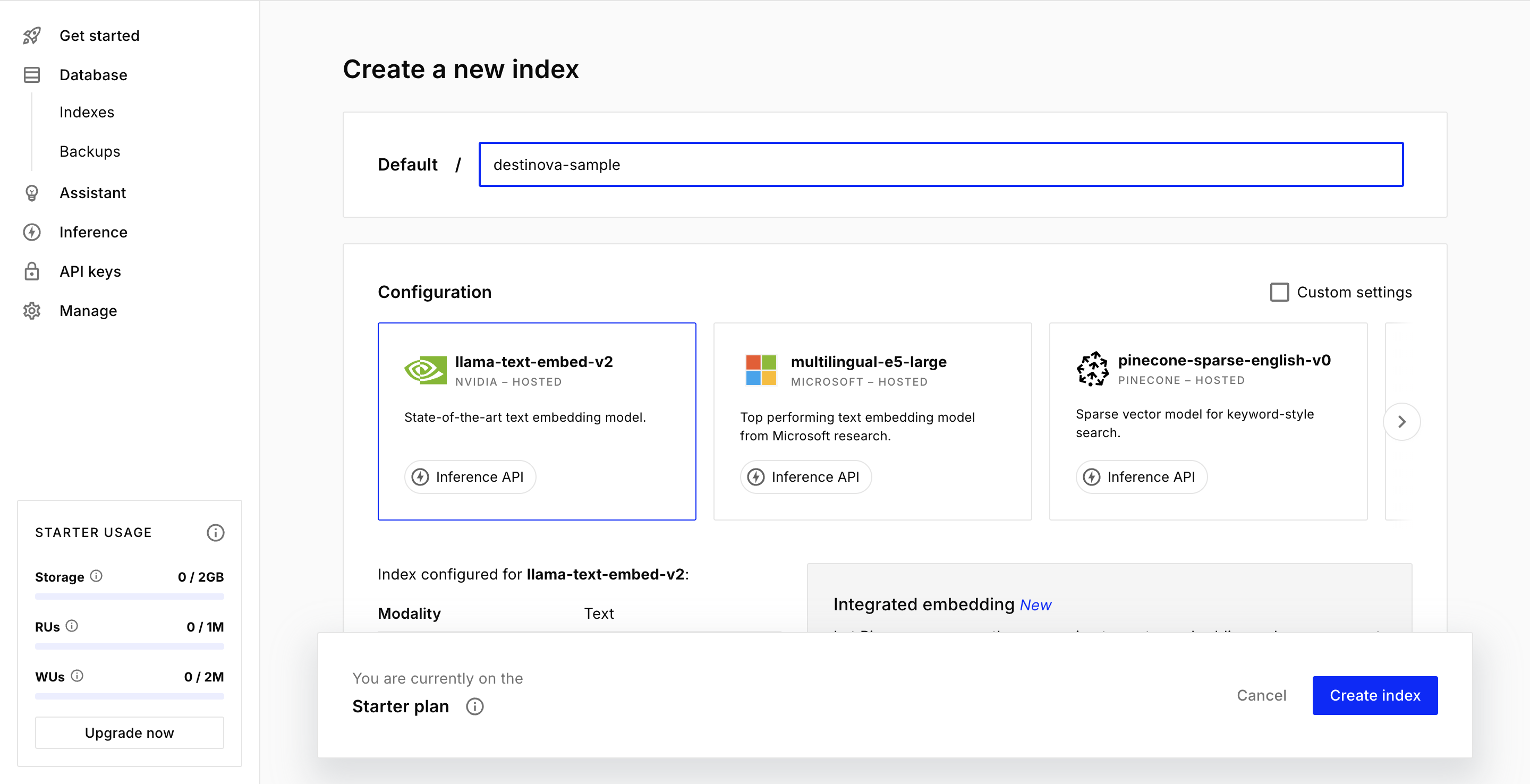
Name your index (e.g., "my-first-index").
Name your index
Select a dimension size (e.g., 768) and "Starter" environment.
Choose a region and click "Create Index"
Choose a region and click "Create Index"
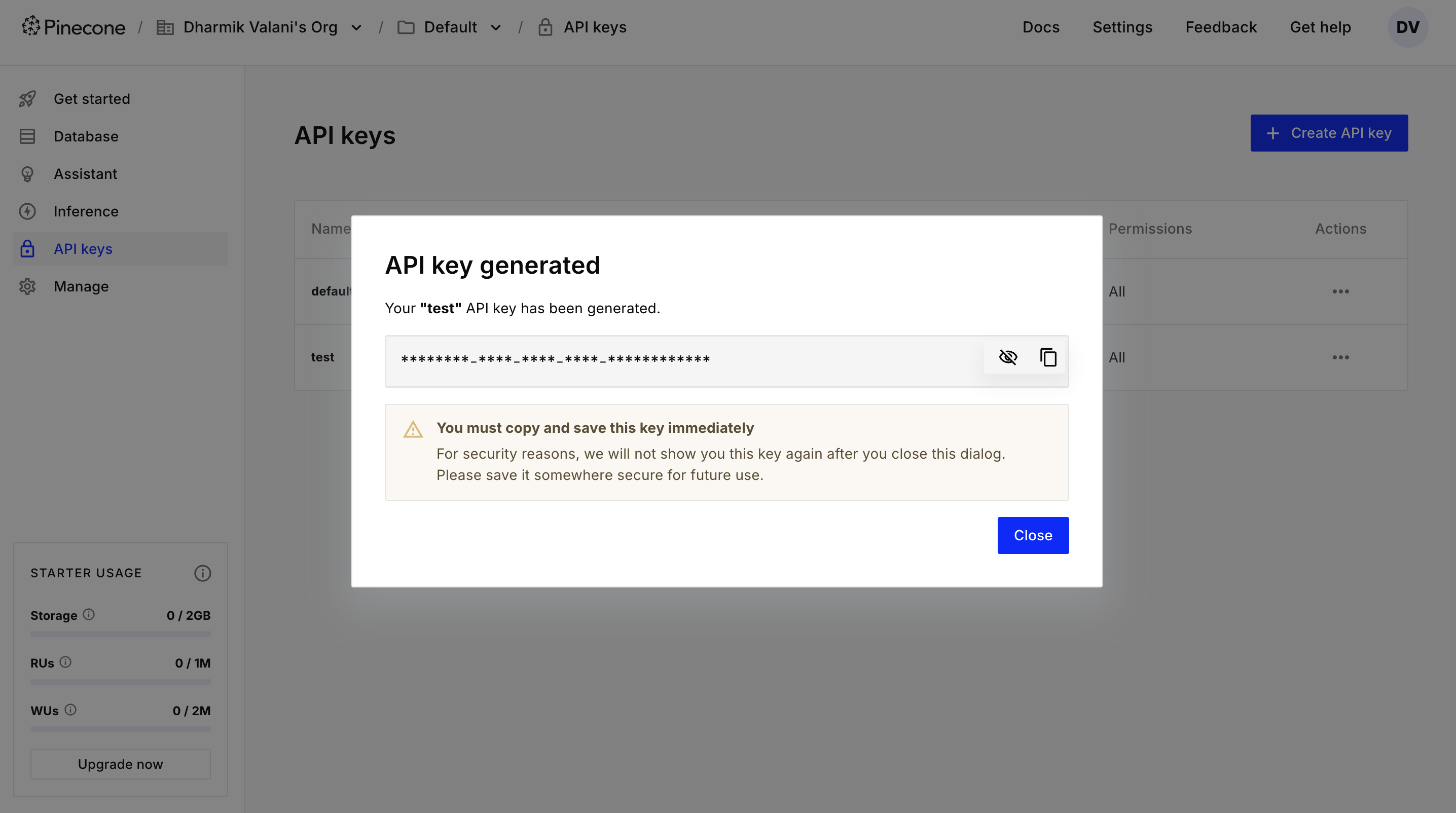
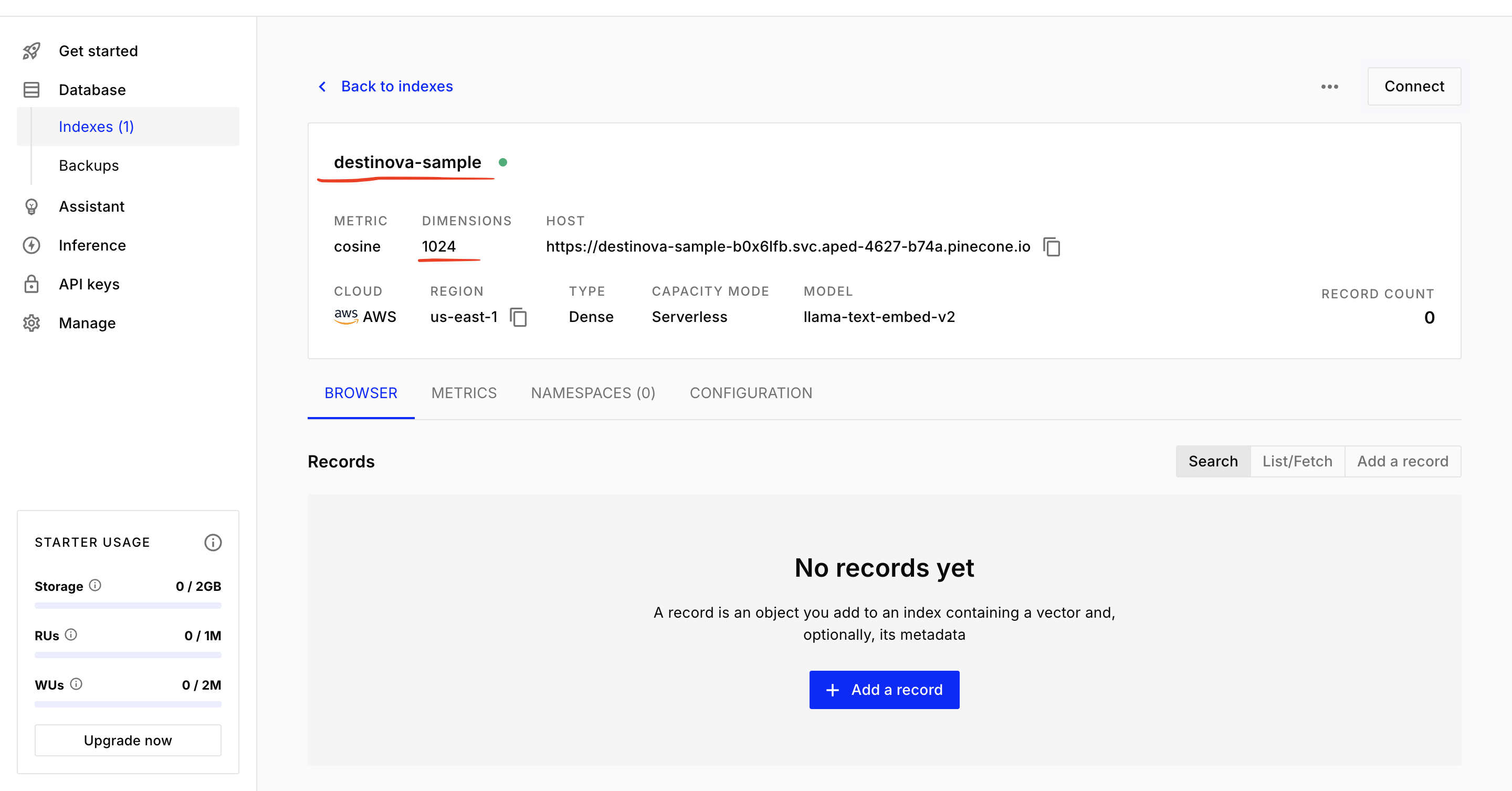
Pinecone Setup Complete:
Once you've completed all setup steps in Pinecone, your dashboard should look like this:
This confirms that your index is working, and your data has been successfully inserted.
This confirms that your index is working