Data Source Section – Complete Guide to Training Your Chatbot

Connect your Knowledge Base to chatbots for accurate and intelligent responses

The Data Source section is where you connect your chatbot with the knowledge it needs to answer customer questions accurately.

Whenever you want to increase your chatbot’s knowledge—such as adding new products, FAQs, PDFs, or URLs—you must link that data to the chatbot using the Data Source tab.

⚠️

Important:

Adding data to the Knowledge Base alone is not enough.

Until the data is added inside Chatbots → Data Source, the chatbot cannot read or use that knowledge.

How Knowledge Base and Data Source Work Together

To understand this clearly, think of it in two steps:

1.Knowledge Base

This is where you add and train your data

You can add:

Products

FAQs

PDFs

URLs

All data is trained here first

2.Data Source (Inside Chatbot Settings)

This is where you assign trained knowledge to a chatbot

You control which data each chatbot can access

In short:

Knowledge Base = Where data is stored and trained

Data Source = Where data is connected to a chatbot

Where to Find the Data Source Section

Where to Find the Data Source Section
1

Log in to your ReComAI dashboard

2

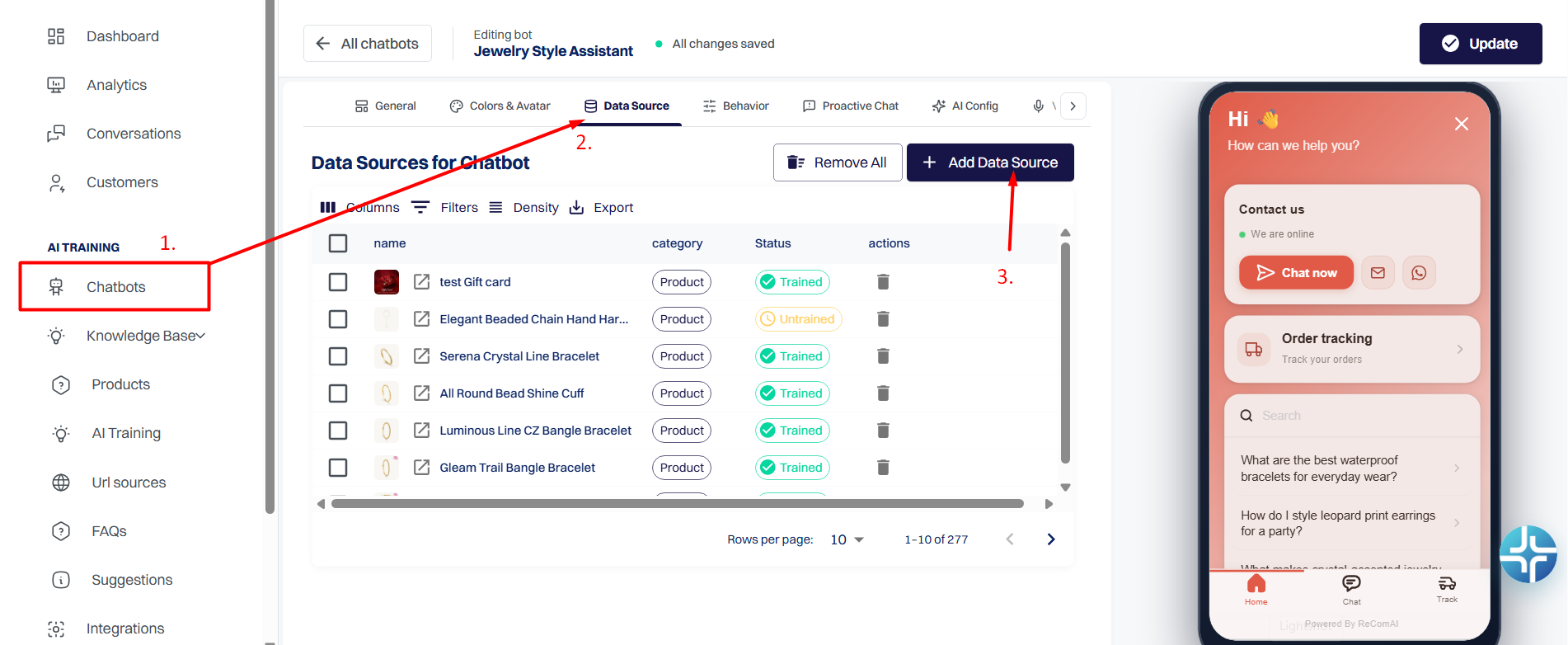
Go to Chatbots from the left sidebar

3

Select the chatbot you want to train

4

Open the Data Source tab

This section defines what knowledge the chatbot can read.

How to Add Knowledge to the Data Source

Follow these steps to correctly train your chatbot:

Step 1: Add Data to the Knowledge Base

Go to the Knowledge Base section

Add your:

Products

FAQs

PDFs

URLs

Make sure the data is successfully trained
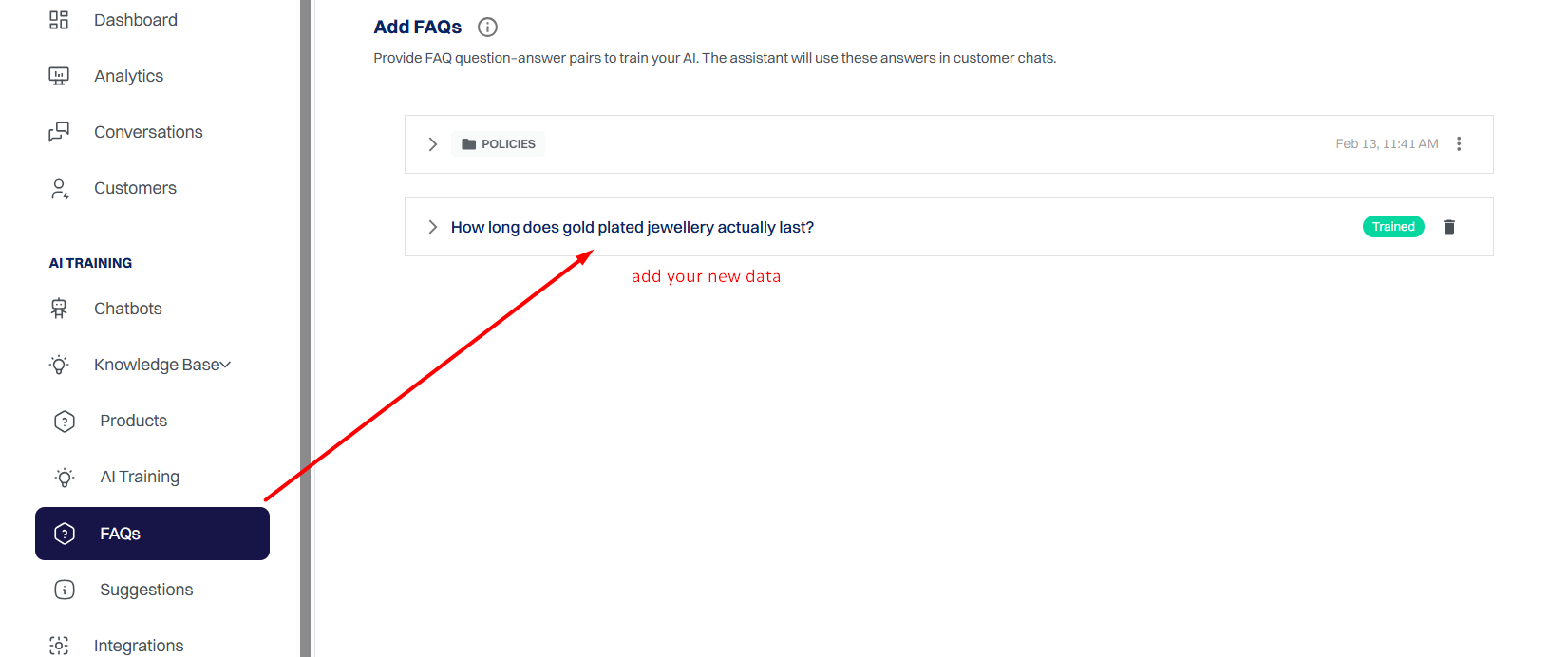
Make sure the data is successfully trained
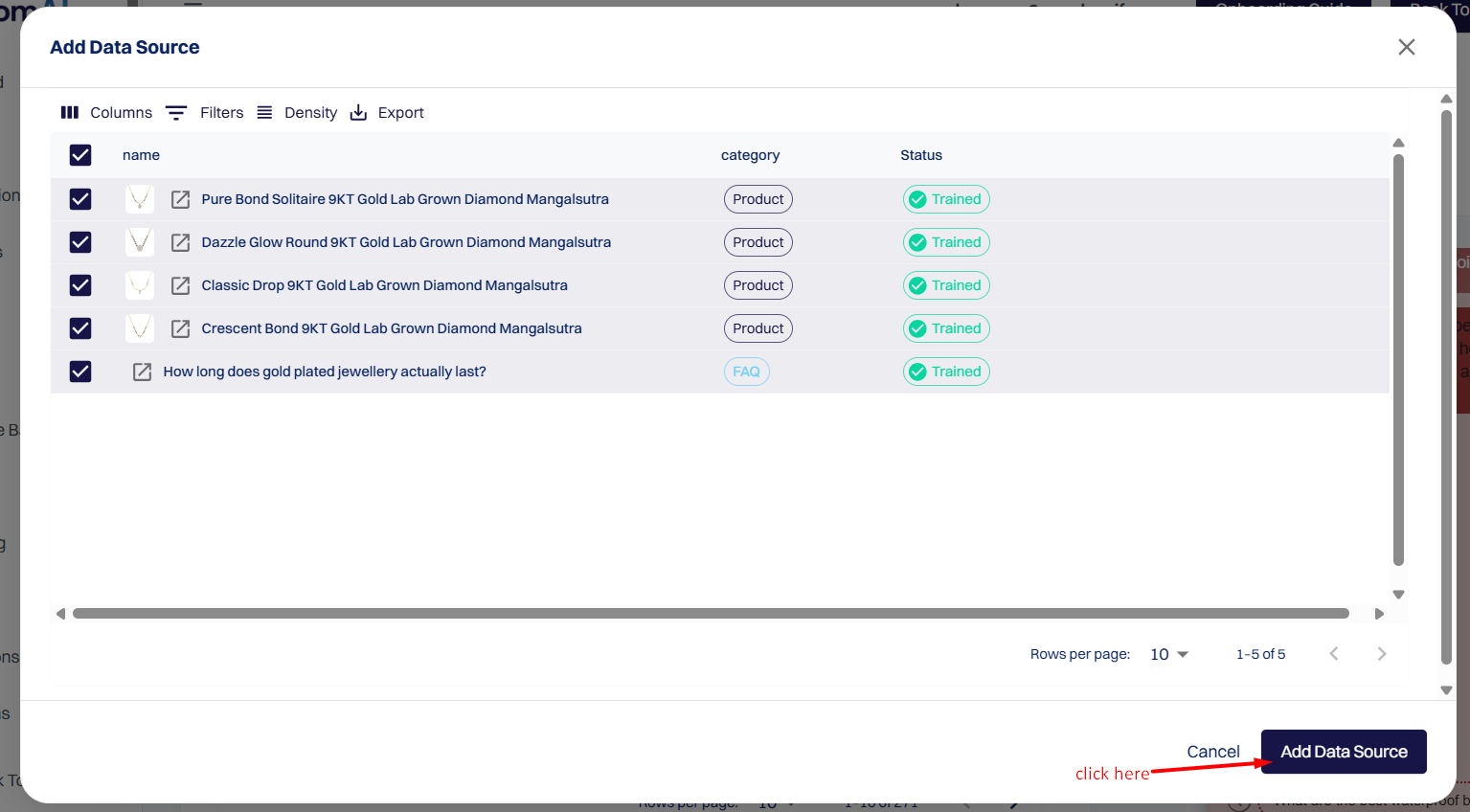
Step 2: Open the Data Source Tab

Navigate to Chatbots → Data Source

Click Add Data Source

Click Add Data Source

Step 3: Select Knowledge Base Items

A popup will appear showing all trained data

This includes everything you added in the Knowledge Base

Step 4: Choose the Data You Want to Use

Select the products, FAQs, or documents you want the chatbot to access

You can assign different data sets to different chatbots

Step 5: Add and Save

Click Add Data Source

The selected items will appear in the Data Source list

Status will show as Trained

Status will show as Trained

Once the data source is added, don’t forget to click “Update” to save the changes and activate them for the chatbot.
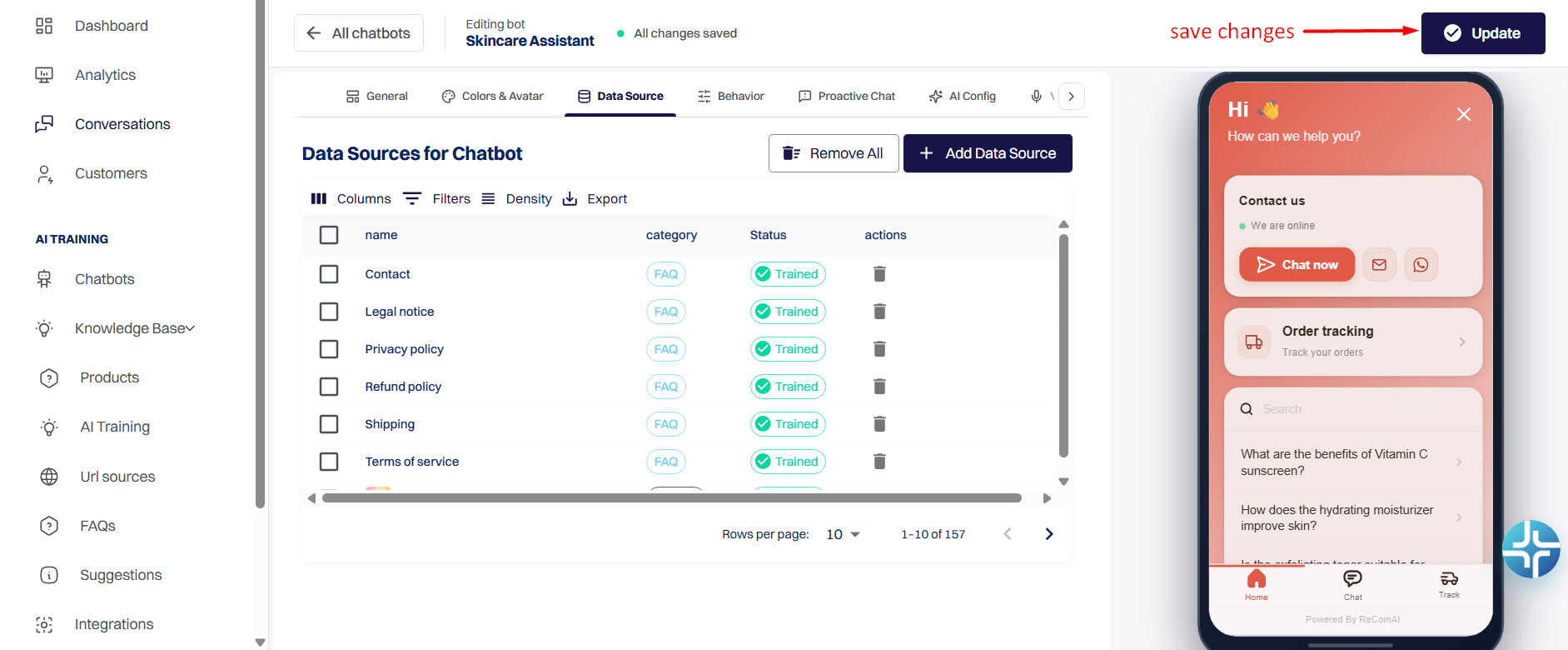
Once the data source is added

What Happens After Adding a Data Source?

The chatbot can read the newly added knowledge

User questions are answered more accurately

Separate knowledge sets can be maintained for different chatbots

Separate knowledge sets...

Important Reminder

If knowledge is not added to the Data Source section:

The chatbot will not read that data

The chatbot will not use it to answer user questions

That’s why both steps are required:

1

Add and train data in the Knowledge Base

2

Assign it to the chatbot using Data Source

Still Need Help?

Our support experts are ready to assist you. Whether it's a technical question or a strategic one, we're here 24/7.

Contact Support