Customize Your Chatbot Colors, Avatar & Layout
Match your chatbot with your website's theme by customizing colors, avatar, position, and size.
You can fully customize your chatbot to match your website's theme and design using the Colors & Avatar settings. This helps create a consistent brand experience and improves user engagement.
This guide explains how to change your chatbot's colors, avatar, position, size, and button style.
Access the Colors & Avatar Settings#
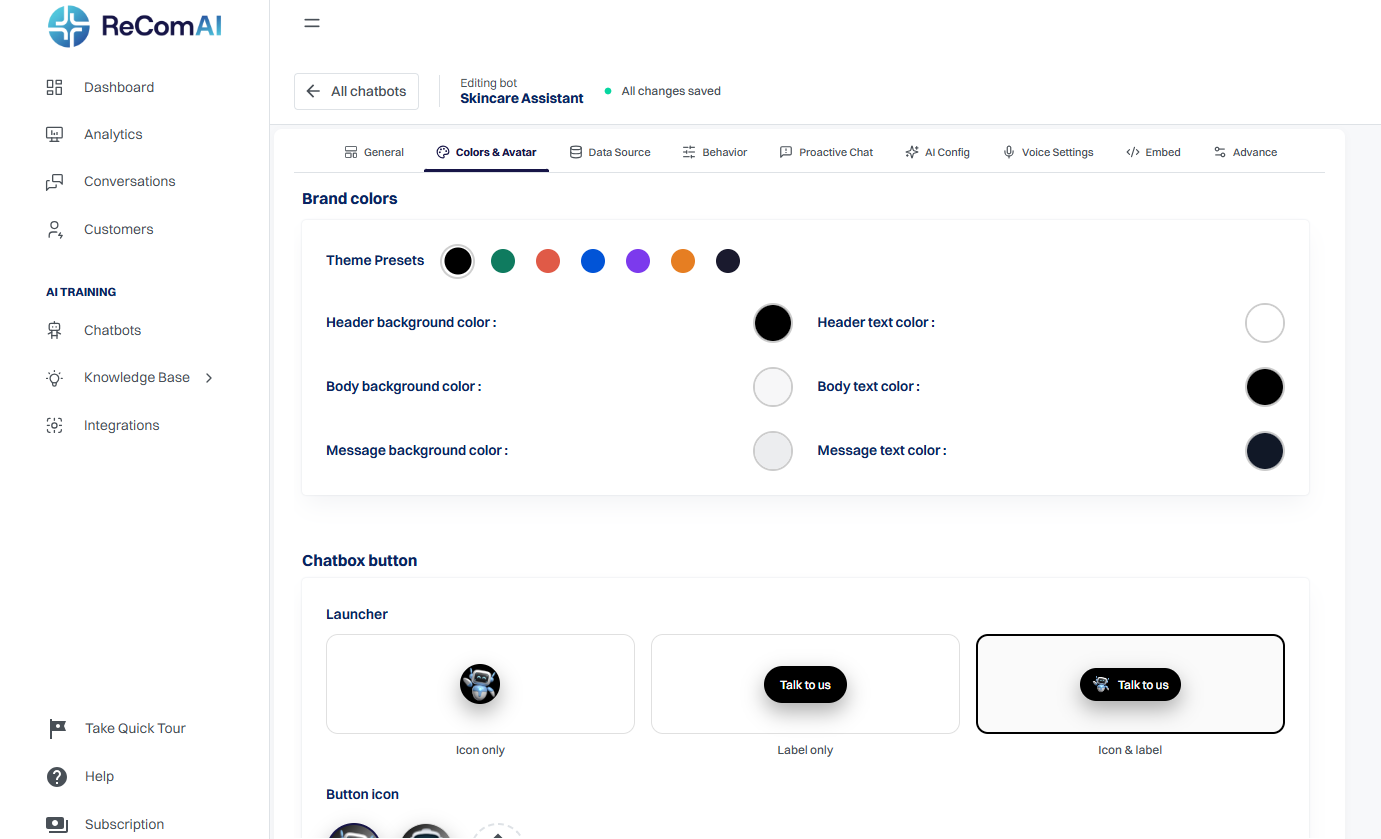
Customize Chatbot Theme Colors#
You can style your chatbot to match your website's theme in two ways:
Option 1: Use Preset Theme Colors
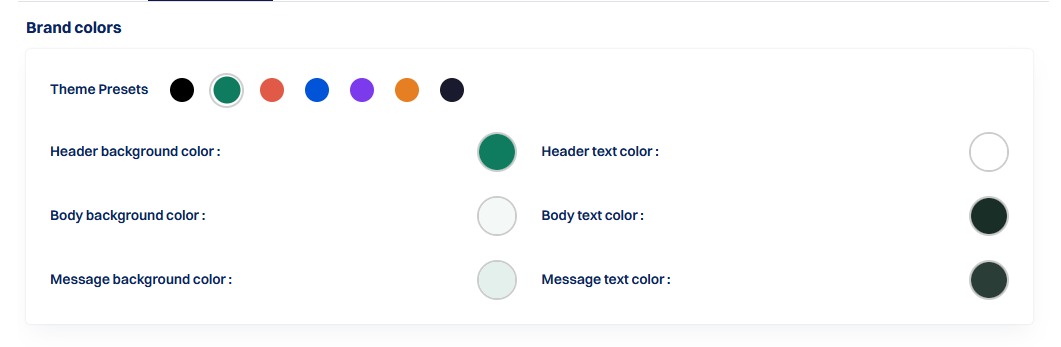
Option 2: Use Custom Color Codes (RGB)
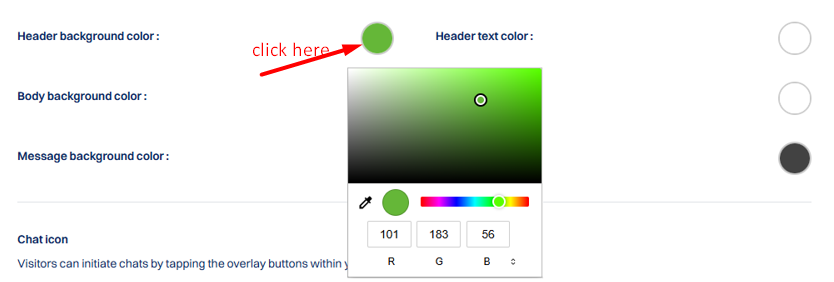
You can customize:
Best Practice: Use your website's primary and secondary colors for a consistent look.
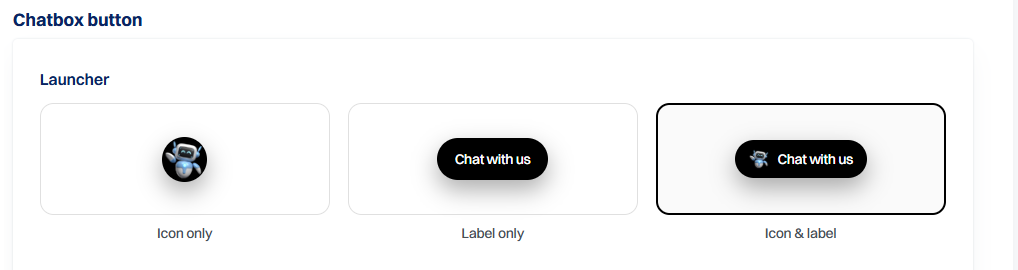
Your chatbot button (launcher) is the entry point for users to start a conversation. In this section, you can customize both the button style and the avatar to match your brand and user experience.
Select how you want the chatbot button to appear on your website:
👉 Choose the option that best fits your website design and usability.
Select or Upload Avatar#
Customize the chatbot icon to align with your brand:
Select from the built-in chatbot avatars available in the dashboard
This helps create a more personalized and branded experience for your users.


Set Chatbot Position#
You can control where the chatbot appears on your website.
Available options:
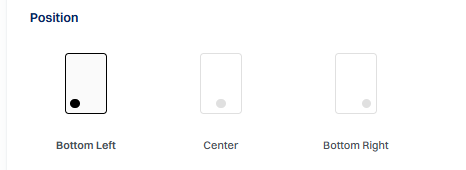
Choose the position that best fits your website layout and user experience.
You can also customize the chat button size.
Available options:
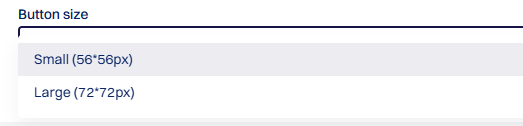
- Small (56 × 56 px)
- Large (72 × 72 px)
Choose a size based on your website layout and visibility preference.
Adjust Chatbot Width & Height#
You can resize the chatbot window to fit your design needs.
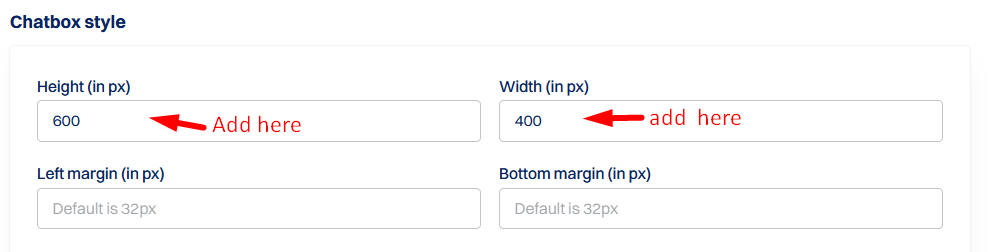
Example:
You can increase or decrease these values as needed.
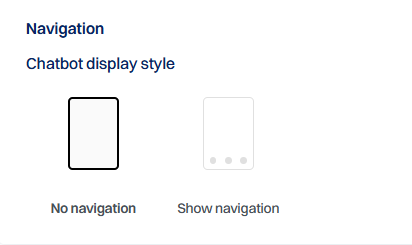
The Navigation setting allows you to control whether the bottom menu (Home, Chat, Track) is visible inside your chatbot.
You can select how the chatbot navigation should behave:
Save Your Changes#
Once you have customized:
Click the Update button to save your changes.
Final Result
✅ Your chatbot will now: