/Chatbot Settings/Customer Data Collection & Support Settings
Chatbot Settings
3 min read
Feb 12, 2026
Verified Guide
Customer Data Collection & Support Settings
Manage contact forms, support access, and chat notifications to deliver a smooth and professional support experience.
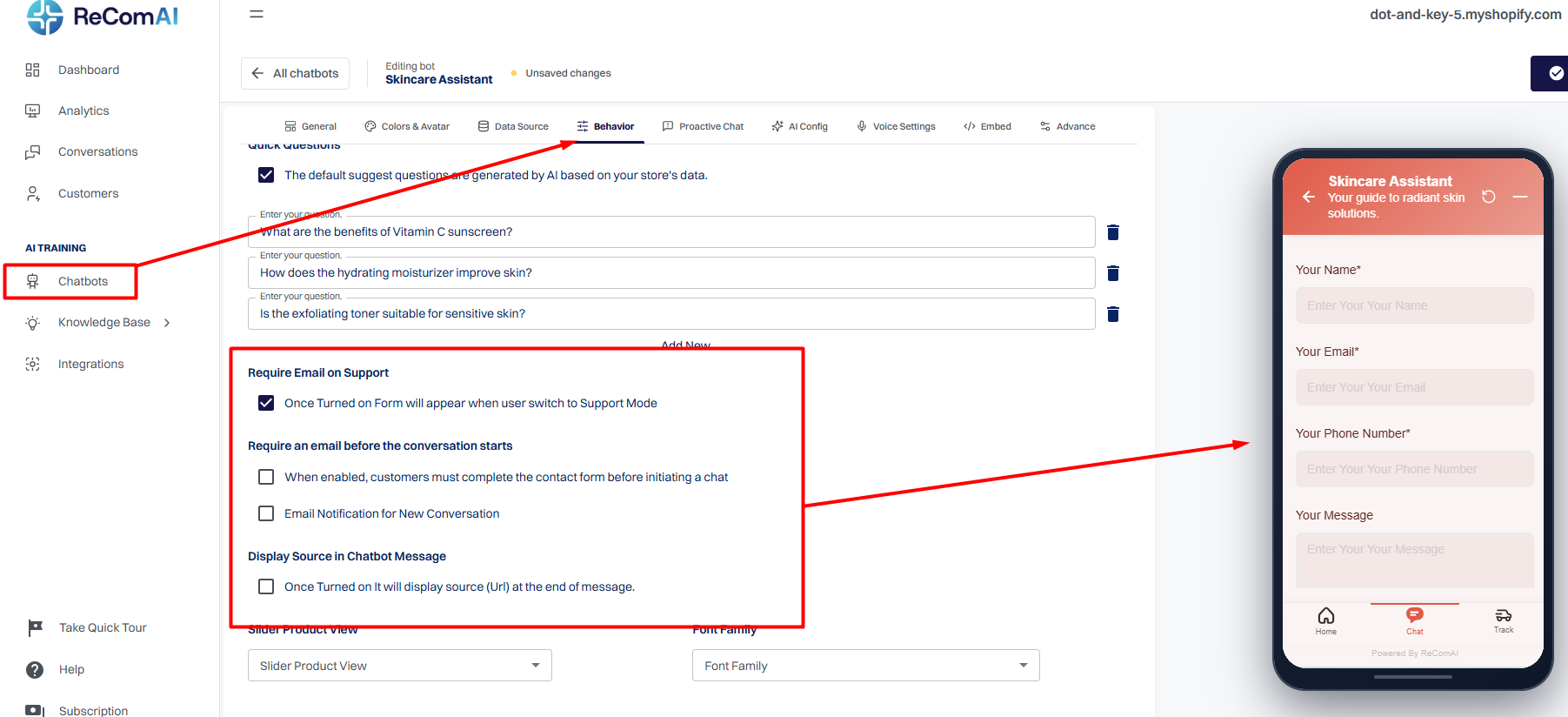
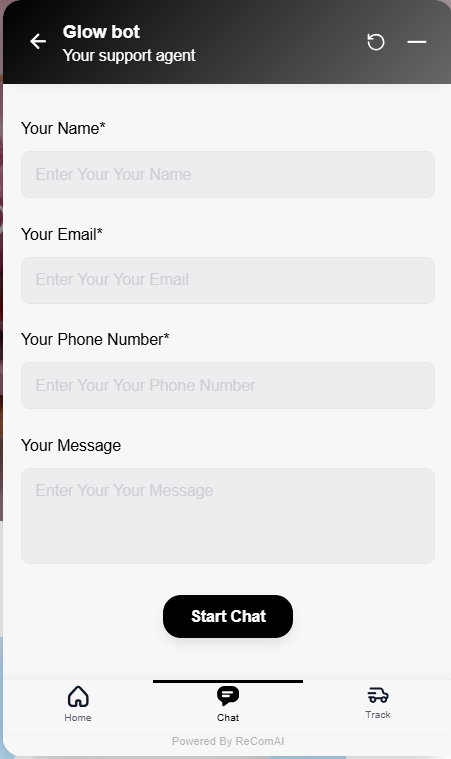
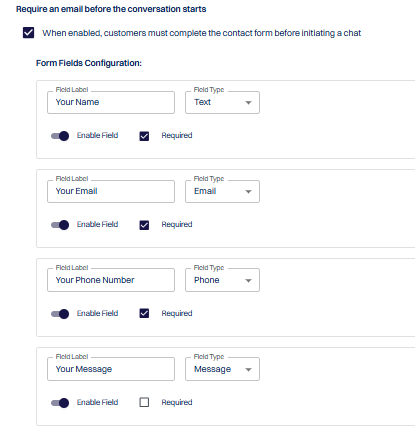
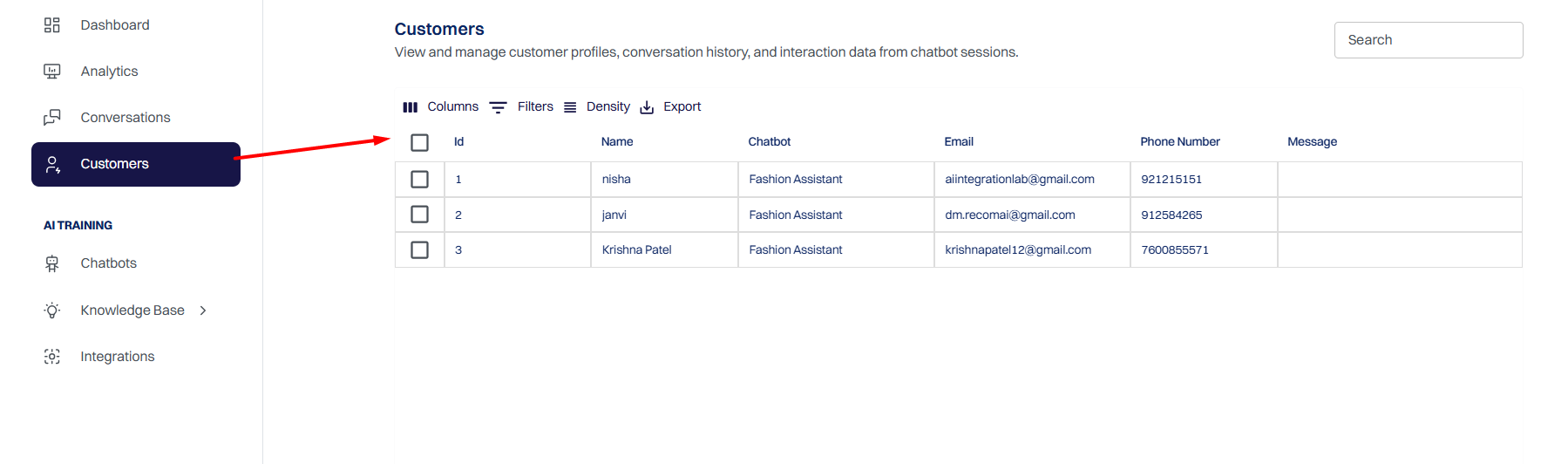
This guide explains key chatbot settings that help you manage customer communication, collect contact details, and build user trust. Each option is designed to improve support efficiency and ensure you never miss an important conversation.
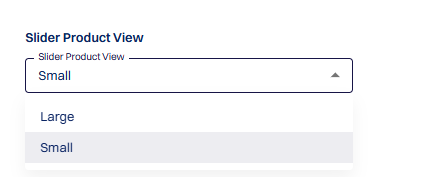
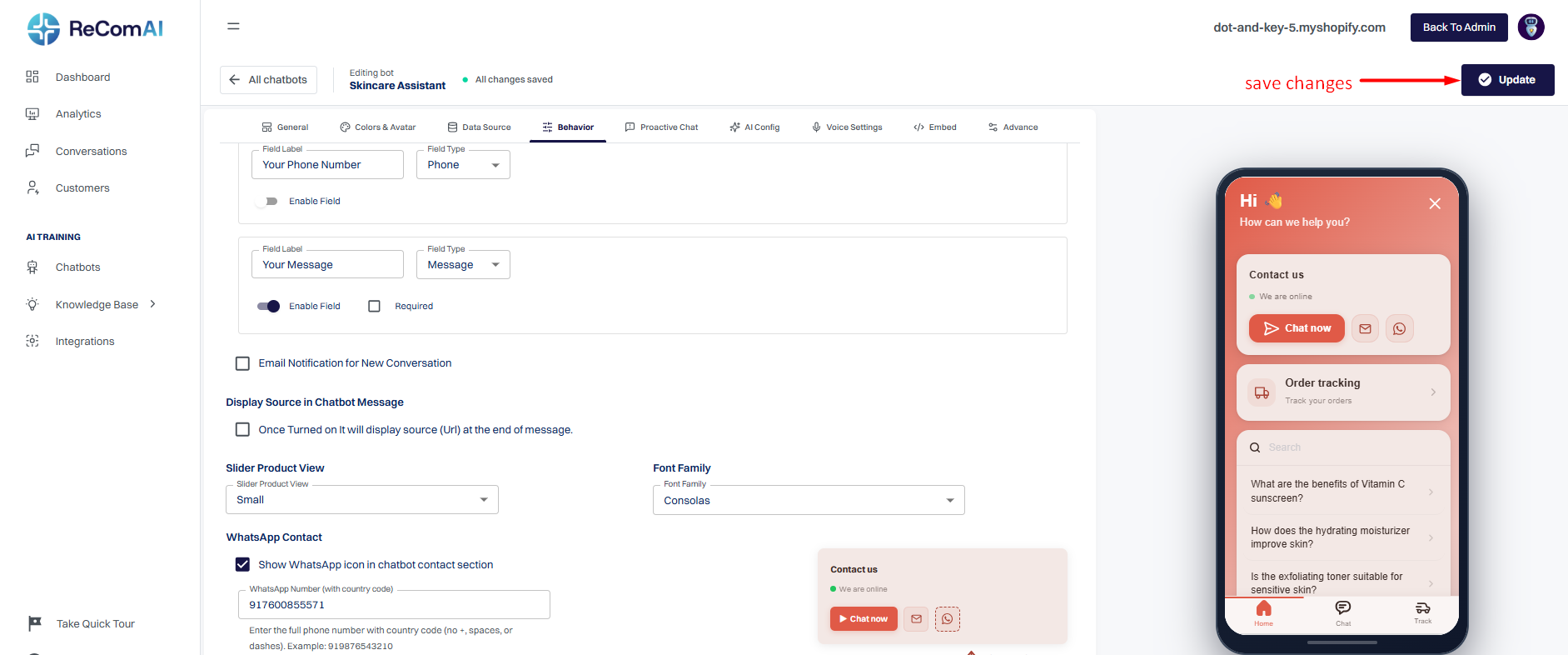
The Slider Product View setting lets you choose how product recommendation cards appear inside the chatbot. You can select either Small or Large card layouts based on your preferred shopping experience.
Screenshot Preview
Small Product View
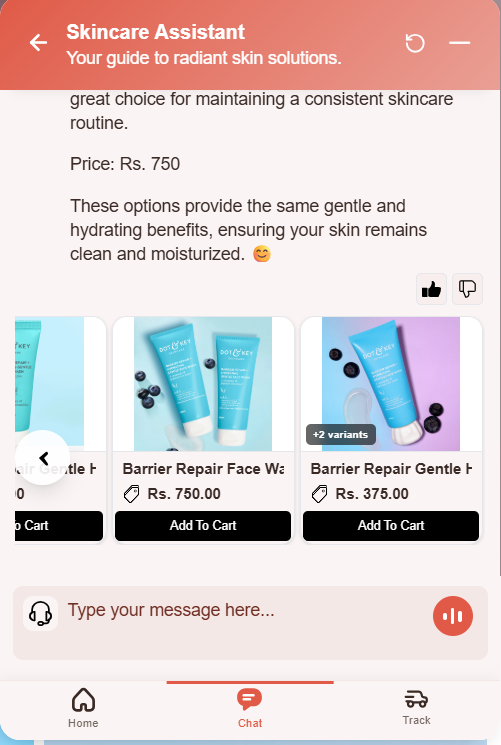
When Small is selected, product cards are displayed in a compact layout, allowing more products to be shown within the available space.
How it works:
roduct cards appear in a smaller, space-efficient design.
If a product has multiple variants, the chatbot displays a "X Variants" badge (for example, 2 Variants or 100 Variants) instead of showing all variant options.
Customers can open the product to view and choose their preferred variant.
Screenshot Preview
Why use it:
Displays more products in a single view.
Keeps the chatbot interface clean and compact.
Ideal for stores with large product catalogs.
Large Product View
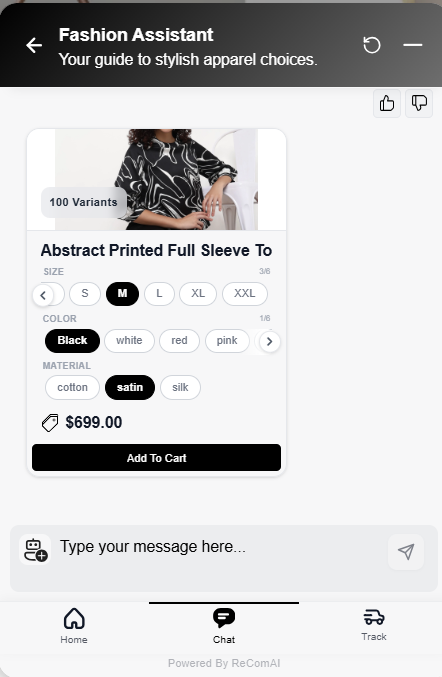
When Large is selected, product cards provide a richer shopping experience by displaying available product variants directly within the chatbot.
How it works:
Product cards appear in a larger layout with more product details.
Available variants such as Size, Color, and Material are displayed directly on the product card.
Customers can select their preferred variant before adding the product to the cart, without opening the product page.
Screenshot Preview
Why use it:
Makes product selection faster and easier.
Reduces the number of clicks before adding products to the cart.
Improves the shopping experience for products with multiple variants.
Helps customers make purchase decisions more quickly.
These settings give you full control over how and when customer details are collected, how you stay informed, and how trustworthy your chatbot appears. Configure them based on your business needs to deliver a smooth, professional support experience.
For best results:
Use Pre‑Conversation Form for lead capture.
Use Require Email on Support for support‑only verification.
Enable Email Notifications to stay updated.
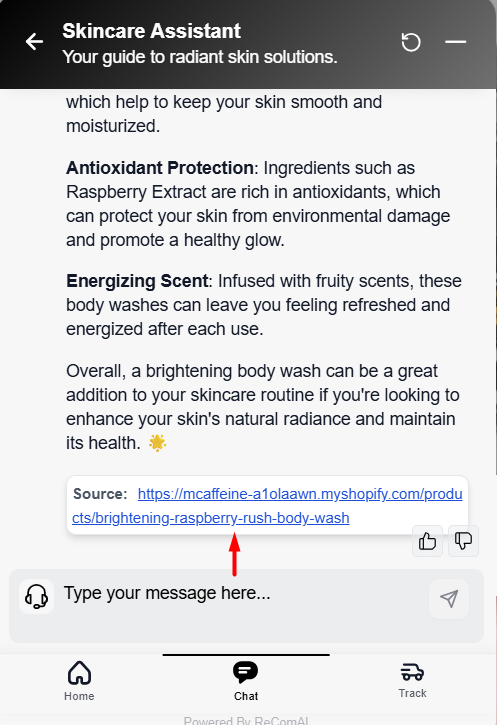
Enable Display Source to increase user confidence.
Still Need Help?
Our support experts are ready to assist you. Connect directly via WhatsApp or email for immediate assistance.