Create Multiple Chatbots for Different Store Data in ReComAI
Organize your store knowledge with focused chatbots (Available in Growth Plan)
If you have different types of information or departments in your store (like support, shipping, returns, or policy details), it's a good idea to create separate chatbots for each one. This helps in organizing your data better and gives customers faster, more accurate answers.
Why Use Multiple Chatbots?#
Using multiple chatbots allows you to:
✅ Separate information like shipping, product support, returns, or policies.
✅ Keep each bot focused on a specific task.
✅ Provide faster and more accurate responses.
✅ Avoid mixing up data and confusing the customer.
Step-by-Step: How to Create Multiple Chatbots#
From your ReComAI dashboard, click on "Chatbots" in the left sidebar.
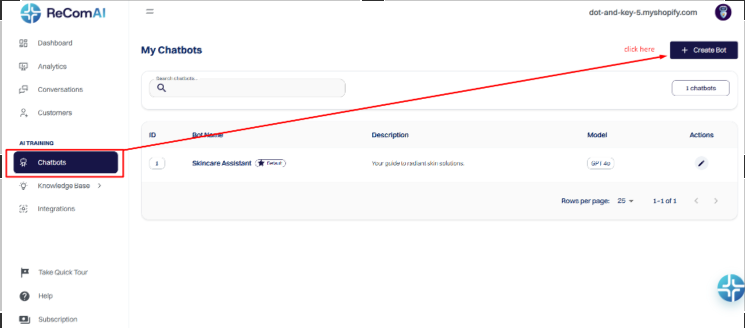
Step 2: Click on "+ Create"
Step 3: Open and Customize Your Chatbot
After creating the chatbot:
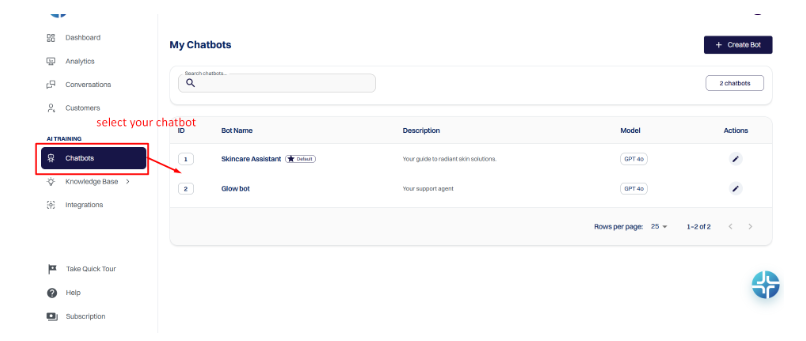
You can update:
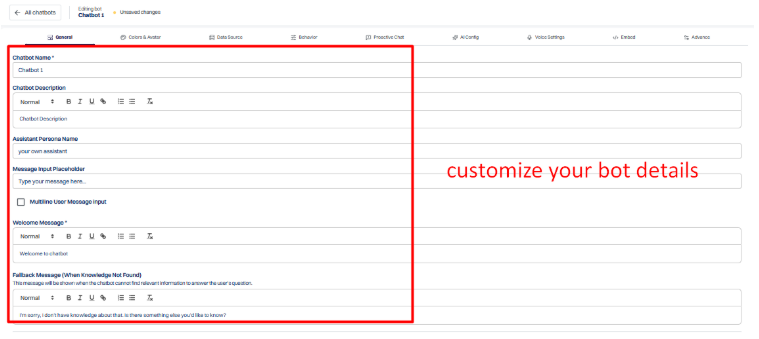
Step 4: Train with Specific Data
Step 5: Save and Use Separately
Each chatbot works separately based on its training.
Show the Selected Chatbot on Your Store (Frontend Setup)#
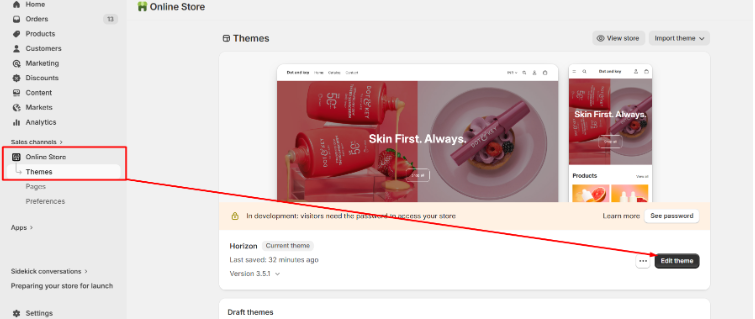
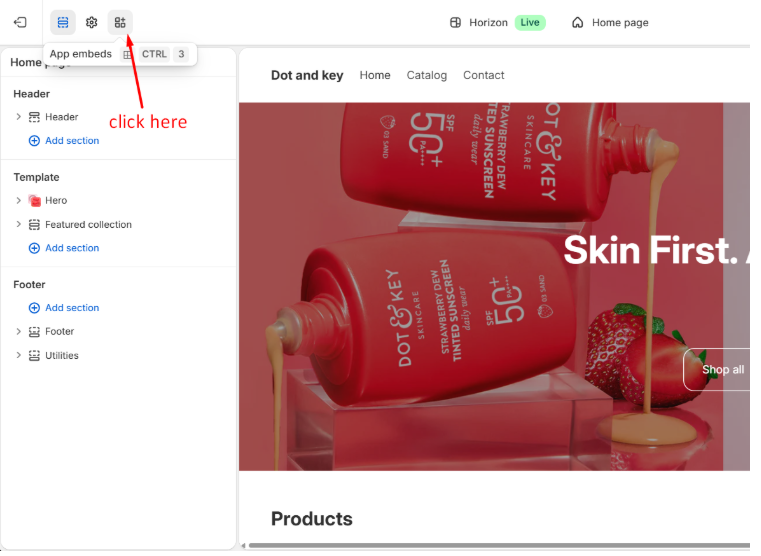
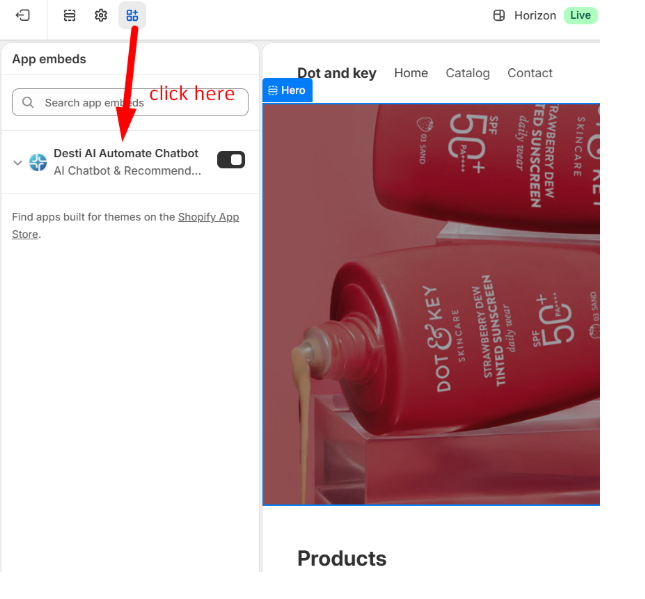
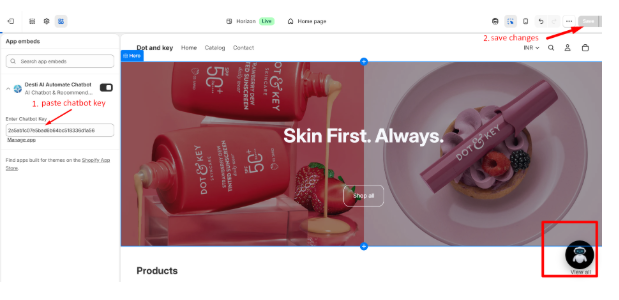
If you want to display a newly created chatbot instead of the default one on your store, follow these steps:
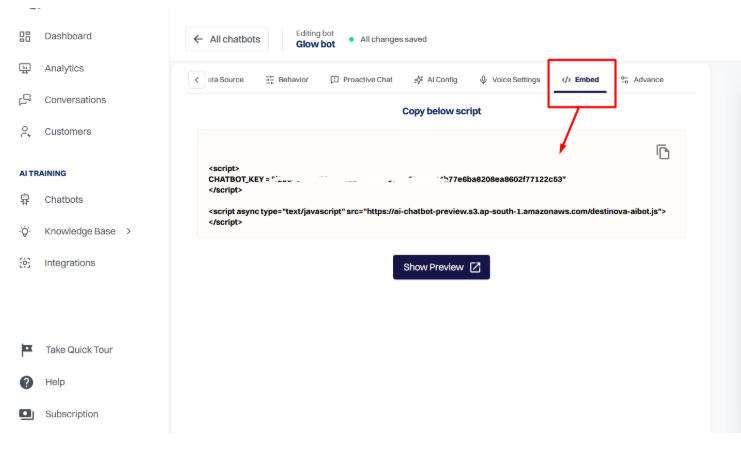
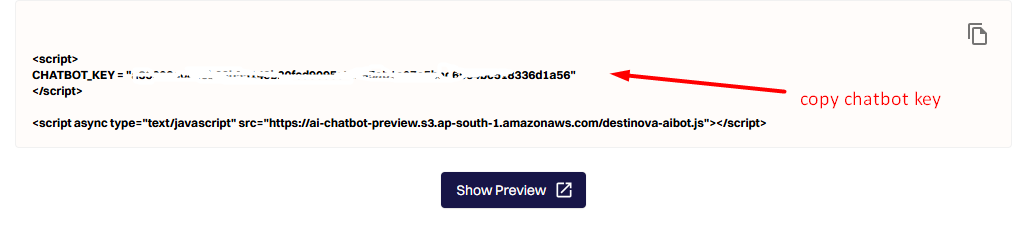
Now, update it in your Shopify store: