AI Voice Agent — Complete Setup Guide
A step-by-step guide to configure and use AI Voice conversations in ReComAI
What is AI Voice Agent?
AI Voice Agent allows your customers to talk with your chatbot using voice instead of typing messages.
Users can click the voice icon and ask questions naturally, similar to a phone call conversation. The AI agent listens to the user and replies back using voice responses.
This feature helps create a faster and more interactive shopping experience for your customers.
What can you do with AI Voice Agent?
Using AI Voice Agent, you can:
Allow customers to speak with your chatbot using voice
Reply to users with AI-generated voice responses
Choose different AI voices
Change the AI voice model
Enable or disable the voice feature anytime
Add custom instructions for voice responses
View complete voice conversations inside the Conversations tab
Plan limits
Voice usage depends on your subscription plan.
| Plan | Voice Usage Limit |
|---|---|
| Free Plan | 10 Minutes |
| Starter Plan | 20 Minutes |
| Growth Plan | 45 Minutes |
Once the limit is reached, the voice session automatically ends.
Where to find it
Navigate to:
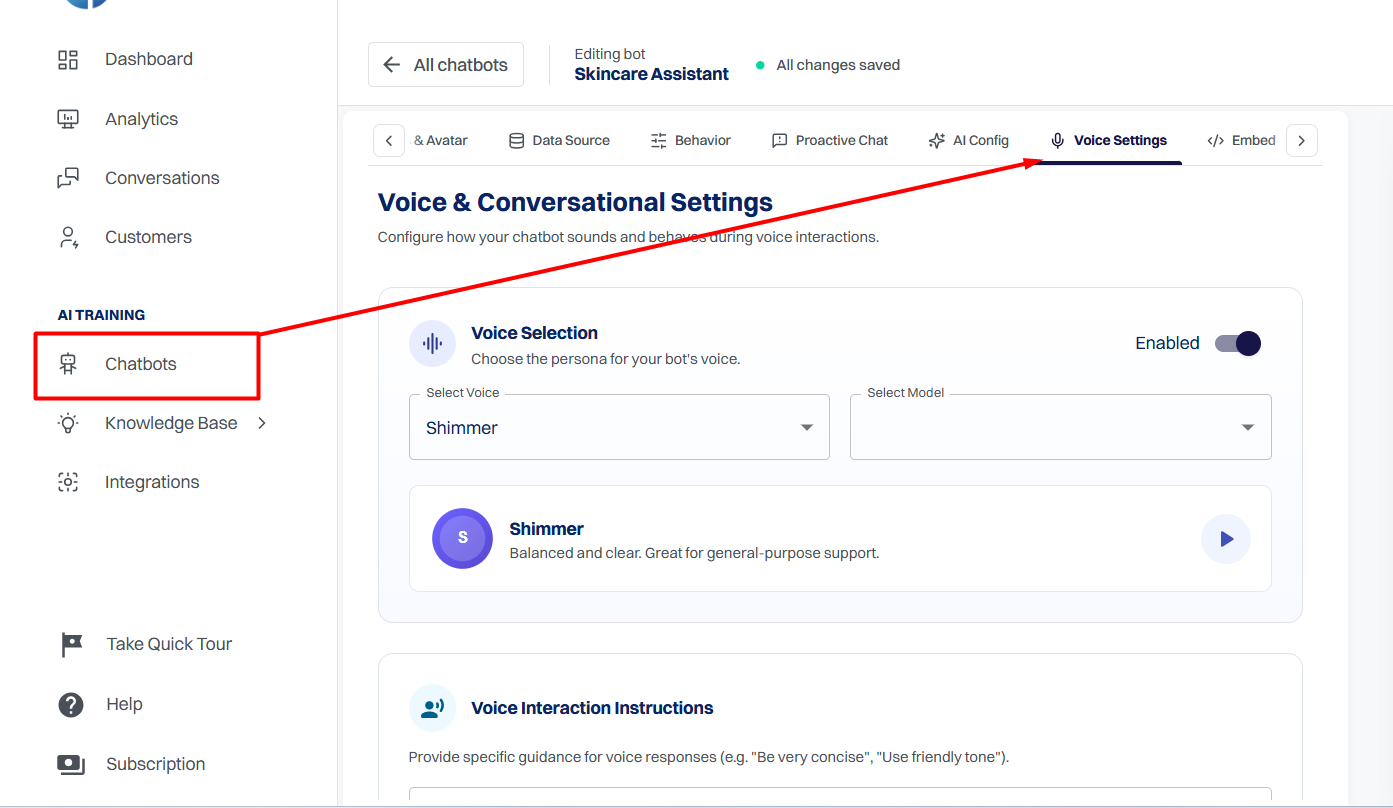
Chatbots → Select your chatbot → Voice Settings
How it works
When the voice feature is enabled:
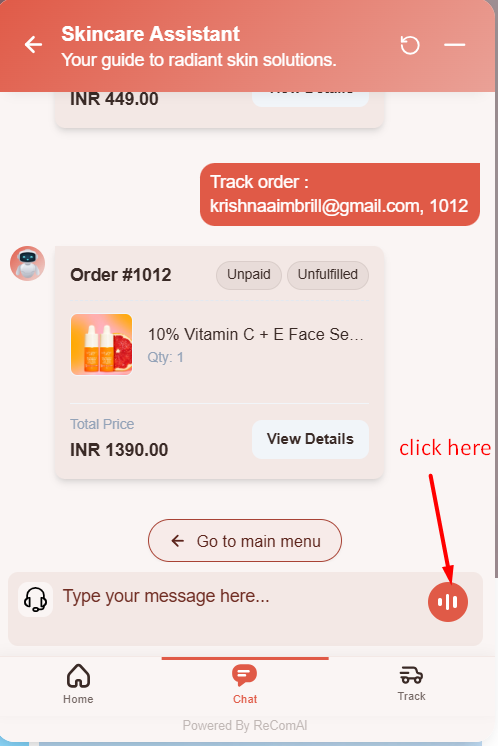
A voice icon appears inside the chatbot chat section
Users can click the voice icon to start speaking
The AI agent listens and responds using voice
Voice conversations are automatically saved as chat messages
This helps store all customer conversations in readable format for future reference.
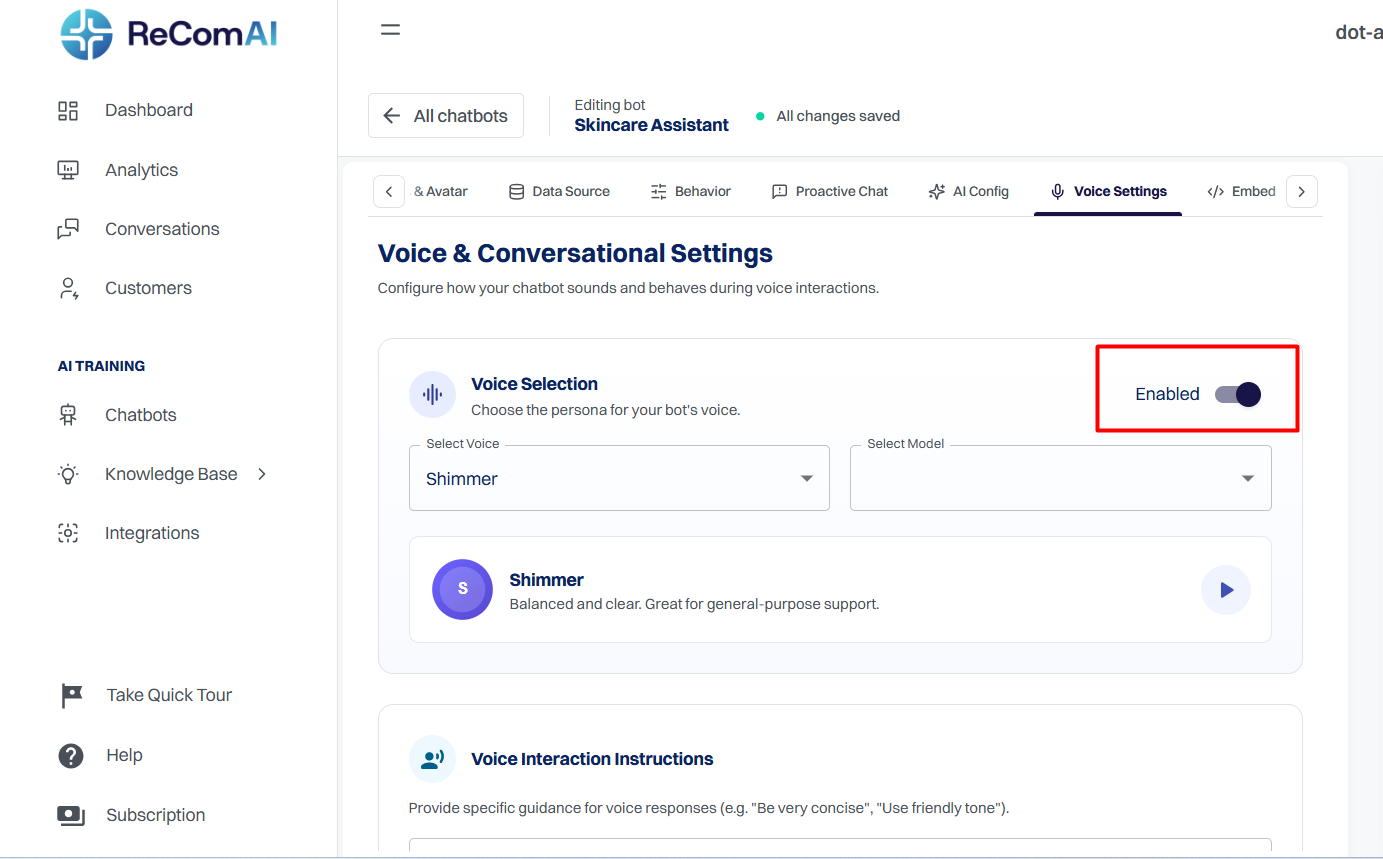
Enable AI Voice Agent
Step 1: Open Voice Settings
Go to the Chatbots section
Select your chatbot
Open the Voice Settings tab

Step 2: Enable Voice Feature
Turn on the Enable Voice toggle
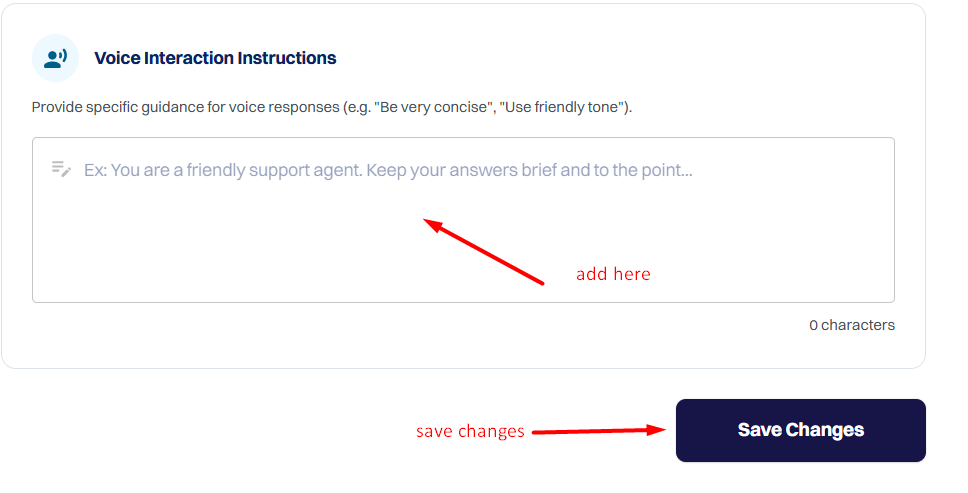
Click Save Changes
Once enabled, the voice feature becomes active on your storefront chatbot.

Configure Voice Settings
Voice Selection
Choose the voice personality for your AI agent.
You can:
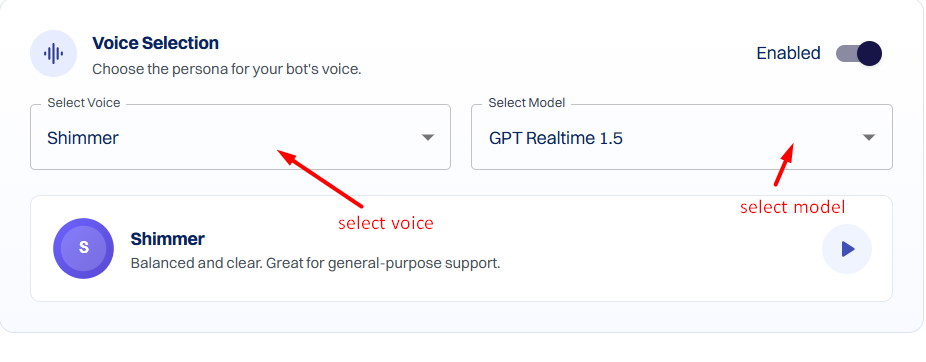
Select different voice styles
Change the AI voice model
Preview voices before saving

Voice Interaction Instructions
You can give custom instructions for how the AI agent should respond.
Example instructions:
“Keep responses short and friendly”
“Speak like a skincare expert”
“Use simple language for customers”
These instructions help control the tone and behavior of the AI voice agent.
Frontend Voice Experience
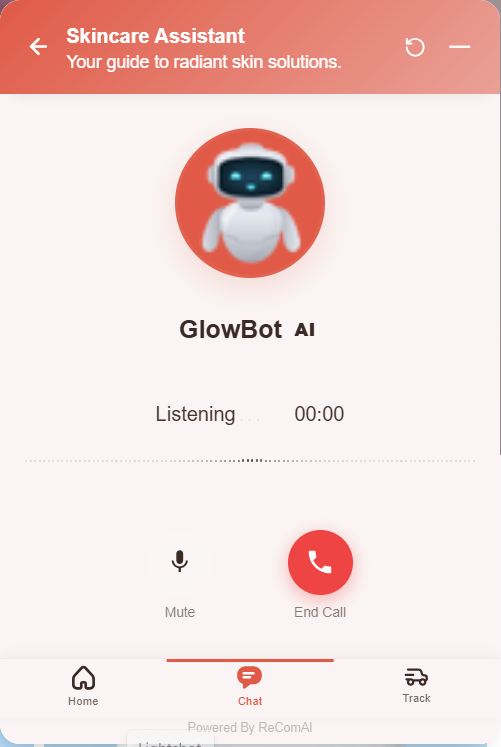
After enabling the feature:
A voice icon appears near the message input box
Users can tap the icon to start talking
The AI agent replies back using voice responses

This creates a real-time conversational experience for your customers.
Voice Conversation History
All voice conversations are saved automatically inside the Conversations section.
You can:
View all voice sessions
Identify conversations using the AI Voice tag
Open sessions and read the complete conversation in chat format
Voice calls are converted into readable messages so you can easily understand:
What the customer asked
How the AI agent replied
Important notes
Voice usage is limited based on your subscription plan
Voice credits are tracked separately from regular chat usage
Once the voice limit is completed, the session automatically ends
Users can enable or disable the feature anytime from Voice Settings
Best practices
For better voice interactions:
Use clear response instructions
Choose a voice that matches your brand tone
Keep replies short and conversational
Test the feature before making it live for customers
Troubleshooting
Voice icon is not visible
Check:
Voice feature is enabled
Changes are saved
Your plan includes voice credits
Voice session ends automatically
This usually happens when the voice usage limit for your plan is reached.
Note: This feature is currently released for testing. If you would like to enable or test the AI Voice Agent feature on your store, please contact us at hello@recomai.one.